Part of our Shopify Store Management guide. Spoke 1 of 10.
Most Shopify stores don't fail all at once. They fail a little at a time.
A discount code stops applying and nobody notices for a week. An app you stopped using months ago still loads code on every page. A staff account for a contractor who left last year still has full admin access. Your theme is three versions behind because nobody's sure what the update will break.
None of these problems sets off an alarm. That's exactly why they're dangerous. Shopify looks after its servers, security patches, and platform updates, but everything built on top of that, from your theme and apps to your custom code and page speed, is your responsibility Capaxe Labs.
This checklist gives you a structure for handling that responsibility without it taking over your week. It's organized into four tiers: weekly, monthly, quarterly, and twice a year. For a mid-sized store, the whole routine takes roughly three hours a week on average. Each task includes why it matters, what to check, and what to do when something's off.
Key Takeaways
- A four-tier routine (weekly, monthly, quarterly, twice-yearly) covers almost everything a Shopify store needs, in about 146 hours a year.
- Weekly checkout testing matters: average cart abandonment sits at 70.19%, and site errors are one of the fixable causes.
- Shopify releases a new API version every quarter, and each is supported for at least 12 months, so integration checks belong in your quarterly review.
- Every task needs one clear owner and a written log. A checklist nobody owns is just a wish list.
Why Does a Shopify Store Need a Maintenance Checklist?
A Shopify store needs a maintenance checklist because most store problems are silent. Failed integrations, broken discount codes, slow apps, and outdated permissions rarely produce errors that owners see. A checklist turns those invisible risks into scheduled checks, so issues get caught by you instead of by customers.
It's tempting to think a hosted platform doesn't need maintenance. Shopify keeps the lights on, after all. But there's a big difference between the platform running and your store working properly.
Consider checkout. Across the studies Baymard Institute tracks, the average cart abandonment rate sits at 70.19% Baymard Institute. Some of that is unavoidable, since plenty of shoppers are just browsing. But Baymard's research lists site errors and crashes among the reasons shoppers give up, alongside cost surprises and forced account creation Solidgate. Those are exactly the problems a weekly checkout test catches.
The upside is large, too. Baymard estimates the average large ecommerce site could improve its conversion rate by 35% through checkout design fixes alone Baymard Institute. You won't get there through maintenance alone, but you certainly won't get there if your checkout is quietly broken on mobile.
There's also the question of backups. Many merchants assume Shopify can roll their store back if something goes wrong. It can't. Shopify's disaster recovery backup exists to restore the whole platform, not an individual store's data Rewind. If an app overwrites your product descriptions or someone bulk-deletes the wrong collection, recovery depends entirely on the backup process you've set up yourself.
A checklist won't prevent every problem. What it does is shrink the time between something breaking and someone noticing. For most stores, that gap is where the real cost lives.
How Should You Structure Your Shopify Maintenance Routine?
The most effective structure is four tiers based on how quickly each risk develops. Fast-moving risks like checkout errors get weekly checks. Slower risks like app sprawl get monthly audits. Access and code risks get quarterly reviews. Strategic questions get a deeper review twice a year, timed around Shopify's Editions releases.
This structure matters because not every task deserves the same frequency. Checking staff permissions every week wastes time. Testing checkout once a quarter leaves you exposed for months. Matching frequency to risk keeps the workload manageable.
Here's roughly what each tier costs in time for a mid-sized store:
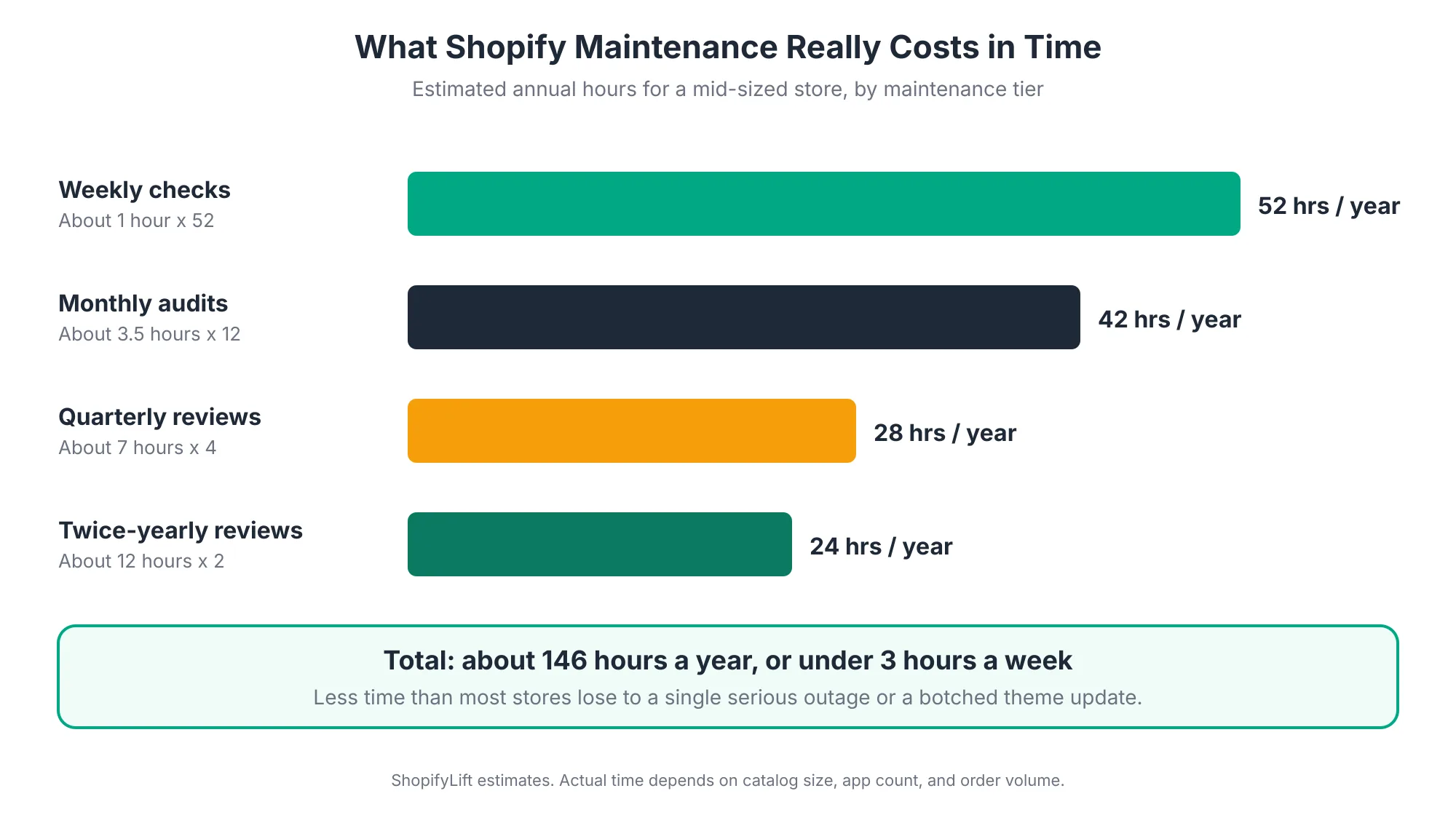
That adds up to about 146 hours a year, or a little under three hours a week. Your numbers will vary. A store with 50 products and three apps needs less. A store with 5,000 SKUs, multiple warehouses, and twenty apps needs more. But the proportions tend to hold.
Is three hours a week a lot? Compare it with the alternative. A single broken checkout during a promotion, a lost product catalog with no backup, or a theme update that wipes out custom code can easily cost more than a year of routine maintenance.
Before you start, set up three things:
- An owner for every task: One named person per task, even if you're a team of one. We cover ownership in detail later in this guide.
- A maintenance log: A simple shared sheet where each check gets recorded with the date, result, and any follow-up.
- A recurring calendar block: Put each tier on the calendar. Weekly checks on Monday morning work well for most stores, since weekend issues surface right away.
Now let's go through each tier.
The Weekly Shopify Maintenance Checklist
Weekly checks focus on anything that directly affects orders and revenue this week. They're quick, usually under an hour, and they catch the problems that cost the most when left alone. Run them at the same time every week so they become routine rather than something you remember when sales dip.
Review Failed Orders and Fulfillment Exceptions
Start in your orders list. Filter for orders that are unfulfilled past your normal shipping window, orders with payment issues, and anything flagged for fraud review.
What you're looking for is patterns. One delayed order is normal. Five orders stuck because a fulfillment app lost its connection to your warehouse is a system problem. Check your fulfillment and shipping app dashboards too, since sync errors often show up there before they show up in Shopify.
If you sell across multiple locations or channels, check that inventory is syncing correctly. Overselling a popular product creates cancellations, refunds, and unhappy customers all at once. Our guide to Shopify inventory and order management goes deeper on multi-location setups.
Test Checkout From Start to Finish
This is the single most valuable weekly task. Walk through your store exactly like a customer would, on a real phone, and complete a purchase.
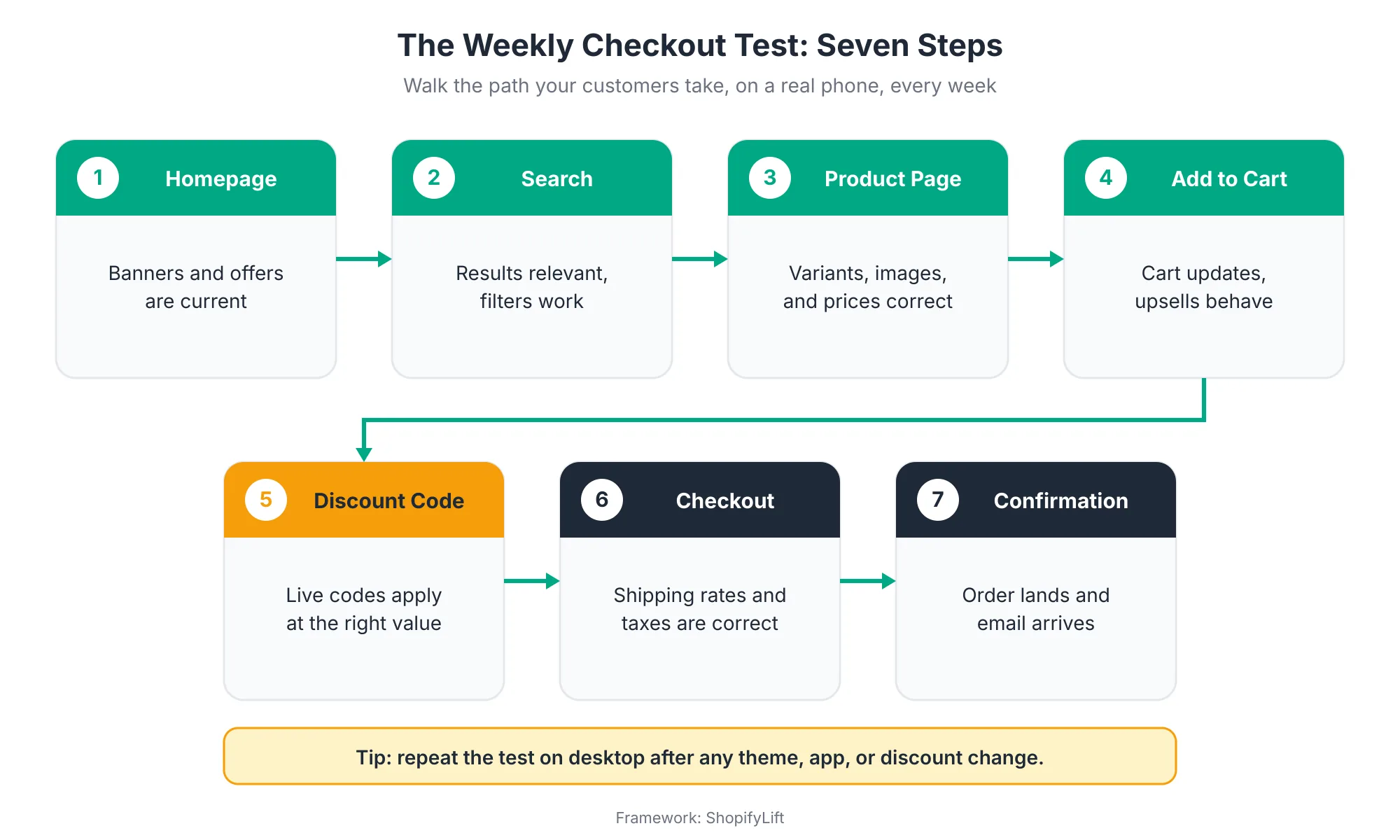
At each step, check the basics. Do banners and offers match what's actually running? Does search return relevant results? Are variant prices right? Does the cart update properly? Do shipping rates and taxes calculate correctly for your main markets? And does the confirmation email actually arrive?
You can place a low-value real order and refund it, or use a dedicated test product that's hidden from collections. Either way, go all the way through payment. Plenty of checkout problems only appear at the last step.
Why a real phone? Because most of your customers are on one, and mobile-only bugs are common. A sticky header covering the checkout button or a pop-up that won't close on small screens can quietly block orders for weeks.
Check Every Live Discount and Promotion
Discount codes break more often than most merchants expect. Codes expire early, apply to the wrong collections, stack in ways you didn't intend, or fail when combined with automatic discounts.
Each week, list every active promotion and test the codes that matter most. Pay special attention to anything running in paid ads or email campaigns, since broken codes there waste acquisition spend and frustrate your most motivated shoppers.
If your store used Shopify Scripts for custom discount logic, confirm that its replacement works as expected. Legacy Scripts stopped running on June 30, 2026 Shopappy, so any logic that wasn't migrated has already stopped working. For checkout-level customizations, see our Growth Guide article on the Shopify Checkout Extensibility migration.
Scan for Broken Links and 404 Errors
Broken links pile up fast in active stores. Products get archived, collections get renamed, blog posts get deleted, and every one of those can leave dead links behind in menus, banners, and old content.
Check your 404 report weekly. Google Search Console shows crawl errors, and several Shopify apps log 404 hits directly. When you find a broken URL that still gets traffic, set up a redirect in Shopify's URL redirects settings rather than just fixing the link.
This matters for SEO as well as customer experience. Left alone, broken links and missing redirects can erode rankings over time. For ongoing help, see our Shopify SEO services.
Review App and Integration Alerts
Most apps send alerts when something goes wrong, but those alerts often land in an inbox nobody checks. Spend a few minutes reviewing notifications from your key apps: payments, shipping, inventory, email marketing, reviews, and subscriptions.
Look for failed syncs, expired connections, billing warnings, and any "action required" messages. An expired API connection between Shopify and your email platform, for example, can silently stop abandoned cart emails from sending.
Spot-Check the Storefront on Mobile
Finish with a quick visual check of your most important pages on mobile: homepage, top collections, top products, and cart. You're not running a full audit. You're just confirming nothing looks broken, overlapping, or out of date.
This takes five minutes and catches a surprising number of problems, especially after anyone has edited the theme or installed a new app.
The Monthly Shopify Maintenance Checklist
Monthly audits cover risks that build gradually: app sprawl, speed drift, stale merchandising, and untested backups. None of these will break your store this week, but left alone for a few months, each one quietly reduces conversions or raises your exposure. Block out about half a day each month for this tier.
Audit Your Apps and Billing
Apps are the biggest single source of maintenance problems on Shopify. One 2026 estimate puts the App Store at more than 17,600 apps, with merchants installing six on average and some using as many as thirty App Store Research. Each one adds cost, code, and potential conflicts.
App bloat is widely cited as the top cause of slow Shopify stores, and code from uninstalled apps can keep loading after the app is gone Capaxe Labs. That's why a monthly audit needs to look at what's actually loading on your pages, not just what's listed in your admin.
Run every app through four questions:
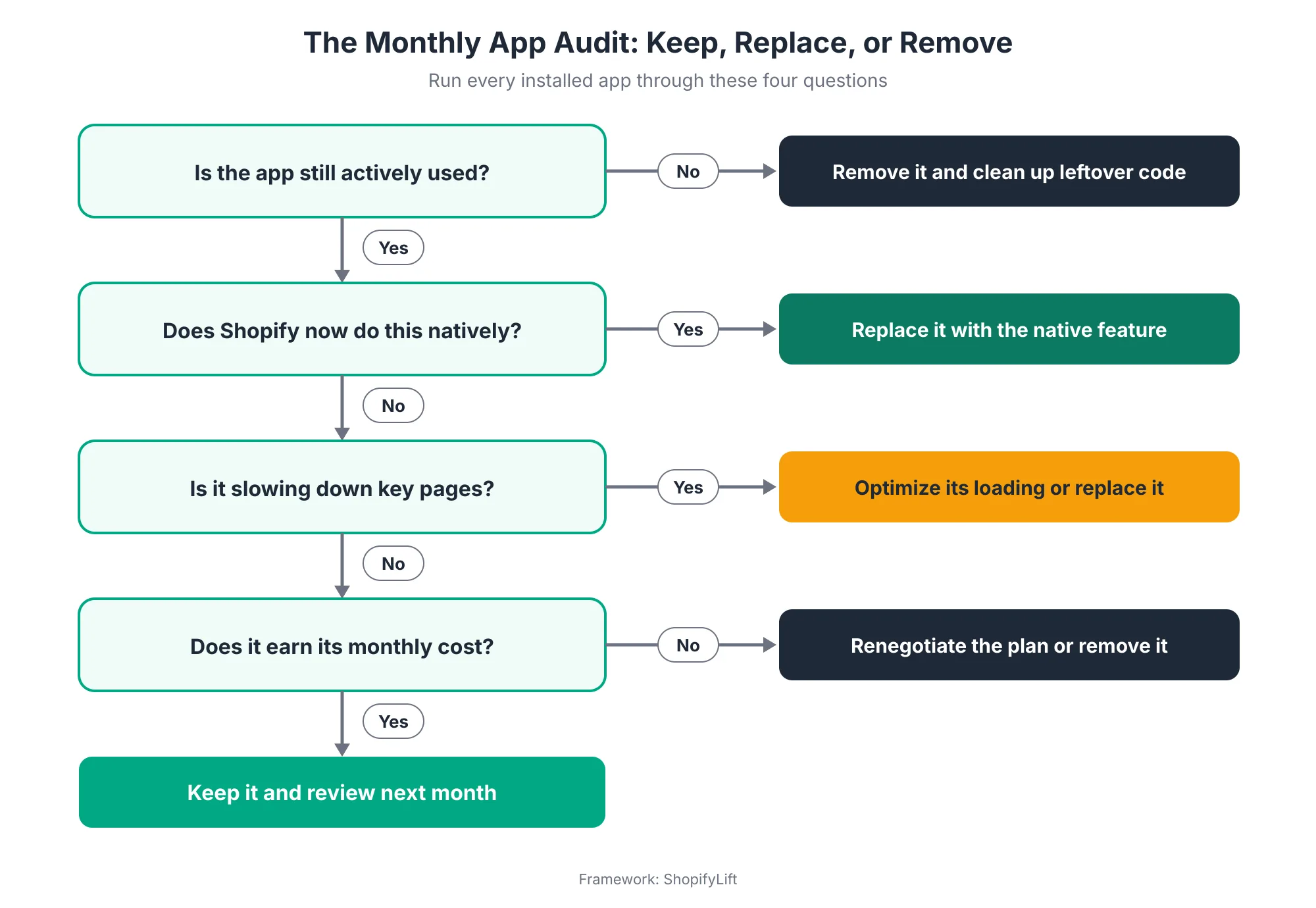
Check your billing at the same time. Usage-based pricing can creep up without anyone noticing, and apps you stopped using may still be charging you. Our full walkthrough is in The Shopify App Audit: How to Reduce App Bloat, Hidden Costs, and Conflicts.
Review Page Speed and Core Web Vitals
Speed is also an area where most sites have work to do. The HTTP Archive's 2025 Web Almanac found that only 48% of mobile sites pass all three of Google's Core Web Vitals HTTP Archive. Small slowdowns add up, and on a store that changes every week, they add up quickly.
Each month, check your speed trend rather than a single score. Shopify's built-in web performance report shows real-user data over time, and Google Search Console reports Core Web Vitals by page group. You're looking for direction. Is the store getting faster, slower, or holding steady?
If speed has slipped, look at what changed. New apps, new marketing scripts, larger images, and new theme sections are the usual suspects. For deeper performance work, see our Growth Guide article on Core Web Vitals and site speed for Shopify.
Refresh Collections and Merchandising
Merchandising goes stale quietly. Seasonal collections stay live too long, sold-out products sit at the top of collection pages, and featured products stop reflecting what you actually want to sell.
Once a month, review your top collections. Check sort orders, hide or move sold-out items, update featured products, and make sure homepage content matches current campaigns. Look at your on-site search terms too. Searches that return no results tell you exactly what customers want and can't find.
After any major merchandising change, recheck your collection filters. It's common for search and filtering to misbehave after collections are restructured Grumspot. For the full approach, read Shopify Merchandising Strategy: Collections, Search, and Filters That Drive Sales.
Verify Your Backups Can Actually Be Restored
Having backups isn't the same as being able to recover. Each month, confirm that your backup tool ran successfully and test a small restore. Restoring a single product or page to a duplicate theme is enough to prove the process works.
If you're relying on manual CSV exports, check that they're current and complete. CSV exports don't capture everything, so know exactly what your backups cover and what they don't. We cover backup options in Shopify Store Security: Staff Permissions, Data Backups, and Fraud Prevention.
Check SEO Health and Indexing
Spend twenty minutes in Google Search Console. Check for new indexing errors, pages that dropped out of the index, and big changes in impressions or clicks for your key pages.
Shopify handles a lot of technical SEO for you, but theme changes, app installs, and content edits can still break things. Common issues include duplicate pages from filtered URLs, missing meta descriptions on new products, and structured data errors after a theme update.
Run a Quick Analytics and Tracking Check
Tracking breaks more often than people realize, especially after theme or app changes. Once a month, confirm that your key events still fire: product views, add to cart, checkout started, and purchase.
Compare Shopify's order count with what your analytics platform reports for the same period. A gap of a few percent is normal. A sudden big gap usually means a tracking script broke. Bad data leads to bad decisions, particularly if you're making ad spend or CRO decisions based on it. Clean tracking is also the starting point for any testing program, including work with our Shopify CRO services.
Want a second pair of eyes on your store?
Our free Shopify Store Health Audit checks your apps, speed, checkout, and backups against this checklist and gives you a prioritized fix list. Request your free audit
The Quarterly Shopify Maintenance Checklist
Quarterly reviews handle slower-moving risks: who has access to your store, whether your theme and integrations are current, and whether your product data is still clean. These tasks take more time but don't need doing often. Aligning them with Shopify's quarterly API release schedule makes them easier to remember.
Review Staff Accounts, Collaborators, and App Permissions
Access creep is one of the most common security gaps on Shopify. Every quarter, list every staff account and collaborator account on your store and ask three questions. Does this person still work with us? Do they need this level of access? When did they last log in?
Remove anyone who no longer needs access. Reduce permissions for anyone who has more than their role requires. Pay special attention to collaborator accounts from agencies and freelancers, since they're easy to forget after a project ends.
Review app permissions at the same time. An app installed for a one-time import may still have write access to your products and customers. If you don't need it, uninstall it.
Test Theme Updates on a Duplicate Theme
Theme developers release updates regularly, and staying current reduces the risk of compatibility problems as Shopify changes the platform Charle. But updating a live theme directly is risky, especially if you've added custom code.
Each quarter, check whether your theme has a new version available. If it does, install the update on a duplicate theme, compare it with your live theme, and test your key pages and customizations before publishing.
Shopify's newer rollout tools make this safer. You can schedule theme changes, release them gradually, or run them as an experiment Ambaum. The full process is in How to Update Your Shopify Theme Without Losing Custom Code.
Confirm Your Integrations Use Supported API Versions
This one mostly applies if you have custom apps or private integrations, such as an ERP connection or a custom inventory sync. Shopify releases a new API version every three months, and each stable version is supported for at least 12 months Shopify Developer Docs.
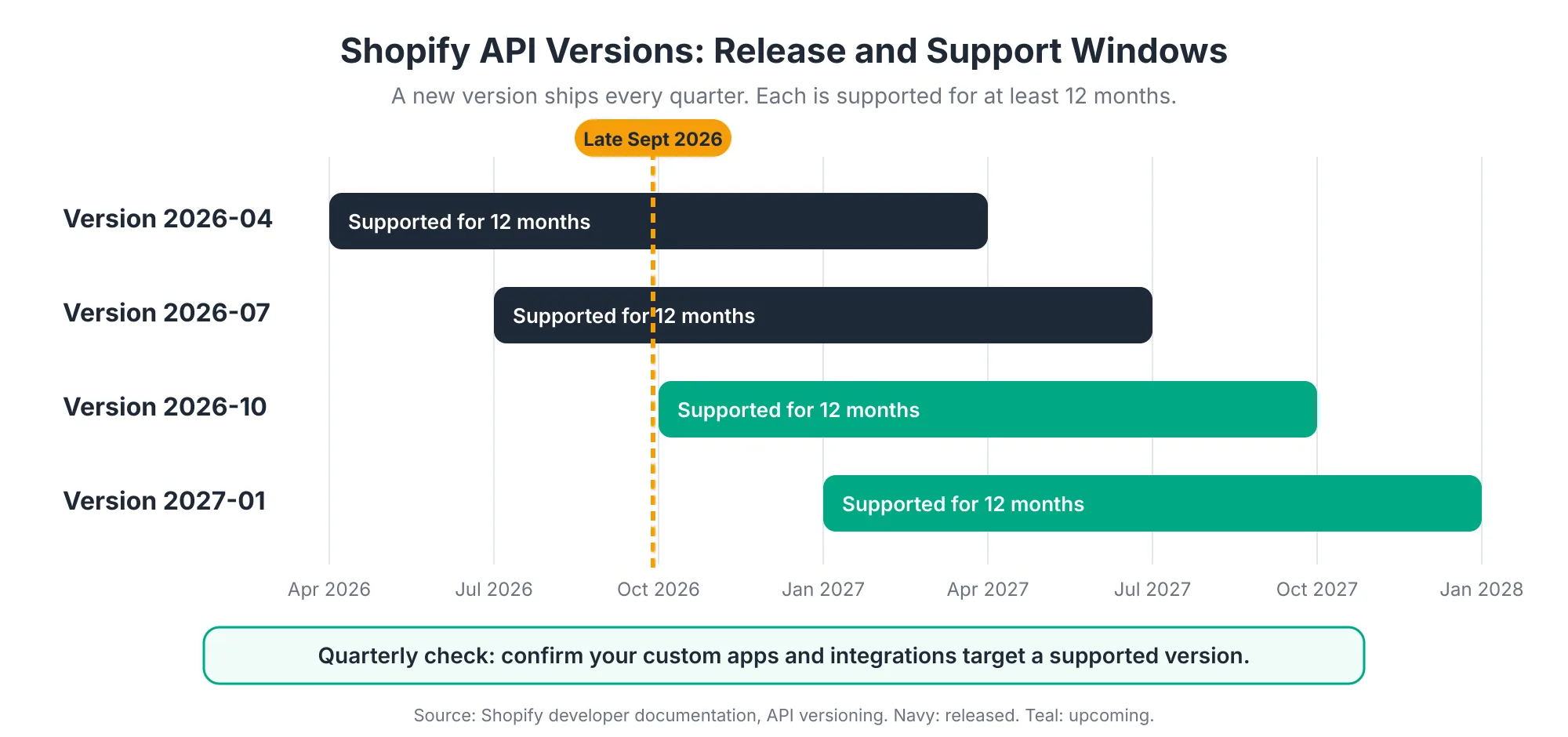
When a version your integration uses stops being supported, Shopify falls forward to the oldest supported version Shopify Developer Docs. That sounds safe, but it can change how your integration behaves without warning. Ask your developer or integration provider which version each custom connection targets, and plan updates before the support window closes.
Clean Up Product Data and Metafields
Product data gets messy over time. Inconsistent titles, missing product types, empty metafields, duplicate tags, and outdated descriptions all make your store harder to shop and harder to filter.
It matters more in 2026 than it used to. AI shopping agents now read your structured product data directly, and gaps in that data can keep your products out of their recommendations. Each quarter, pick a slice of your catalog and clean it up properly. Our Growth Guide covers this in detail in AI Product Data Optimization for Shopify.
Review Policies, Legal Pages, and Accessibility
Check that your refund, shipping, privacy, and terms pages are still accurate. Shipping times and return windows change, and outdated policies lead to disputes and chargebacks.
While you're at it, do a quick accessibility spot-check on your main templates. Can you navigate key pages with a keyboard? Do images have alt text? Is text readable against its background? Accessibility issues often creep in when new sections or apps get added.
Check Structured Data and Rich Results
Use Google's Rich Results Test on a few product pages and your homepage. Confirm that product, price, availability, and review data still appear correctly. Theme updates and review app changes are the most common reasons structured data breaks.
The Twice-Yearly Shopify Maintenance Checklist
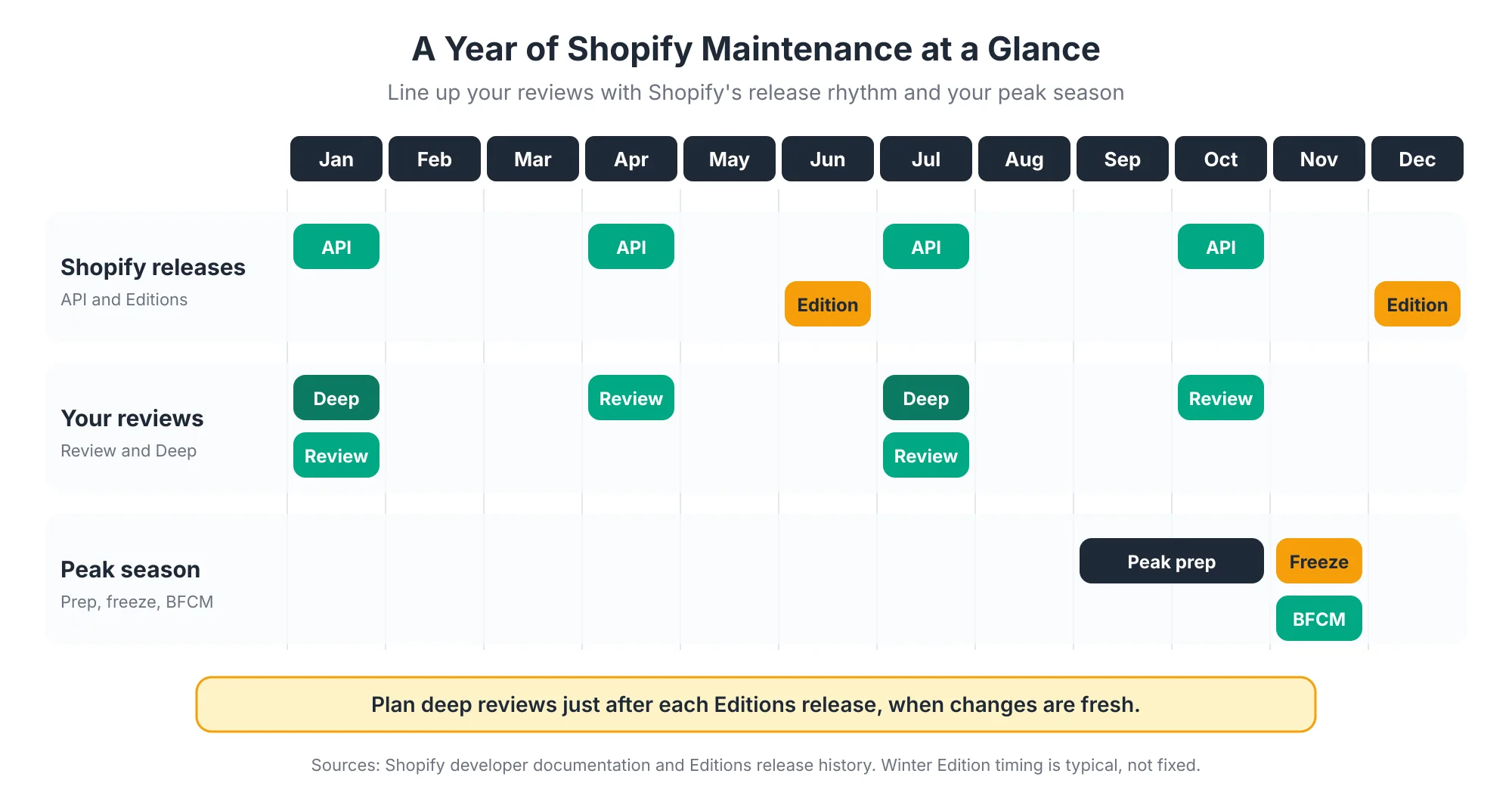
Twice-yearly reviews step back from routine tasks to look at the bigger picture. They're best timed just after each major Shopify Editions release, when new features and deprecations are fresh. This is where you decide what to adopt, what to fix at a deeper level, and whether your support setup still fits.
Evaluate Each Shopify Editions Release
Shopify publishes major Editions twice a year, and they're big. The Spring '26 Edition shipped more than 150 updates on June 17, 2026 Shopappy. Most are optional improvements. A few come with deadlines or deprecations that need action.
After each release, go through the announcements and sort every relevant change into three buckets: must act (deadlines, deprecations, security), should adopt (features that clearly help your store), and can ignore (not relevant to your business). Then put the first two buckets on a schedule.
Features like Sidekick, which can now carry out store tasks from plain-language instructions Shopappy, often belong in the "should adopt" bucket. We cover the full triage process in How to Evaluate and Adopt New Shopify Features After Every Editions Release, and Sidekick specifically in Using Shopify Sidekick to Automate Daily Store Operations.
Run a Full Technical Audit
Your monthly and quarterly checks look at specific areas. Twice a year, look at everything together. Review theme code quality, leftover app code, script loading, image handling, redirects, structured data, accessibility, and integration health in one pass.
This is also the right time to ask a harder question. Is your current theme still the right foundation? Shopify's Horizon theme architecture changes what's possible, and a heavily patched older theme can cost more to maintain than replacing it would. If the answer is a rebuild, our Shopify development services can help you plan and deliver it.
Plan Your Peak Season Code Freeze
At least one of your twice-yearly reviews should happen well before your busiest season. For most stores, that means planning in September for Black Friday Cyber Monday.
The stakes are high. During BFCM 2025, sales across Shopify peaked at $5.1 million per minute Shopify. Decide on a code freeze date, schedule campaign changes in advance, and agree who's on call. The complete timeline is in Seasonal Store Readiness: How to Prepare Your Shopify Store for BFCM and Peak Sales.
Run a Recovery Drill
Once or twice a year, rehearse a bigger failure. What would you do if your theme broke on a Saturday night? If a bulk edit corrupted 500 products? If your payment provider had an outage during a sale?
Walk through the steps, confirm who does what, and time how long a meaningful restore takes. Finding gaps during a drill is far cheaper than finding them during a real incident.
Review Your Support Model and Budget
Finally, look back at the past six months. Did maintenance happen on schedule? How many problems were caught by your checklist versus reported by customers? How much time did your team spend firefighting?
If maintenance keeps slipping or emergencies keep happening, your support model may need to change. We compare the options in In-House, Freelancer, or Agency Retainer: Choosing the Right Shopify Support Model.
Who Should Own Each Maintenance Task?
Every maintenance task needs one clear owner. When tasks are shared vaguely, they tend to slip, because everyone assumes someone else did it. Even in a one-person business, writing down who owns what forces you to notice tasks you've been skipping.
Here's a starting point for a typical small team:
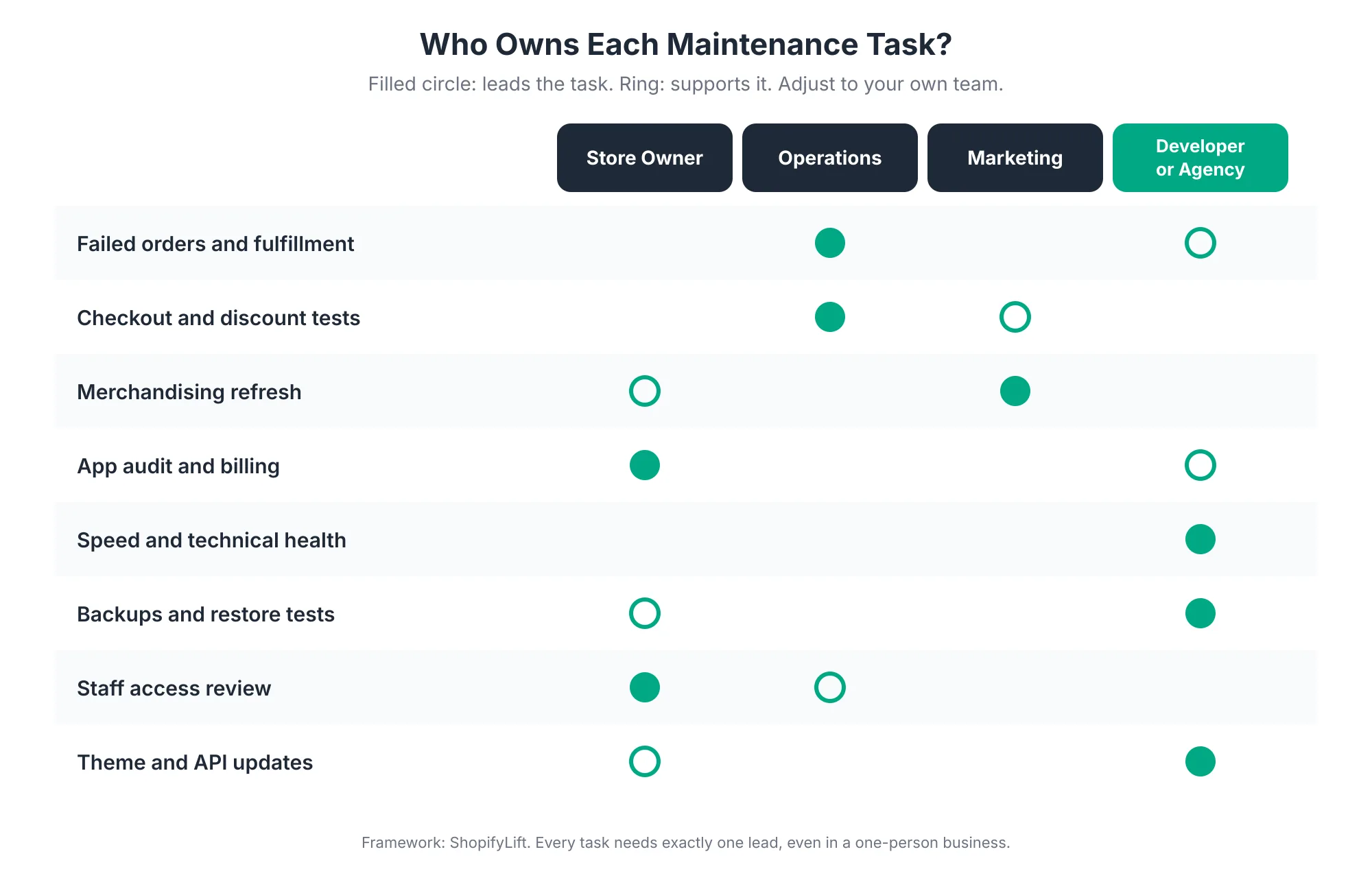
A few principles make ownership work in practice:
- One lead per task: Supporters can help, but one person is accountable for making sure it happens.
- Match tasks to access: The person reviewing staff permissions needs owner-level access. The person testing theme updates needs development access.
- Keep sensitive tasks with the owner: Access reviews and billing decisions usually belong with the store owner, even when technical work is outsourced.
- Write it down: Put the ownership list at the top of your maintenance log so it's visible every time someone opens it.
How Do You Keep a Useful Maintenance Log?
A maintenance log is a simple record of every check you run, what you found, and what you did about it. It turns maintenance from something you think you're doing into something you can prove you're doing. It also makes handovers painless when staff or agencies change.
You don't need special software. A shared spreadsheet with a few columns works well:
- Date: When the check was run.
- Task: Which checklist item it was.
- Owner: Who ran it.
- Result: Passed, issue found, or skipped.
- Notes and follow-up: What was found, what was done, and any open actions.
Over time, the log becomes surprisingly useful. It shows which areas break most often, which apps cause repeat problems, and whether issues are being caught earlier than before. It's also the first thing we ask for when auditing a store, because it tells us more about how a store's run than almost anything else.
What Should You Do When a Check Fails?
When a check fails, sort the issue by severity before acting. Anything that blocks purchases or exposes data gets fixed immediately. Issues that hurt conversion or SEO get scheduled within days. Cosmetic or low-impact issues go into a backlog. This keeps real emergencies fast and stops minor fixes from crowding out important work.
A simple three-level system works for most stores:
- Critical: Checkout broken, payments failing, site down, or a security concern. Fix within hours, and roll back recent changes first if you're not sure of the cause.
- High: Discount codes failing, key pages slow or broken on mobile, tracking down, or inventory syncing incorrectly. Fix within a few days.
- Routine: Minor layout issues, outdated content, or small SEO warnings. Add to the backlog and handle in your next scheduled work block.
The biggest mistake is treating everything as critical. When every issue is urgent, important but non-urgent work like app cleanup never gets done, and those are exactly the tasks that prevent future emergencies.
One more tip: when you fix something, note the root cause in your log. If the same app breaks your cart drawer three times in six months, that's not three separate problems. It's one decision you haven't made yet.
Should You Run This Checklist Yourself or Outsource It?
You can absolutely run this checklist yourself, and many smaller stores do. The weekly and monthly tasks mostly need care and consistency rather than deep technical skill. Outsourcing makes sense when technical tasks like theme updates and integration checks keep slipping, or when your time is worth more spent on growth.
A common split works well for growing stores. The owner or operations lead handles weekly checks, merchandising, and access reviews. A developer or agency handles theme updates, speed work, app cleanup, API compatibility, and technical audits.
Whichever route you choose, the checklist itself stays the same. What changes is who owns each line.
Frequently Asked Questions
How often should I maintain my Shopify store?
Most stores do best with weekly checks for checkout and orders, monthly audits for apps and speed, quarterly reviews for access and theme updates, and a twice-yearly deep review. For a mid-sized store, that totals roughly 146 hours a year, or under three hours a week.
What is the most important Shopify maintenance task?
Weekly end-to-end checkout testing is the highest-value task, because it protects revenue directly. Average cart abandonment already sits at 70.19% according to Baymard Institute, and site errors are one of the fixable causes. A broken checkout can go unnoticed for days without regular testing.
Does Shopify back up my store automatically?
Not in a way you can use to restore your own store. Shopify keeps platform-wide disaster recovery backups, but they can't restore an individual store's deleted products or content. Merchants need their own backup tool or export process, and should test restores monthly.
How do I know if an app is slowing down my store?
Check your speed trend before and after installing or removing apps, and look at which scripts load on key pages. App bloat is a leading cause of slow Shopify stores, and uninstalled apps can leave code behind. A monthly app audit catches most of these issues.
Do I need to update my Shopify theme?
Yes, but carefully. Theme updates bring bug fixes and compatibility with new Shopify features. Test each update on a duplicate theme before publishing, especially if you've added custom code. Reviewing available updates quarterly keeps you current without constant disruption.
Final Thoughts
A Shopify maintenance checklist isn't glamorous. It won't show up in a launch announcement or a campaign report. But it's one of the most reliable ways to protect the revenue you've already earned.
Start small if you need to. Run the weekly checkout test for a month. Then add the monthly app audit. Then the quarterly access review. Within a quarter, you'll have a routine that catches most problems before customers ever see them.
For the bigger picture on keeping your store running well, head back to our Shopify Store Management guide.
Rather have someone else run the checklist?
ShopifyLift's Store Management service handles weekly checks, monthly audits, quarterly reviews, and technical updates on a predictable monthly plan. Explore Shopify Store Management Services
Continue the Store Management Series
- Hub: Shopify Store Management: The Complete Guide
- Next: How to Update Your Shopify Theme Without Losing Custom Code
- The Shopify App Audit: How to Reduce App Bloat, Hidden Costs, and Conflicts
- Shopify Store Security: Staff Permissions, Data Backups, and Fraud Prevention
- Seasonal Store Readiness: How to Prepare Your Shopify Store for BFCM and Peak Sales
Sources
[1] Capaxe Labs, "The Complete Shopify Store Maintenance Checklist for 2026," March 2026
[2] Baymard Institute, "Reasons for Cart Abandonment," updated February 2025
[3] Solidgate, "Cart Abandonment: Rates, Benchmarks, Causes and Fixes," 2026
[4] Shopify Developer Documentation, "About Shopify API versioning," 2026
[5] Rewind, "Backups for Shopify: FAQ," October 2025
[6] App Store Research, "Shopify App Ecosystem Trends You Can't Ignore in 2026," June 2026
[7] HTTP Archive, "Web Almanac 2025: Performance," 2026
[8] Shopappy, "Shopify Editions Summer 26: What Shopify Actually Announced," July 2026
[9] Charle, "Shopify Maintenance Packages: What's Included and How to Choose," May 2026
[10] Ambaum, "Shopify Summer Editions 2026: Agentic Commerce Updates," July 2026
[11] Shopify, "Shopify merchants generate record-breaking $14.6 billion in Black Friday Cyber Monday sales," December 2025
[12] Grumspot, "Shopify Maintenance Agency: Your Guide to Store Stability," May 2026