Part of our Shopify Store Management guide. Spoke 2 of 10.
There’s a moment most Shopify merchants know well. You open your theme library, see that a new version of your theme is available, and hesitate. What happens to the size guide your developer built? The custom badges? The tracking code someone added two years ago?
So you close the tab and tell yourself you’ll deal with it later. Then later becomes next quarter. Then next year.
That hesitation is reasonable. Theme updates really can wipe out custom work if they’re handled carelessly. But skipping updates has its own cost. Your theme drifts further from Shopify’s platform changes, bug fixes pile up unapplied, and every skipped version makes the eventual update bigger and riskier.
The good news is that updating a customized theme is a solvable problem. It just needs a process. This guide explains exactly what happens to each type of customization during an update, how to pick the right update method for your store, and a ten-step process you can follow every time.
Key Takeaways
- Theme editor settings carry over during a Shopify theme update, but direct code edits only carry over when they don’t conflict with the new version.
- Only themes installed from the Shopify Theme Store support Shopify’s built-in update. Others need a manual or vendor-assisted update.
- Documenting every customization before you update is the single biggest time-saver.
- Always work on a draft theme, test thoroughly, and keep your old theme ready for an instant rollback.
What Happens to Your Customizations When You Update a Shopify Theme?
When you update a Shopify theme, changes you made through the theme editor, such as settings, sections, and templates, are copied to the new version. Direct code edits are only carried over when they don’t conflict with the update Shopify Help Center. Code added by older apps is the most fragile, since it often breaks or gets left behind.
That’s the short version. The longer version helps you understand where your risk actually sits.
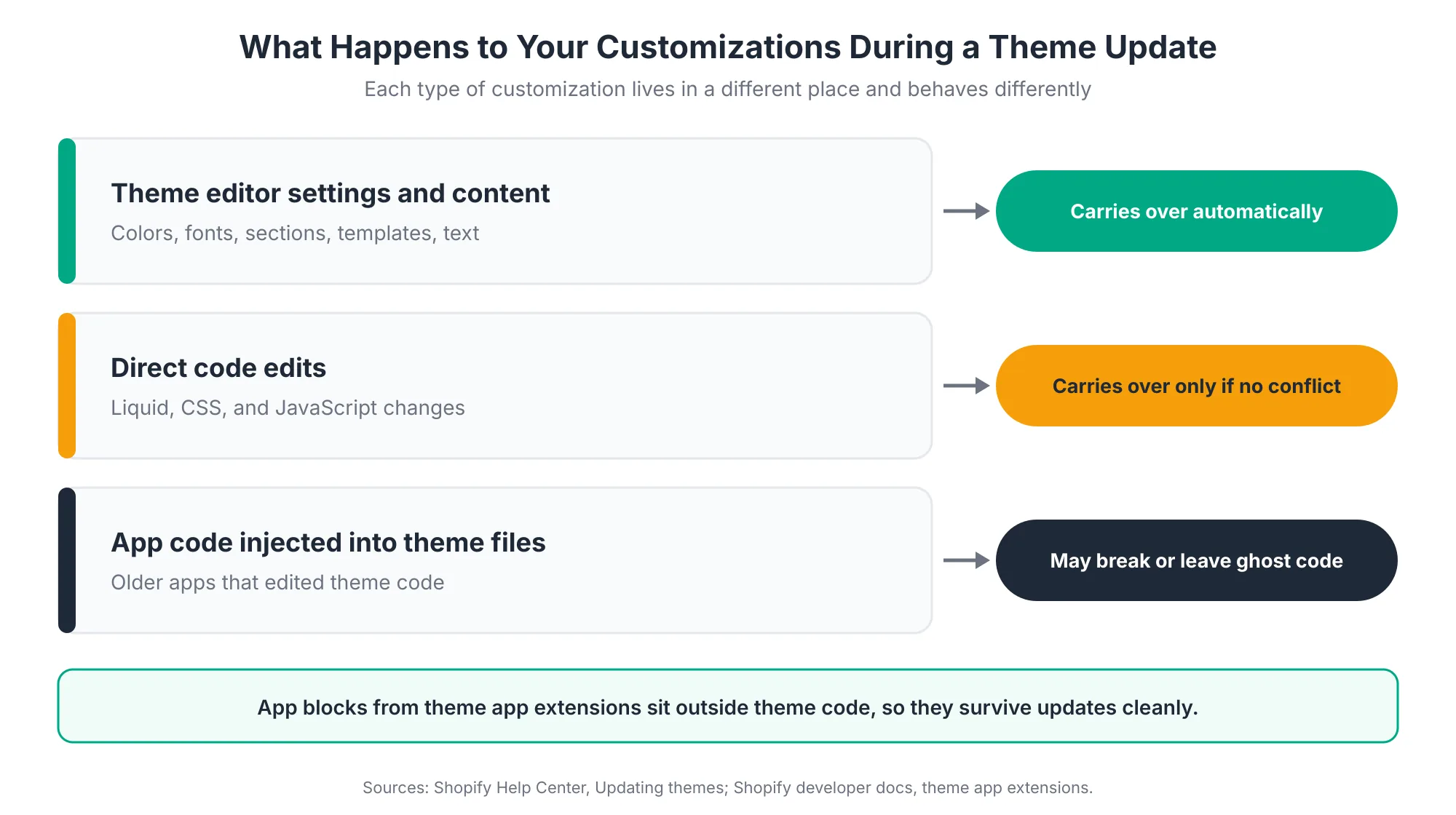
Layer 1: Theme Editor Settings and Content
This is everything you changed through the visual theme editor: colors, fonts, section layouts, text, images, and new templates you created there. Shopify copies these customizations over to the updated theme Shopify Help Center.
This layer is the safest. If your store only uses theme editor changes, updating is usually straightforward. There are occasional exceptions when a new version adds or renames settings, so it’s still worth a quick visual check afterward.
Layer 2: Direct Code Edits
This covers anything changed in the code editor: edited Liquid files, custom CSS, new JavaScript, and modified section files. Here’s where things get tricky.
If your code edits don’t conflict with the update, Shopify includes them, and a message on the theme card tells you whether they came through Shopify Help Center. If they weren’t included and you want to keep them, you’ll need to copy them over to the new version yourself Shopify Help Center.
In practice, the more you’ve edited core theme files, the more likely a conflict becomes. A small CSS tweak in its own file usually survives. A heavily rewritten product template usually doesn’t.
Layer 3: App Code Injected Into Theme Files
Before Online Store 2.0, many apps worked by editing your theme files directly. They’d insert script tags, add snippets, and modify templates. Shopify’s own developer documentation notes that uninstalling these apps often leaves "ghost code" behind, which can cause performance problems and take merchants off their theme upgrade paths Shopify Developer Docs.
That last point matters for this guide. A theme update replaces the theme’s code layer, so anything injected into theme files has to be dealt with during the update Fuel Themes. Old app code is one of the most common reasons a merchant loses the simple update path without realizing it.
Modern apps use theme app extensions instead. These add app blocks and app embeds without editing your theme code, and they’re automatically removed when you uninstall the app Shopify Developer Docs. That makes them far easier to live with during updates. We’ll come back to this when we talk about making future updates easier.
Why Should You Keep Your Shopify Theme Updated?
Keeping your theme updated gives you bug fixes, compatibility with new Shopify features, and a lower risk of problems as the platform changes. Theme developers release updates regularly, and staying current reduces compatibility risk as Shopify rolls out platform changes Charle. Updating in small, regular steps is also far easier than making one large jump later.
There are four practical reasons to stay current:
- Bug fixes: Theme developers fix layout bugs, accessibility issues, and browser compatibility problems in each release.
- Platform compatibility: Shopify ships major platform updates twice a year through its Editions. New themes support new features. Old ones gradually fall behind.
- New features: Updates often add sections, settings, and performance improvements you’d otherwise pay a developer to build.
- Performance: Theme developers regularly optimize how scripts and images load. That matters, since only 48% of mobile sites pass all three of Google’s Core Web Vitals, according to the 2025 Web Almanac HTTP Archive.
But the strongest argument is about effort over time.
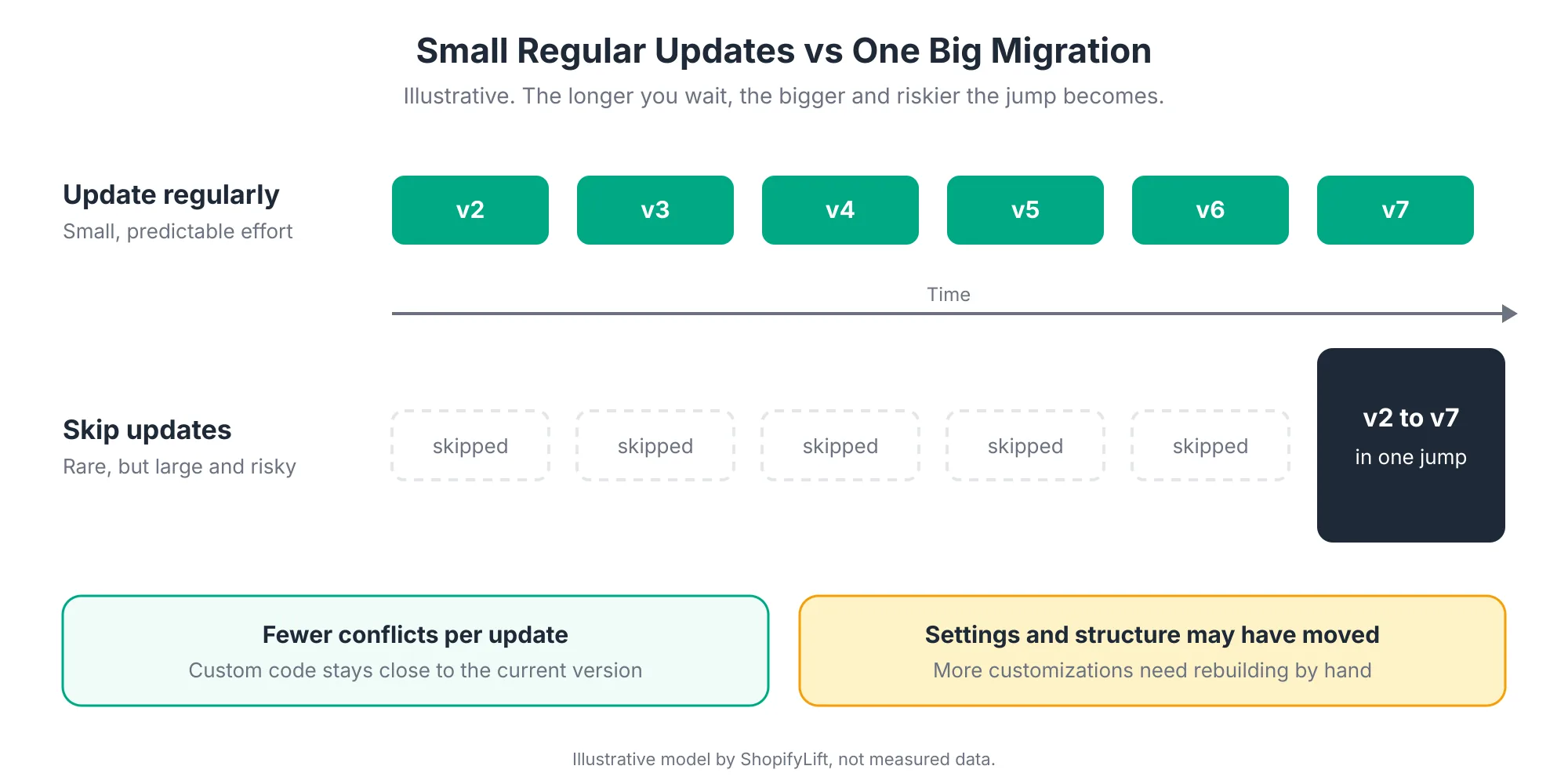
Every version you skip adds distance between your customized theme and the current release. Settings move. Files get restructured. Features you customized get rebuilt differently. When you finally update, you’re not reconciling one version’s worth of changes. You’re reconciling five.
We see this regularly in store audits. Merchants who update every quarter spend a few hours each time. Merchants who wait two or three years often find the update is closer to a partial rebuild. Shopify’s community forums are full of merchants stuck on very old theme versions for exactly this reason.
Does that mean you need to update the moment a new version drops? No. It means you should review available updates on a schedule, which is why theme updates sit in the quarterly section of our Shopify Store Maintenance Checklist.
How Do You Know Which Customizations Your Theme Has?
Before updating, list every customization in your theme: what changed, where it lives, why it exists, and who added it. You can find code edits by checking modified files in the code editor, reviewing file version history, and searching for app-inserted code. This inventory turns an unpredictable update into a manageable checklist.
This step is where most failed updates actually go wrong. People start the update, find their custom features missing, and then try to reconstruct what used to be there from memory. It’s much easier to do the detective work first.
Check Which Theme Files Have Been Modified
Open your live theme’s code editor. Some theme vendors point out that the editor flags modified files, and that some files show an "Older versions" link you can use to see earlier states Pixel Union. Note every modified file name, since these are the files that will need attention.
If you have a copy of the original, unmodified theme version, you can go further. Download both versions and compare them with a diff tool. Any developer familiar with Git can do this in minutes, and it gives you a precise list of every line that changed.
Look for App-Inserted Code
Search your theme files for app names, script tags pointing to external domains, and snippet files you don’t recognize. Common locations include the main layout file, product templates, and the cart.
For each one, ask whether the app is still installed. If it isn’t, that code is almost certainly ghost code, and removing it is a quick win for both speed and future updates. If the app is still installed, check whether it now offers an app block or app embed you can switch to instead. Our Shopify App Audit guide covers this cleanup in detail.
Record Everything in a Customization Inventory
Put your findings in a simple table. It doesn’t need to be fancy. It just needs to be complete.
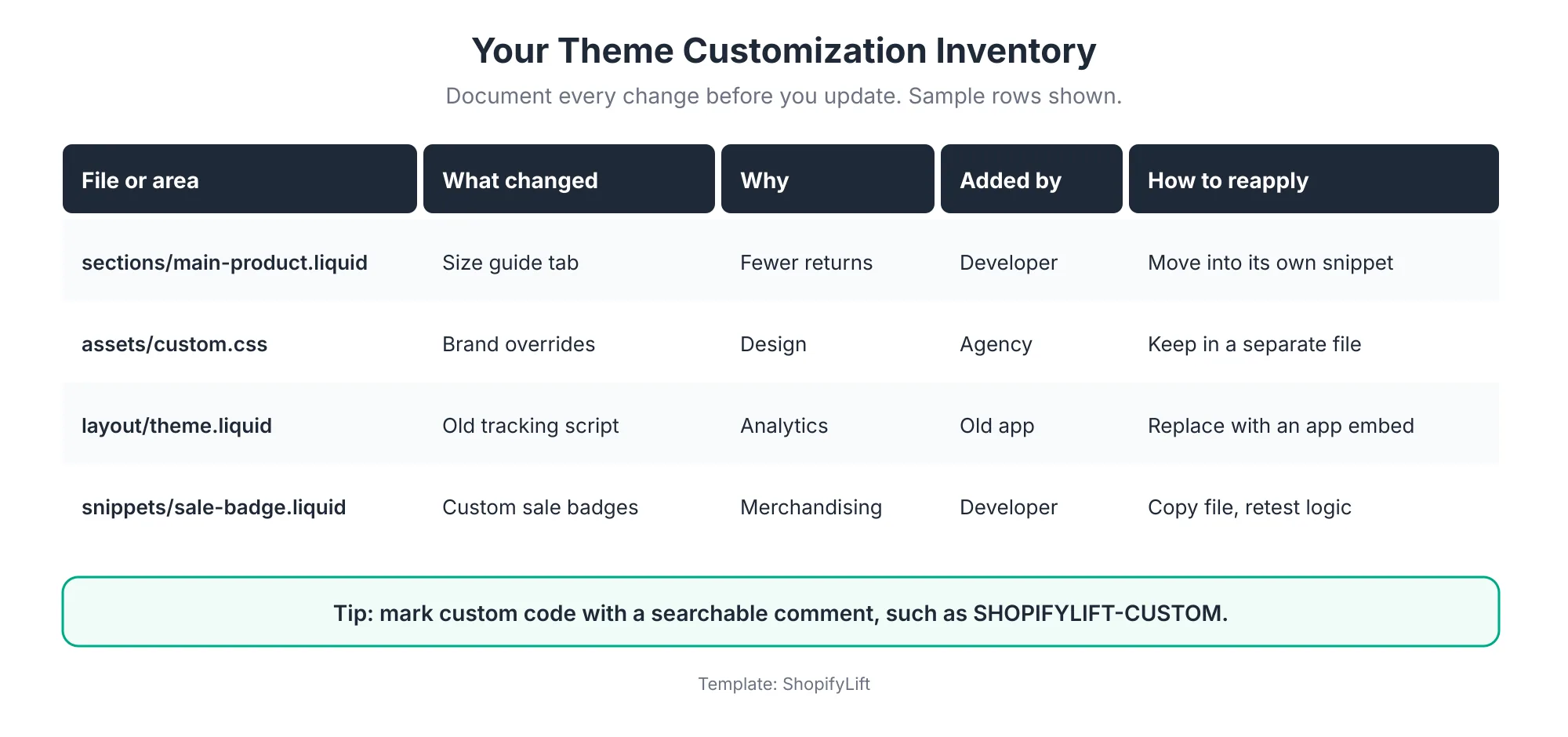
The "why" column is more valuable than it looks. When you’re rebuilding customizations in a new theme version, you’ll often find the new version already does what your custom code was built to do. A custom size guide tab might now be a built-in block. A custom badge might now be a theme setting. Knowing why something was built helps you decide whether to rebuild it at all.
Keep this inventory after the update, too. It becomes your change log for next time.
Which Update Method Should You Use?
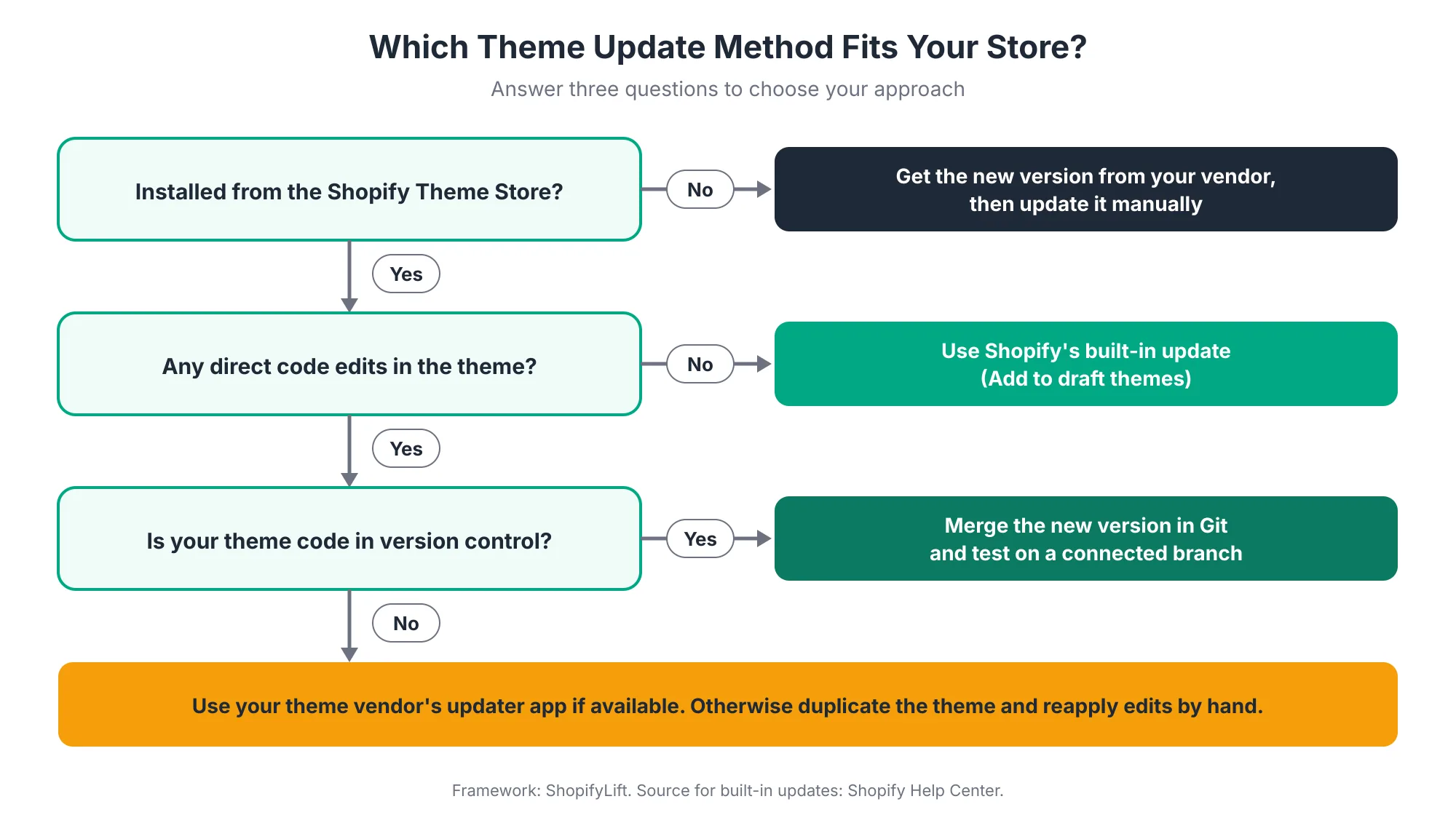
The right update method depends on three things: where your theme came from, whether it has direct code edits, and whether your theme code is under version control. Themes from the Shopify Theme Store with no code edits can use Shopify’s built-in update. Everything else needs a vendor tool, a manual process, or a Git-based workflow.
Method 1: Shopify’s Built-In Update
If you installed your theme from the Shopify Theme Store, you can add each new version to your draft themes for free when it’s released Shopify Help Center. The update lands as a separate draft theme, with your editor customizations copied over, so your live store isn’t touched until you publish.
Best for: Theme Store themes with no code edits, or only light edits that don’t conflict.
One limitation to know: if the "Add to draft themes" option doesn’t appear, you can’t use the standard update. Shopify’s guidance is to install a fresh copy from the Theme Store and reapply your settings and customizations manually Shopify Help Center. This built-in path is offered for themes installed from the Shopify Theme Store Shopify Help Center. For themes bought elsewhere, you’ll usually download the new version from the vendor and upload it as an unpublished theme Fuel Themes.
Method 2: Your Theme Vendor’s Updater Tool
Several major theme vendors offer their own update tools. These typically move your theme editor settings across and attempt to carry over code changes, then flag anything that couldn’t be transferred automatically. One vendor’s updater, for example, includes a "preserve customizations" option designed to migrate as many modifications as possible Pixel Union.
Best for: Stores using a theme from a vendor that offers an updater, with moderate customization.
These tools save real time, but they aren’t magic. You’ll still need to review flagged files and test everything.
Method 3: Duplicate and Reapply Manually
This is the universal fallback. You add the new theme version as an unpublished theme, then reapply each customization from your inventory by hand. It works for any theme and any level of customization. It’s just slower.
Best for: Heavily customized themes, third-party themes without an updater, or large version jumps.
Your inventory makes this method far less painful. Instead of hunting through files, you work down your list one row at a time.
Method 4: Version Control With Git
For stores with a developer or agency, keeping theme code in Git is the most reliable long-term approach. Shopify’s GitHub integration lets you connect a repository branch to a theme, so the theme updates whenever the branch changes and edits made in the Shopify admin are tracked too Shopify Developer Docs.
With Git, updating becomes a merge. Your developer brings the new theme version into the repository, resolves conflicts line by line, and tests the result on a connected unpublished theme. Every change is recorded, and rolling back is simple.
One caution: the integration syncs in both directions, so an untested development branch should never be connected directly to your live theme F22 Labs. Use a separate branch and an unpublished theme for testing.
Best for: Stores with ongoing development work and anyone who wants a full history of every theme change.
Step-by-Step: How to Update a Customized Shopify Theme Safely
The safest process follows ten steps: back up, inventory, read the release notes, add the new version as a draft, reapply custom code, reconnect apps, test, compare speed, schedule the publish, and keep the old theme for rollback. Every step happens on a draft theme, so your live store keeps selling throughout.
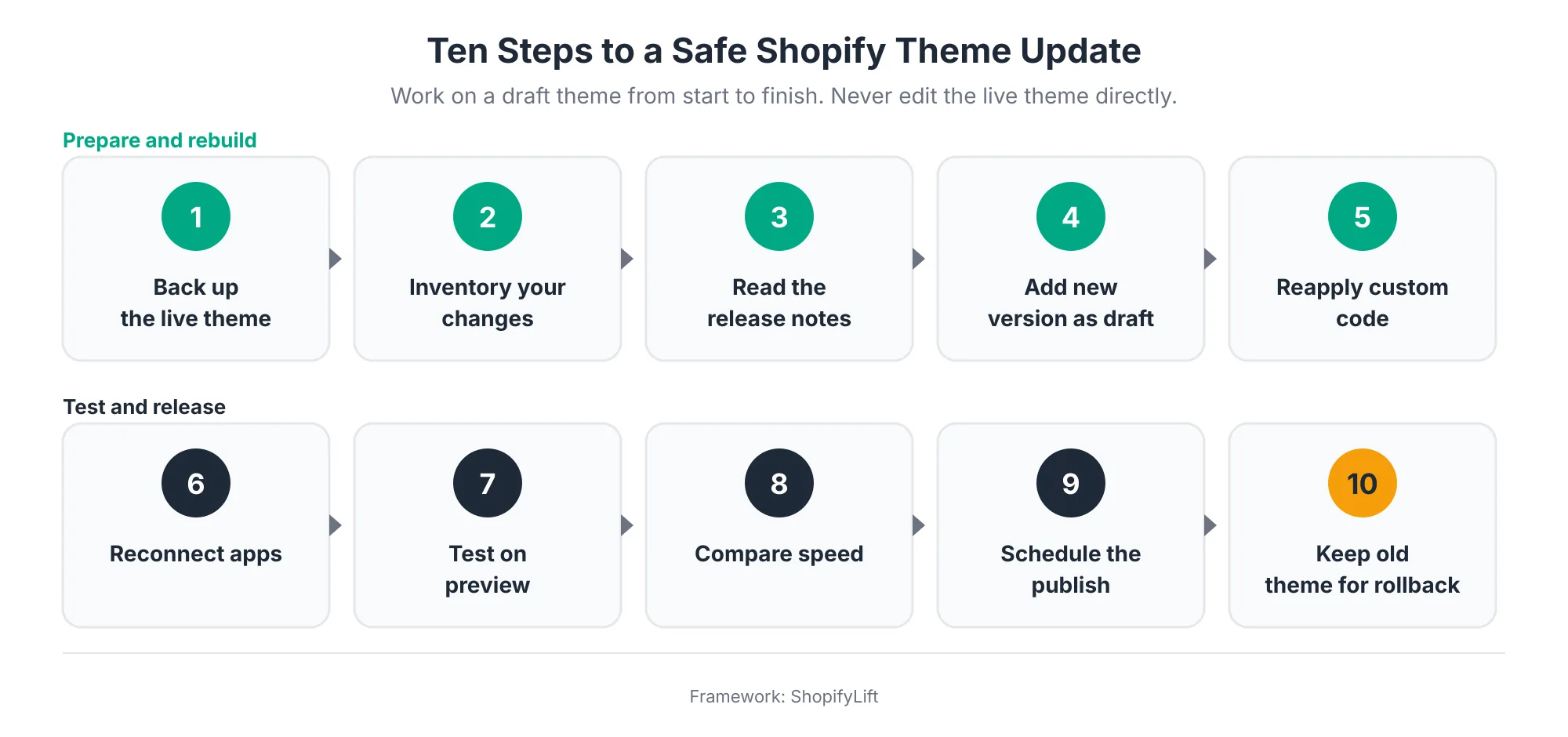
Step 1: Back Up Your Live Theme
Duplicate your live theme in the theme library and download a copy of the theme files. The duplicate gives you an instant fallback inside Shopify. The download gives you a copy outside Shopify, which matters if something goes wrong with the theme library itself.
This is also a good moment to confirm your wider store backups are current. Theme backups protect theme code, but not your products, collections, or pages. We cover full store backups in Shopify Store Security: Staff Permissions, Data Backups, and Fraud Prevention.
Step 2: Build or Update Your Customization Inventory
Use the process from the previous section. If you already have an inventory from a past update, review it and add anything that’s changed since.
Step 3: Read the Release Notes
Theme vendors publish release notes for each version. Read them for every version between your current one and the target version, not just the latest. You’re looking for three things: files that were restructured, settings that were renamed or removed, and new features that might replace your custom code.
This step often saves hours. If the release notes say the product template was rebuilt, you know before you start that any customizations there will need careful attention.
Step 4: Add the New Version as a Draft Theme
Use whichever method fits your store: Shopify’s built-in update, your vendor’s updater, a fresh install from the Theme Store, or a Git branch. Whatever you choose, the new version should arrive as an unpublished theme.
Check the theme card for Shopify’s message about whether your code edits were included Shopify Help Center. That tells you how much manual work lies ahead.
Step 5: Reapply Your Custom Code
Work through your inventory one row at a time. For each customization, decide whether to rebuild it as it was, rebuild it in a cleaner way, or drop it because the new version already covers it.
This is the right moment to improve how your customizations are built. If your old theme had custom code scattered through core files, move it into dedicated snippets or sections where possible. We’ll explain why in the section on making future updates easier.
Step 6: Reconnect and Check Your Apps
Apps that use app blocks or app embeds may need to be re-added or re-enabled in the new theme’s editor. Older apps that edited theme code may need reinstalling, depending on how the app developer built them Out of the Sandbox.
Go through every app that touches your storefront and confirm it works on the draft theme. If an older app still requires code injection, check whether an updated version supports app blocks now.
Step 7: Test Thoroughly on the Preview
Preview the draft theme and work through a full QA checklist. We’ve included one in the next section. Test on both mobile and desktop, and involve at least one person who didn’t do the update. Fresh eyes catch things the person doing the work has stopped seeing.
Step 8: Compare Speed With Your Current Theme
Run speed tests on both the live theme and the draft theme for your key templates: homepage, a collection page, and a product page. The new version should be at least as fast. If it’s slower, find out why before publishing. The usual culprits are reapplied custom scripts or app code that loads on every page.
For a deeper look at performance, see our Growth Guide article on Core Web Vitals and site speed for Shopify.
Step 9: Schedule the Publish
Don’t publish during a sale, a product launch, or your busiest trading hours. Pick a quiet window when someone is available to monitor the store for a few hours afterward.
Shopify’s rollout tools make this safer than it used to be. A rollout lets you schedule changes to your theme, release them gradually, or run them as an experiment Ambaum. For bigger updates, a gradual release means any problem only affects a portion of visitors while you watch.
Step 10: Keep the Old Theme for Rollback
After publishing, keep your previous theme in the library, unchanged, for at least a few weeks. If a problem appears that testing missed, you can republish the old version in seconds while you fix the issue.
Then update your customization inventory with anything that changed during this update, so it’s ready for next time.
How Should You Test a Theme Update Before Publishing?
Test every key template, every app integration, and your tracking and performance before publishing an updated theme. Work through pages, functionality, and performance in turn, on both mobile and desktop. Finish by placing a test order, because problems in the cart or product page can still stop purchases even though checkout itself is managed by Shopify.
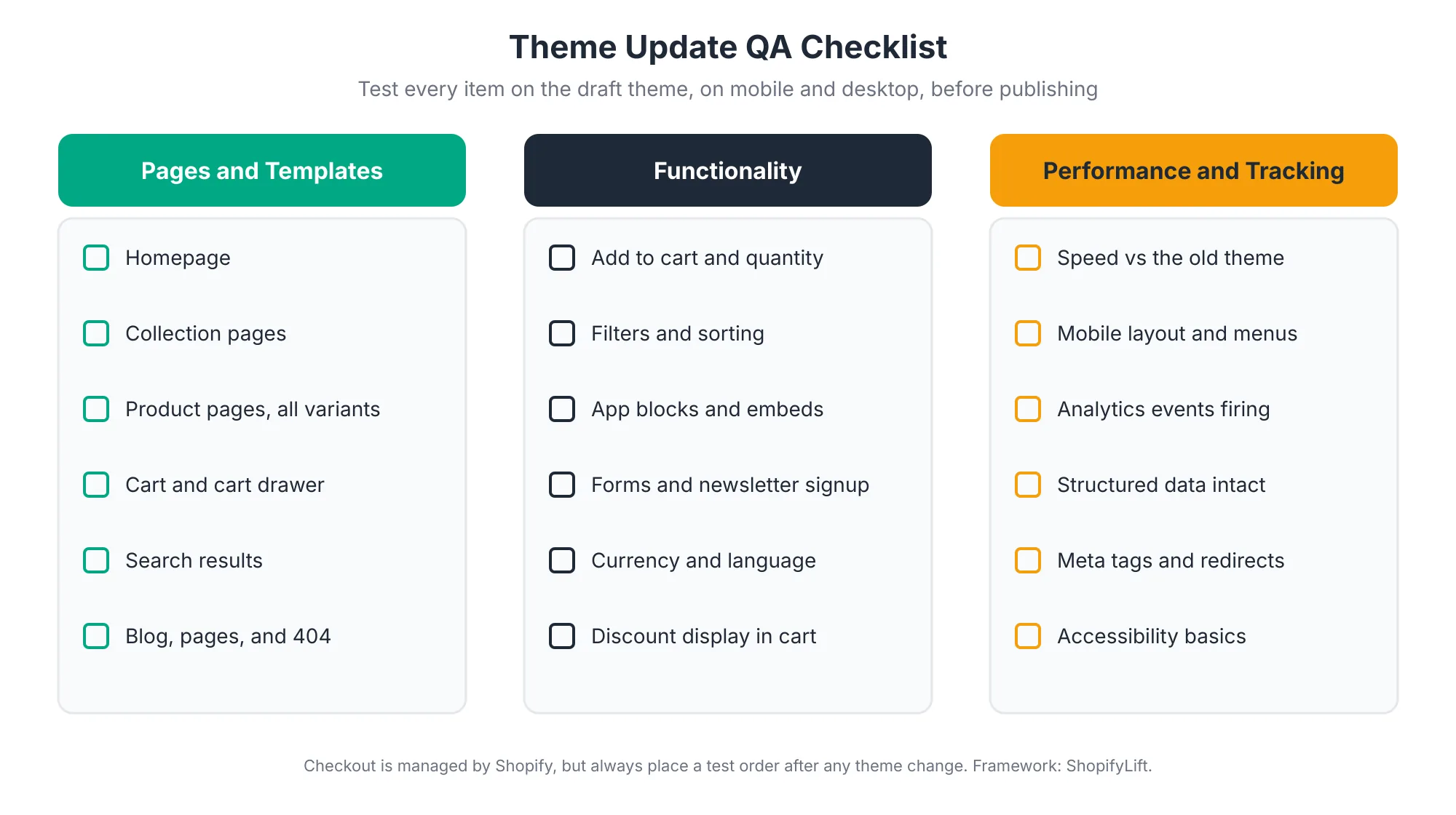
A few areas deserve extra attention:
- Every variant of your key products: Variant pickers, swatches, and price updates are among the most frequently changed parts of a theme.
- App blocks and embeds: Reviews, upsells, subscriptions, and loyalty widgets often need re-adding in the new version.
- Tracking: Confirm that product views, add to cart, and purchase events still fire. A broken tracking script can quietly corrupt weeks of data.
- Structured data and SEO: Check that product structured data, meta tags, and canonical tags still appear correctly. Losing them can hurt rankings, so check them after every update. For ongoing help, see our Shopify SEO services.
- Localization: If you sell in multiple currencies or languages, test each market’s storefront.
Write down what you tested and what you found. It feeds straight into your maintenance log and makes the next update faster.
How Do You Publish a Theme Update Without Disrupting Sales?
Publish updates during your quietest trading window, with someone ready to monitor the store and roll back if needed. For larger updates, use a scheduled or gradual rollout so problems affect fewer visitors. Avoid publishing theme changes close to major sales events or during a peak season code freeze.
Timing matters more than most people think. A theme update published at 9 AM on a Monday during a promotion is a very different risk from one published on a quiet Tuesday evening.
Here’s a simple publishing plan:
- Pick the window: Choose a low-traffic period based on your analytics, and avoid days with campaigns or launches.
- Assign a monitor: One person watches orders, error reports, and customer messages for a few hours after publishing.
- Set a rollback trigger: Decide in advance what would make you roll back. For example, any checkout problem or a clear drop in add-to-cart rate.
- Communicate internally: Let customer service know an update is going live, so they can flag unusual customer reports quickly.
If your peak season is approaching, the safest choice is often to finish theme updates well beforehand and then freeze changes. We cover code freezes in Seasonal Store Readiness: How to Prepare Your Shopify Store for BFCM and Peak Sales.
How Can You Make Future Theme Updates Easier?
Future updates get easier when custom code is isolated from core theme files, clearly labeled, documented, and tracked in version control. Using app blocks instead of app-inserted code also helps, since theme app extensions don’t edit theme files at all. Each of these habits reduces conflicts and shortens the next update.
These practices take a little discipline up front and save a lot of time later:
- Isolate custom code: Put customizations in their own snippets, sections, or CSS files rather than editing core theme files. The new version replaces core files, but your separate files are easy to carry across.
- Label everything: Add a searchable comment to every custom code block, such as a consistent tag with your agency or store name. Theme vendors recommend this so custom code can be found quickly in future updates Out of the Sandbox.
- Prefer app blocks: Choose apps that use theme app extensions. Because they don’t edit theme code, they reduce the risk of breaking changes and leave nothing behind when uninstalled Shopify Developer Docs.
- Remove ghost code: When you uninstall an older app, clean up its leftover code right away rather than leaving it for the next update.
- Use version control: Keep your theme in Git and connect it through Shopify’s GitHub integration. Every change becomes traceable and reversible.
- Update on a schedule: Review available updates every quarter. Smaller gaps mean fewer conflicts.
Should You Move to Horizon Instead of Updating?
For some stores, moving to a Horizon-based theme makes more sense than updating an older theme. Horizon is Shopify’s new theme foundation, with AI-generated blocks, in-canvas editing, and copy-paste across templates Revinfotech. If your current theme is several major versions behind and heavily customized, a move can cost about the same as a difficult update while giving you a more modern base.
It’s worth considering Horizon when:
- Your theme is many versions behind and the update would be close to a rebuild anyway.
- Much of your custom code exists to add features that Horizon now offers natively.
- Your team wants to make more changes through the editor and fewer through code.
It’s probably not the right time when:
- Your current theme is recent, stable, and only lightly customized.
- Your peak season is close. A theme migration is a project, not a maintenance task.
- Your store depends on complex customizations that would need rebuilding from scratch.
Either way, make the choice deliberately. For help with a larger theme project, see our Shopify development services. For deciding when to adopt new Shopify features in general, read How to Evaluate and Adopt New Shopify Features After Every Editions Release.
When Should You Get Professional Help With a Theme Update?
Consider professional help when your theme has extensive code edits, when you’re several major versions behind, when your theme came from outside the Theme Store, or when a failed update would be expensive. A developer can diff the versions, rebuild customizations cleanly, and set up version control so future updates are routine.
Plenty of merchants handle their own theme updates, especially when customizations are light. But some signs suggest it’s time to bring someone in:
- You can’t tell which files have been modified or why.
- The theme card says your code changes won’t be included.
- You’re jumping several major versions at once.
- Custom features touch the product page, cart, or anything revenue-critical.
- You’ve tried an update before and had to roll back.
A good partner won’t just complete this update. They’ll leave you in a better position for the next one, with isolated custom code, a customization inventory, and ideally a Git workflow. We compare support options in In-House, Freelancer, or Agency Retainer: Choosing the Right Shopify Support Model.
Frequently Asked Questions
Will updating my Shopify theme delete my customizations?
Not all of them. Theme editor customizations such as settings, sections, and templates are copied to the new version. Direct code edits are only included when they don’t conflict with the update. If they conflict, Shopify tells you on the theme card, and you’ll need to copy them across manually.
Why is the automatic theme update option unavailable?
Shopify’s built-in update is offered for themes installed from the Shopify Theme Store. If the "Add to draft themes" option doesn’t appear, Shopify’s guidance is to install a fresh copy of the theme and reapply your settings and customizations. Code edits that conflict with an update also need to be copied across manually.
How often should I update my Shopify theme?
Review available theme updates every quarter and apply them on a draft theme first. Regular small updates are much easier than one large jump, because each version you skip adds more restructured files and settings you’ll need to reconcile later.
Is it safe to update my theme during peak season?
It’s best to avoid it. Finish theme updates several weeks before your biggest sales period, then freeze theme changes until it’s over. If an urgent fix is needed, test it on a draft theme and publish during a quiet window with someone ready to roll back.
How do I roll back a Shopify theme update?
Keep your previous theme in your theme library after publishing the update. If something goes wrong, publish the old theme again from the theme library, which takes seconds. Then fix the issue on the draft theme and republish once it’s been tested.
Final Thoughts
Theme updates don’t have to be stressful. The stress usually comes from uncertainty: not knowing what’s been customized, not knowing what will break, and not having a way back if it does.
A clear process removes that uncertainty. Know your customizations. Choose the right update method. Work on a draft. Test properly. Keep a rollback ready. Do that every quarter, and theme updates become just another routine maintenance task.
For the full picture of keeping your store in shape, head back to our Shopify Store Management guide.
Want your theme updated without the risk?
ShopifyLift handles theme updates, custom code migration, and Git-based version control as part of our Store Management service. Explore Shopify Store Management Services
Continue the Store Management Series
- Hub: Shopify Store Management: The Complete Guide
- Previous: The Shopify Store Maintenance Checklist: Weekly, Monthly, and Quarterly Tasks for 2026
- Next: The Shopify App Audit: How to Reduce App Bloat, Hidden Costs, and Conflicts
- How to Evaluate and Adopt New Shopify Features After Every Editions Release
- Seasonal Store Readiness: How to Prepare Your Shopify Store for BFCM and Peak Sales
Sources
[1] Shopify Help Center, "Updating themes," 2026
[2] Fuel Themes, "Update a Shopify Theme Without Losing Customizations (2026)," May 2026
[3] Shopify Developer Documentation, "Migrate to theme app extensions," 2026
[4] Shopify Developer Documentation, "UX for theme app extensions," 2026
[5] Shopify Developer Documentation, "Shopify GitHub integration for themes," 2026
[6] F22 Labs, "A Step-by-Step Guide on Shopify GitHub Integration," July 2026
[7] Out of the Sandbox, "Updating a theme manually," December 2025
[8] Pixel Union, "How do I update my Shopify theme without losing customizations?," March 2026
[9] Revinfotech, "Shopify Editions Summer 2026," July 2026
[10] Ambaum, "Shopify Summer Editions 2026: Agentic Commerce Updates," July 2026
[11] Charle, "Shopify Maintenance Packages: What’s Included and How to Choose," May 2026
[12] HTTP Archive, "Web Almanac 2025: Performance," 2026