Part of our Shopify Store Management guide. Spoke 3 of 10.
Apps are one of the best things about Shopify. Need reviews? Install an app. Want upsells, bundles, loyalty points, or a size guide? There's an app for each of those, usually with a free trial and a one-click install.
That ease is also the problem. Installing an app takes a minute. Thinking carefully about whether you still need it, a year later, takes real effort. So most stores keep adding and rarely subtract.
The result is app bloat: too many apps, some doing the same job, some barely used, some loading code on every page, and some left behind after they were supposedly removed. App bloat is widely cited as the leading cause of slow Shopify stores, and leftover code from uninstalled apps can keep loading long after the app is gone Capaxe Labs.
This guide walks you through a complete Shopify app audit. You'll learn what app bloat really costs, how to measure each app's impact, how to decide what stays and what goes, and how to remove apps cleanly so they don't leave problems behind.
Key Takeaways
- Merchants install about six apps on average, and Shopify Plus stores often run ten to fifteen.
- Among stores spending over $100 a month on apps, the median active-to-installed ratio is under 60%, so many stores pay for apps they barely use.
- Shopify's App Store rule lets each app lower storefront Lighthouse scores by up to 10 points. That limit applies per app, not to your stack as a whole.
- A clean removal means exporting data, uninstalling, and then checking your theme for leftover code.
What Is a Shopify App Audit?
A Shopify app audit is a structured review of every app installed on your store. For each app, you check what job it does, who owns it, what it costs, how it affects speed, and whether a better or native option now exists. The outcome is a clear decision to keep, optimize, replace, or remove every app.
An audit is different from casually scrolling through your apps list. Casual reviews tend to focus on the monthly bill. A proper audit looks at four kinds of cost at once, because the subscription fee is often the smallest of them.
It also looks beyond the apps page in your admin. Many of the problems an audit uncovers live in your theme files, your storefront's network requests, and your billing history, not in the list of installed apps.
Most stores benefit from a quick monthly check and a deeper audit once a quarter. We cover that rhythm in The Shopify Store Maintenance Checklist.
Why Does App Bloat Happen on Shopify?
App bloat happens because apps are easy to add and easy to forget. Free trials roll into paid plans, features overlap as new apps are added, staff who installed apps move on, and uninstalling an older app often leaves code behind. None of this is anyone's fault. It's what happens when there's no regular review.
The scale of the App Store makes it more likely. One 2026 estimate puts the App Store at more than 17,600 apps, with about 550 new ones every month. Merchants install six apps on average, and some run as many as thirty App Store Research. Shopify Plus brands typically sit at ten to fifteen apps Eightx.
Here's how bloat usually builds up:
- Trials that stick: Someone tests an app during a campaign. The campaign ends. The app stays.
- Overlapping features: A new upsell app is added without removing the old one, or a theme update adds a built-in feature that an app already covers.
- Lost ownership: The person who installed an app leaves, and nobody else knows why it's there.
- Shopify catches up: Shopify's Spring '26 Edition absorbed several jobs merchants used to pay third-party apps to handle Shopappy. Those apps don't uninstall themselves.
- Ghost code: Older apps edited theme files directly. Uninstalling them often left code behind Shopify Developer Docs.
What Does App Bloat Actually Cost You?
App bloat costs you in four ways: slower pages, higher monthly spend, conflicts between apps, and extra security and data risk. The subscription fee is the most visible cost, but speed and conflicts usually do more damage, because they quietly reduce conversions across your whole store.
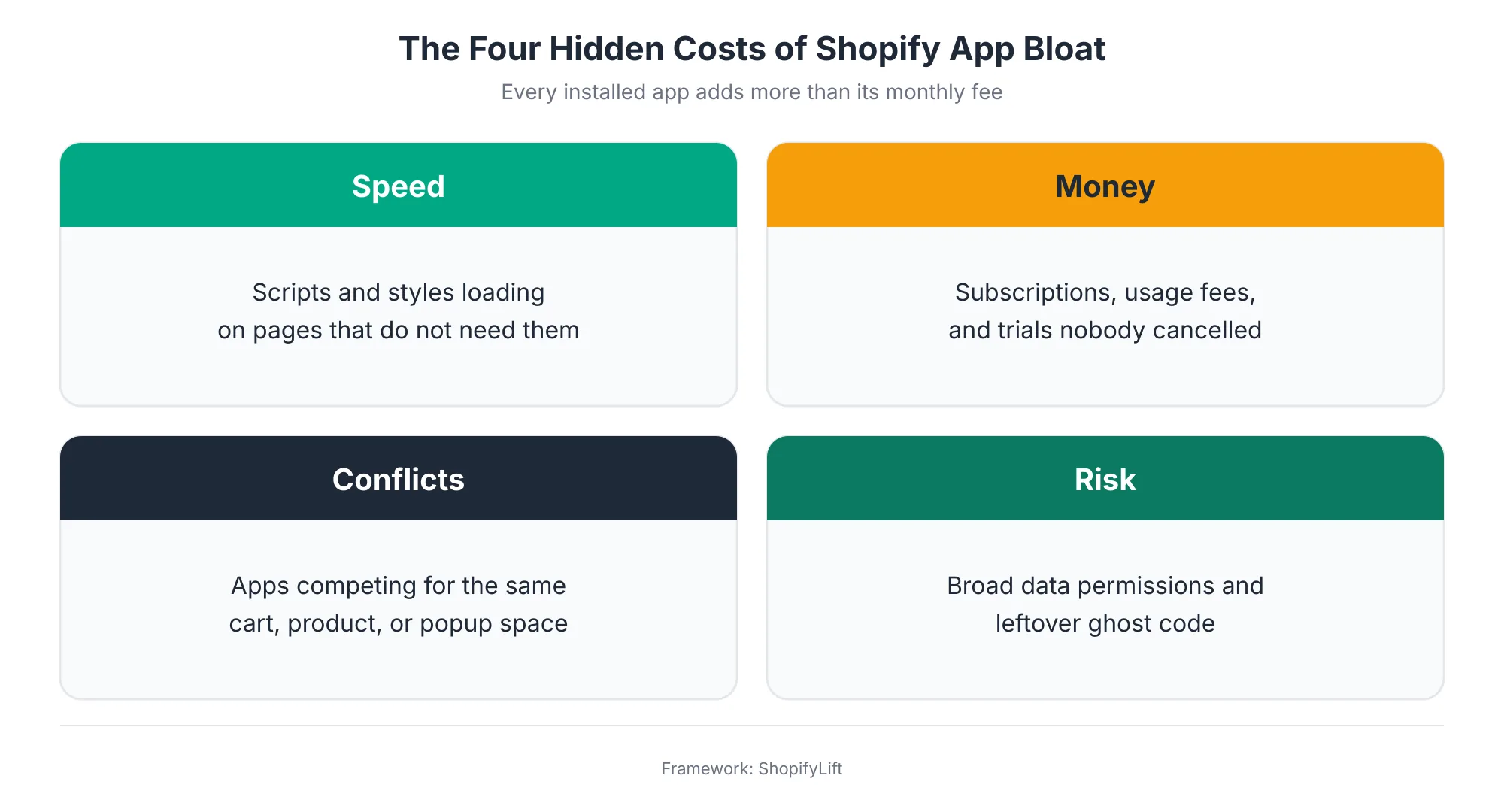
The Speed Cost
Most storefront apps add JavaScript, CSS, or network requests. Some load only where they're needed. Many load on every page, whether or not the page uses them.
Here's a detail most merchants don't know. To be listed in the Shopify App Store, an app must not reduce storefront Lighthouse performance scores by more than 10 points Shopify Developer Docs. Shopify tests this by measuring a store's Lighthouse score before and after the app is installed Shopify Developer Docs.
That's a sensible rule. But notice what it measures: one app at a time. It doesn't limit the combined effect of every app you've installed. The impact of several apps doesn't simply add up point by point, but a stack of individually acceptable apps can still leave your store noticeably slower than it would be without them.
Why does that matter? Because most sites already struggle with speed. The HTTP Archive's 2025 Web Almanac found that only 48% of mobile sites pass all three of Google's Core Web Vitals, and loading speed is the metric sites fail most often HTTP Archive. Too many apps can also cause JavaScript conflicts that slow pages down and hurt conversions BrainSpate.
The Money Cost
For many stores, app spend is modest. But among stores that do spend meaningfully on apps, there's a lot of waste. An analysis of Storeleads data found that across stores spending over $100 a month on apps, the median active-to-installed ratio is under 60% Eightx.
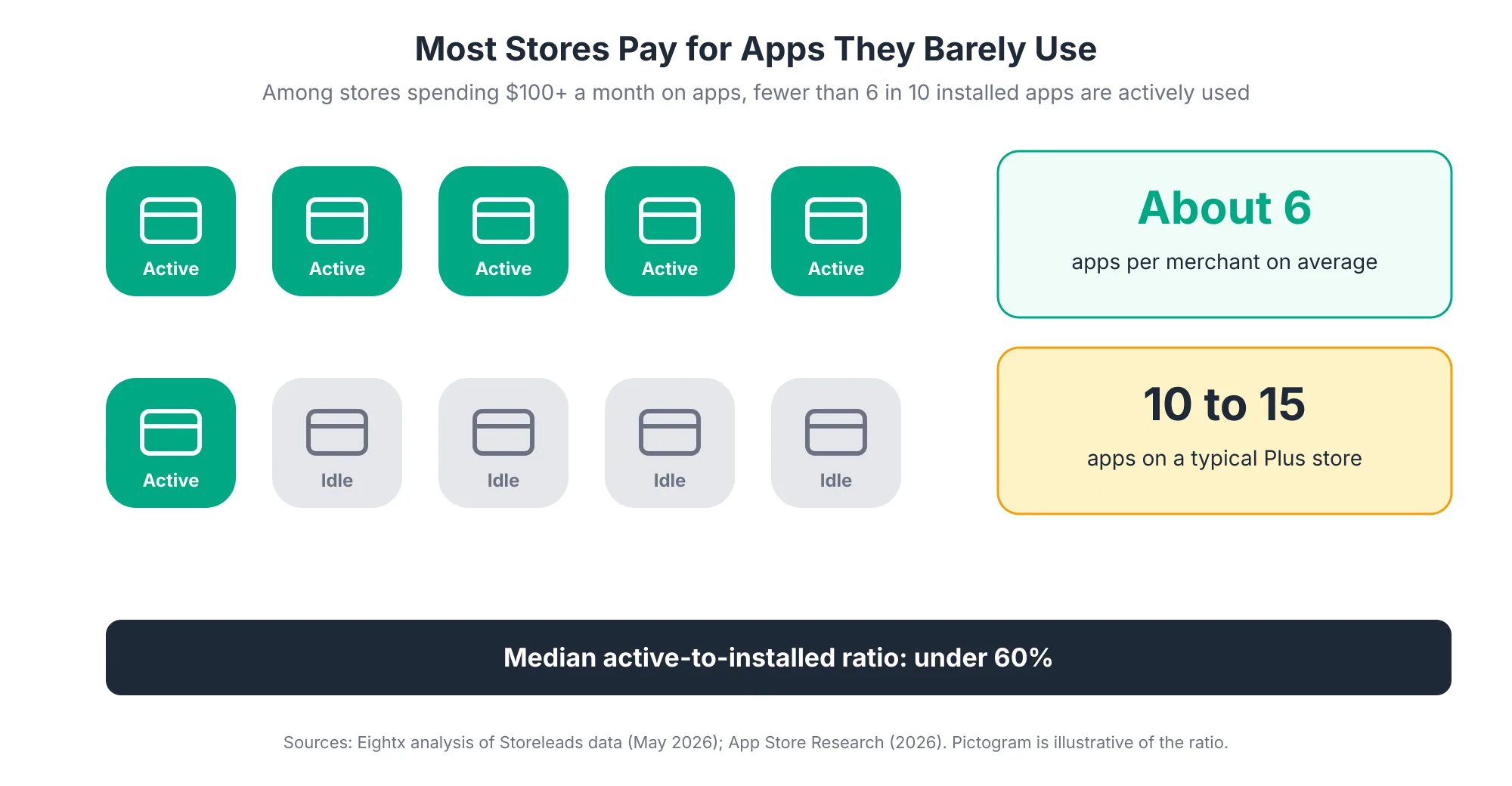
The same analysis estimates that one cleanup pass on unused apps typically recovers $500 to $2,000 a month for stores in the $1 million to $5 million revenue band Eightx. Your numbers will differ, but the pattern is common: forgotten apps, duplicated features, and plans sized for a peak that ended months ago.
The Conflict Cost
Apps don't always know about each other. Two apps that both modify the cart drawer, both add pop-ups, or both change product page prices can clash in ways neither developer tested. The symptoms are frustrating to diagnose: a button that sometimes doesn't work, a price that flickers, a pop-up that covers the checkout button on mobile.
Conflicts are also where weekly checkout testing earns its keep. Many of these issues only show up on specific devices or in specific combinations.
The Risk Cost
Every app you install asks for permissions. Some need access to products, orders, and customer data. An app you no longer use but haven't removed still holds that access.
There's a data risk too. If an app overwrites your product descriptions, Shopify's public documentation doesn't describe a native way to roll your store back TinyBackup. An app with write access to your catalog can overwrite product data at scale if something goes wrong. Fewer apps with write access means less exposure. We cover permissions and backups in Shopify Store Security: Staff Permissions, Data Backups, and Fraud Prevention.
How Do You Run a Shopify App Audit?
A Shopify app audit follows six steps. Build an inventory of every app, map each app to the job it does, measure its performance impact, check whether Shopify now handles that job natively, review its true cost, and then decide to keep, optimize, replace, or remove it. Plan for half a day for a typical store.
Step 1: Build a Complete App Inventory
Start with a table listing every installed app. Don't rely on memory. Pull the list from your admin, then cross-check it against your billing history, since you may be paying for things you don't see on the apps page.
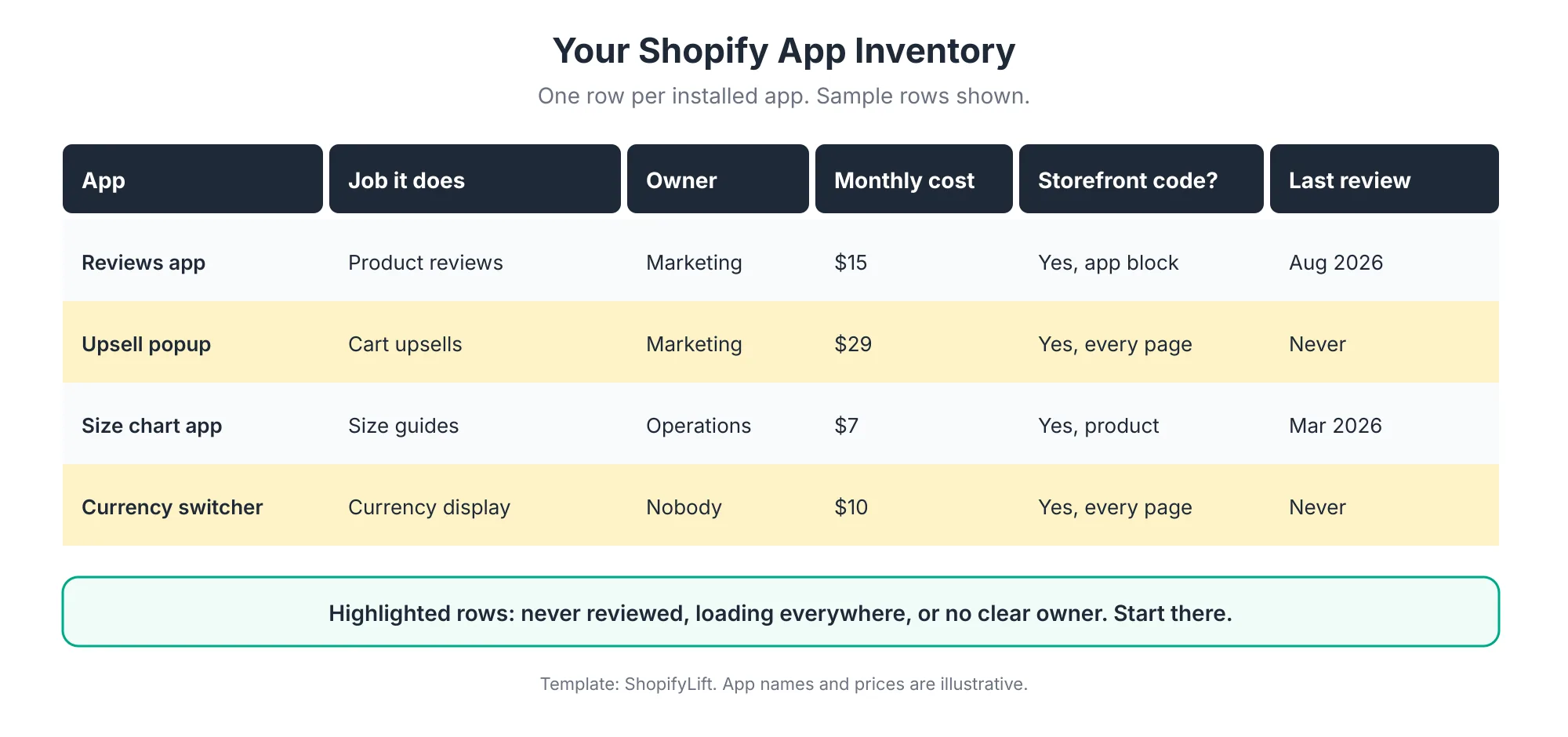
For each app, record:
- The job it does: In plain language, what problem does it solve?
- The owner: Who on your team is responsible for it and would notice if it broke?
- The true monthly cost: Include usage fees, not just the base plan.
- Storefront footprint: Does it load on the storefront? On every page, or only where it's used?
- Last review: When did anyone last check whether it's still needed?
Rows with no owner, no recent review, and code loading on every page are your first candidates for removal.
Step 2: Map Each App to Its Job and Find Overlaps
Now flip the view. Instead of listing apps, list the jobs your store needs done, then note every tool that does each job. That includes apps, your theme's built-in features, and Shopify's own tools.
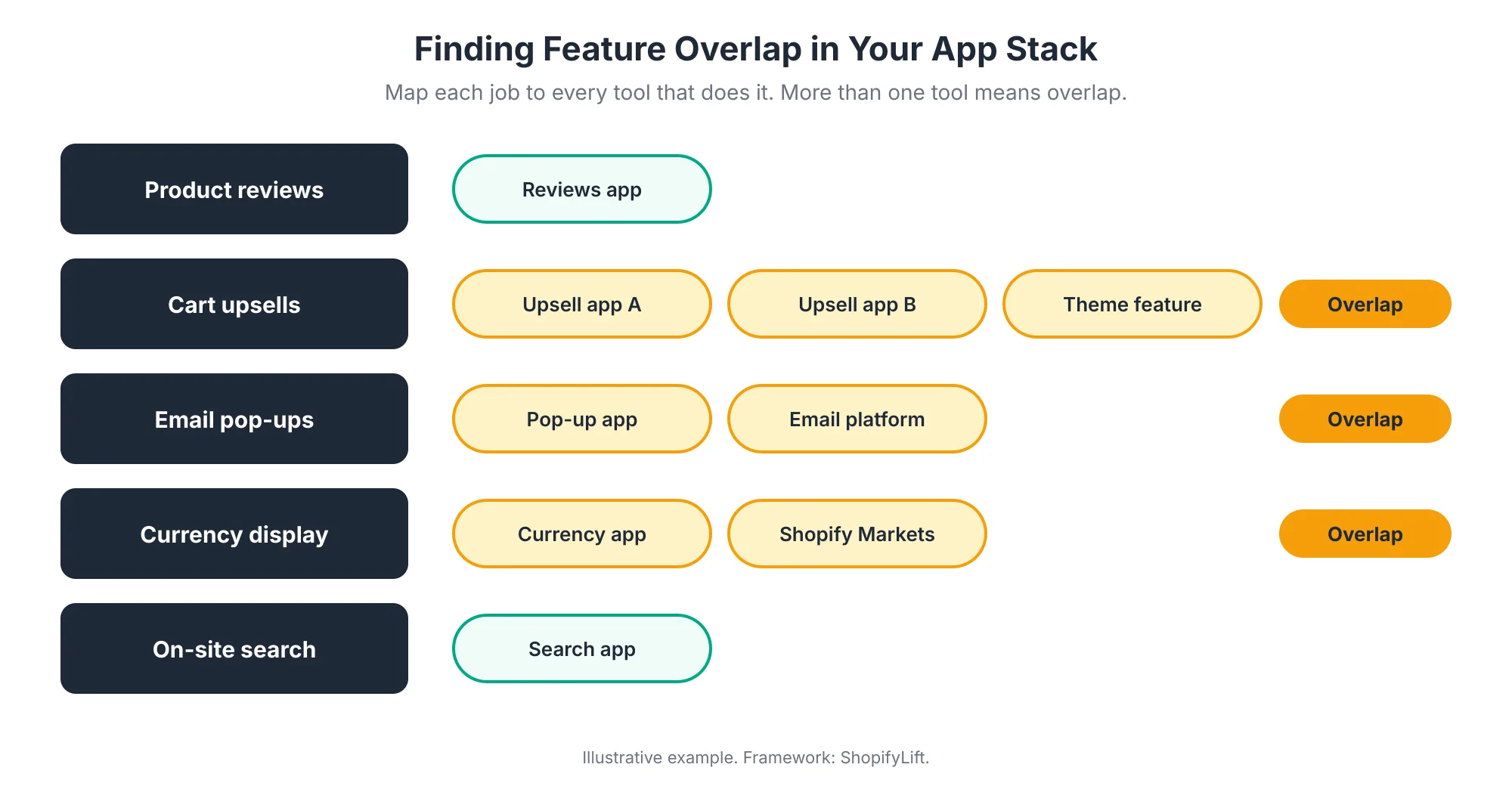
Anywhere more than one tool covers the same job, you have overlap. Pick one tool per job. Overlap is especially common with upsells, pop-ups, currency display, and reviews, since themes and email platforms increasingly include these features.
Step 3: Measure Each App's Performance Impact
Next, find out what each storefront app actually costs in speed. The most reliable method is simple, even if it's a bit tedious:
- Duplicate your live theme.
- Run a speed test on key templates: homepage, a collection, and a product page. Run each test a few times, since scores vary between runs Shopify Developer Docs.
- Disable one app's embeds and blocks on the duplicate theme, then retest.
- Record the difference and repeat for each app.
You can also open your browser's developer tools on a product page and look at the network requests. Scripts from app domains are easy to spot. Note which ones load on pages where the app isn't used.
What should you look for? Apps that load on every page but are only used on one, apps that load large scripts for small features, and apps whose removal makes a clearly measurable difference. For the broader performance picture, see our Growth Guide article on Core Web Vitals and site speed for Shopify.
Step 4: Check Whether Shopify Now Does It Natively
Shopify adds features constantly. Many of them overlap with jobs merchants used to buy apps for. Spring '26 alone shipped more than 150 updates, and a lot of them either remove a manual step or take over work that used to need an app Shopappy.
Before renewing any app, ask whether Shopify, your theme, or a tool you already pay for now covers the job. Native features have three advantages. They don't add a separate subscription, they're maintained by Shopify, and they usually load more efficiently than third-party code.
Native isn't always better, though. Specialist apps often go deeper than Shopify's built-in version. The question is whether you actually use that extra depth. We cover how to keep track of new Shopify features in How to Evaluate and Adopt New Shopify Features After Every Editions Release.
Step 5: Review the True Cost
Go back to your billing history and check each app's real cost over the last three to six months. Look for:
- Usage-based charges that grew with order volume.
- Plans sized for a peak period that's long over.
- Annual plans about to auto-renew.
- Apps billed outside Shopify, through the app developer's own website.
That last one is easy to miss. Some apps bill separately, so uninstalling them from Shopify doesn't cancel the subscription.
Step 6: Decide What to Keep, Optimize, Replace, or Remove
With inventory, overlap, speed, native options, and cost in hand, place each app on a simple grid.
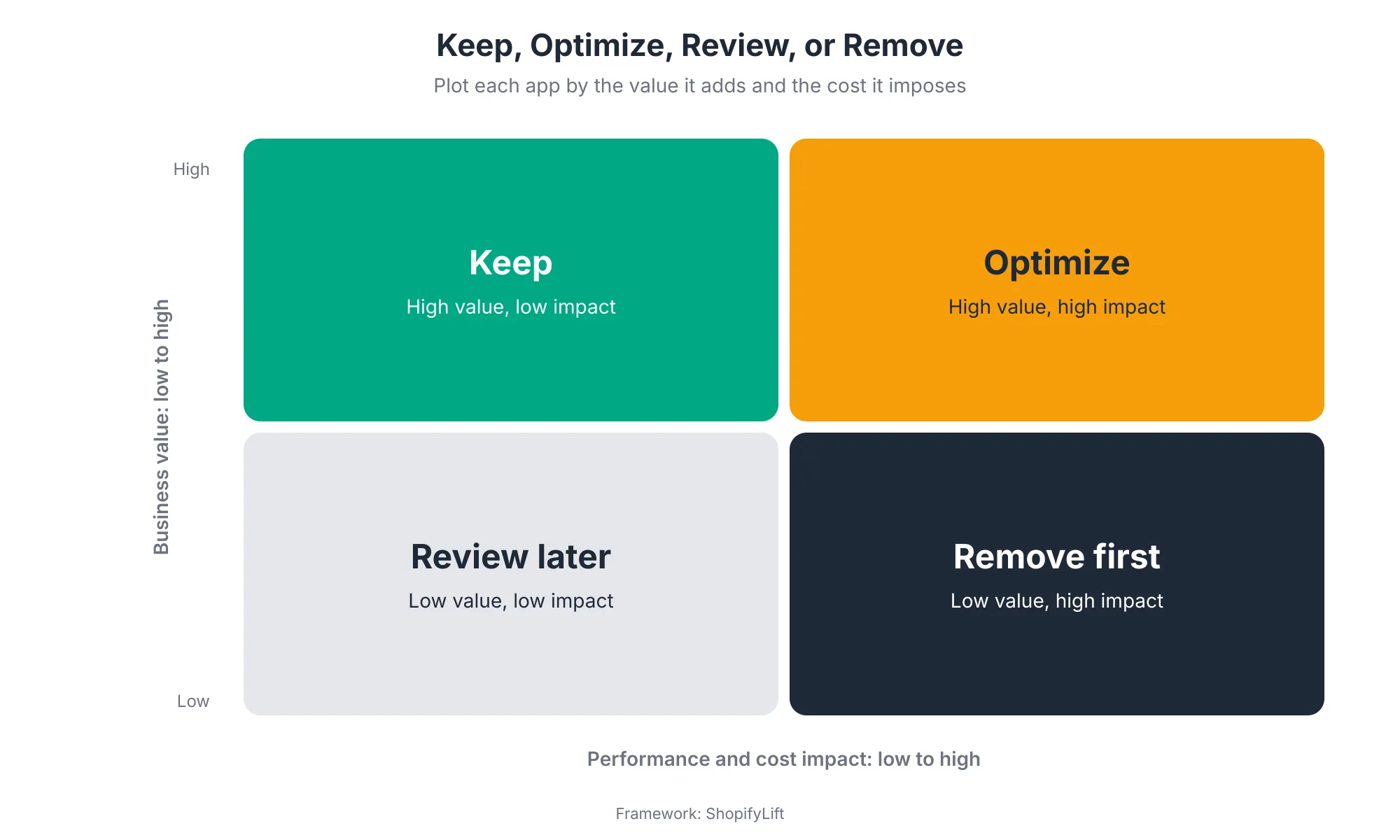
- Keep: High value, low impact. These apps earn their place. Review them again next quarter.
- Optimize: High value, high impact. You need what they do, but they're expensive or slow. Limit where they load, move to a lighter plan, or look for a leaner alternative.
- Review later: Low value, low impact. Not urgent, but they're candidates for cleanup next time.
- Remove first: Low value, high impact. These are your quick wins.
Be honest in the "value" column. "Someone might need it someday" isn't value. If an app hasn't been used in three months and nobody can explain what would break without it, it probably belongs in the remove column.
Not sure which apps are slowing your store?
Our free Shopify Store Health Audit includes an app-by-app review of speed impact, overlap, and cost, with clear recommendations. Request your free audit
How Do You Remove a Shopify App Cleanly?
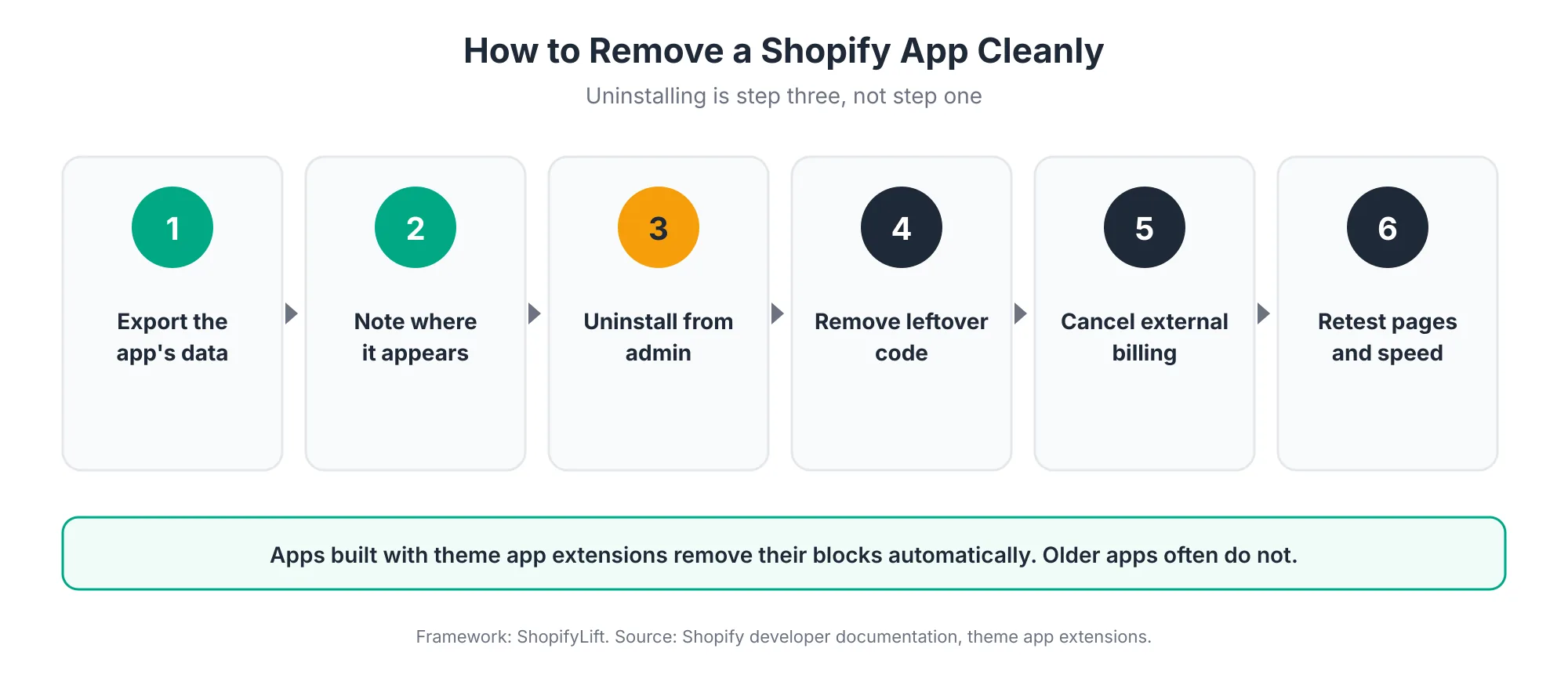
Removing an app cleanly takes six steps: export its data, note where it appears in your theme, uninstall it from the admin, remove any leftover theme code, cancel external billing or accounts, and retest your key pages. Uninstalling is the third step, not the first, because data and theme placements are much harder to recover afterward.
Export the App's Data First
Reviews, loyalty points, subscription records, wishlists, and form submissions often live inside the app, not in Shopify. Once you uninstall, that data may be gone. Export everything you might need, especially anything customer-facing like reviews.
Note Where the App Appears
List every place the app shows up in your theme: blocks on product pages, embeds in the theme editor, sections on the homepage. This makes it easier to check for gaps after removal and to place a replacement if you're switching apps.
Uninstall From the Admin
Now uninstall the app. If the app was built with theme app extensions, its blocks are automatically and entirely removed from your theme when you uninstall Shopify Developer Docs. That's the clean case.
Remove Leftover Theme Code
Older apps that edited theme files often leave code behind. Shopify's developer documentation describes this ghost code as a cause of quality and performance problems that can also take merchants off their theme upgrade paths Shopify Developer Docs.
To find it, search your theme code for the app's name, its script domain, and any snippet files it added. Remove it on a duplicate theme first, test, then publish. If you're not comfortable editing theme code, this is a good task to hand to a developer. We cover ghost code's effect on theme updates in How to Update Your Shopify Theme Without Losing Custom Code.
Cancel External Billing and Accounts
If the app billed you directly or required its own account, cancel that subscription separately. Also remove any API keys or integrations you set up in other systems, such as your email platform or analytics tool.
Retest Your Key Pages
Finally, walk through your homepage, collections, product pages, and cart. Check for empty spaces where the app used to be, broken layouts, and console errors. Rerun your speed tests so you can see, and record, what the removal gained you.
How Do You Choose Apps That Will Not Cause Bloat Later?
Prevent future bloat by choosing apps that use theme app extensions, meet Shopify's performance standards, and solve a clearly defined job. Test new apps on a duplicate theme first, give each one an owner, and set a review date before the trial ends. A little discipline at install time saves a lot of cleanup later.
A few habits make a big difference:
- Prefer app blocks and embeds: Apps built with theme app extensions don't edit your theme code, which reduces the risk of breaking changes and leaves nothing behind when removed Shopify Developer Docs.
- Look for the Built for Shopify badge: Apps with this status must meet Shopify's performance criteria, including the 10-point Lighthouse limit Shopify Developer Docs.
- Test before going live: Try new apps on a duplicate theme or development store before adding them to your live theme. Testing apps in a development environment first helps you avoid theme conflicts and bugs BrainSpate.
- Define the job first: Write down the problem you're solving before you browse the App Store. It stops you installing three apps to solve one problem.
- Set a trial review date: Put a reminder in your calendar two days before any trial ends. Decide deliberately rather than by default.
- Assign an owner: Every new app gets a named owner in your inventory on the day it's installed.
- One in, one out: When you add an app for a job, remove the tool that used to do it.
Which Types of Apps Most Often Cause Bloat?
Pop-up and marketing apps, upsell tools, review and social proof widgets, live chat, tracking pixels, translation and currency apps, and page builders are the categories most often behind app bloat. They tend to load on every page, overlap with each other, and get added during campaigns without being removed afterward.
These categories aren't bad. Many stores need several of them. But they're where overlap and excess code turn up most often, so they deserve extra attention during your audit.
- Pop-ups and email capture: It's common to find a pop-up app, an email platform's own sign-up form, and a theme pop-up all installed at once. Pick one. More than one pop-up also frustrates shoppers, especially on mobile.
- Upsells and cross-sells: Upsell apps often touch the cart drawer, product page, and post-purchase page. Two of them together are a classic source of conflicts in the cart.
- Reviews and social proof: Review widgets, "recently purchased" notifications, and user-generated content galleries can all load large scripts and images. Check whether they load on pages where they don't appear.
- Live chat and help desks: Chat widgets frequently load a sizable script on every page. Consider delaying the widget until a shopper interacts with it, or loading it only on key pages.
- Tracking pixels: Marketing and analytics pixels pile up over time, especially after changes in ad platforms or agencies. Remove pixels for platforms you no longer advertise on.
- Translation and currency: Shopify Markets now covers much of what separate currency and translation apps used to do. If you sell internationally, check what's still needed. Our Growth Guide covers international selling in Shopify Markets Pro: International Expansion.
- Page builders: Page builder apps can be very useful for landing pages, but they often load their own code across the store. With newer theme editors, including Horizon's section and block tools, some stores no longer need a separate builder for everyday pages.
If your inventory shows more than one app in any of these categories, that's usually where your audit should start.
What Results Should You Expect From an App Audit?
A thorough app audit typically produces three measurable results: a lower monthly app bill, a faster storefront on key templates, and fewer app-related bugs. Record your app spend and page speed before you start, so you can measure the difference afterward and show what the audit delivered.
Results vary widely. A lean store with five well-chosen apps may find only small savings. A store with twenty apps, several overlaps, and years of ghost code usually finds a lot more.
To make the results visible, capture a simple before-and-after snapshot:
- App count: How many apps were installed before and after.
- Monthly app spend: Total app charges for the month before the audit, compared with the month after.
- Speed on key templates: Average scores or load times for your homepage, a collection page, and a product page, run several times each.
- Scripts loaded: The number of third-party app scripts loading on a typical product page.
- Known issues resolved: Conflicts, layout bugs, or console errors fixed as part of the cleanup.
Add these numbers to your maintenance log. They make the case for keeping the audit on your calendar, and they give you a baseline for the next one.
How Often Should You Audit Your Shopify Apps?
Do a quick app check monthly and a full audit every quarter. The monthly check covers billing, new installs, and any obvious speed changes. The quarterly audit repeats all six steps, including speed testing and overlap mapping. Also run an audit before peak season and after every major Shopify Editions release.
The monthly check takes about half an hour:
- Review this month's app charges for anything unexpected.
- Check for apps installed since last month and make sure each has an owner.
- Glance at your speed trend and investigate any drop.
The quarterly audit is the full process described above. It also lines up well with your quarterly theme update review, since both touch the same theme files.
Two moments call for an extra audit. The first is before peak season. Fewer apps means fewer things that can break under heavy traffic, and it's much easier to remove an app in September than during Black Friday. See Seasonal Store Readiness: How to Prepare Your Shopify Store for BFCM and Peak Sales. The second is after each Shopify Editions release, when new native features may replace apps you're paying for.
When Should You Replace Several Apps With Custom Development?
Consider custom development when several apps are stitched together to do one job, when apps can't handle your store's specific logic, or when their combined cost and speed impact outweighs a one-time build. Custom code is only worth it if it's well built and maintained, so weigh the ongoing upkeep as well as the savings.
Custom development can make sense when:
- Three or four apps work together to deliver one experience, and they regularly conflict.
- You're paying premium plans for a small part of what each app does.
- Your business logic, such as complex bundles or B2B pricing, doesn't fit any app well.
- Speed matters enough that lean, purpose-built code is worth the investment.
It usually doesn't make sense when a well-built app already does the job, or when you don't have ongoing development support to maintain custom code. An app handles its own updates. Custom code needs someone to look after it.
If you're weighing a custom build, our Shopify development services can help you scope and plan it.
Frequently Asked Questions
How many apps should a Shopify store have?
There's no ideal number. It depends on what your store needs. Merchants install about six apps on average, and Shopify Plus stores often use ten to fifteen. What matters more is that every app has a clear job, an owner, and a measurable benefit that outweighs its speed and cost impact.
Do uninstalled Shopify apps leave code behind?
Older apps that edited theme files often do. Shopify calls this ghost code and notes it can cause quality and performance problems. Apps built with theme app extensions are different, since their blocks are removed automatically when you uninstall. Check your theme files after removing older apps.
How do I know which app is slowing down my Shopify store?
Duplicate your theme, run speed tests on key pages, then disable one app's blocks and embeds at a time and retest. Run each test several times, since scores vary. Your browser's network panel also shows which app scripts load on each page.
Does the Built for Shopify badge mean an app is fast?
It means the app meets Shopify's performance criteria, including not lowering storefront Lighthouse scores by more than 10 points. That's a useful quality signal. But the limit applies to each app individually, so several compliant apps together can still slow your store noticeably.
Will uninstalling an app cancel its subscription?
Uninstalling cancels app charges billed through Shopify. Apps that bill you directly through their own website need to be cancelled separately. Check your card statements and the app developer's account settings after removing any app that required a separate signup.
Final Thoughts
Apps make Shopify powerful. Unmanaged apps make it slow, expensive, and fragile. The difference isn't how many apps you have. It's whether someone is deciding, on purpose and on a schedule, which ones earn their place.
Start with the inventory. For most stores, simply listing every app with its owner and cost reveals several easy removals. Then work through the rest of the audit, and put the next one on the calendar before you finish.
For the full picture of keeping your store in shape, head back to our Shopify Store Management guide.
Want an expert to audit and clean up your app stack?
ShopifyLift's Store Management service includes regular app audits, clean removals, ghost code cleanup, and speed monitoring. Explore Shopify Store Management Services
Continue the Store Management Series
- Hub: Shopify Store Management: The Complete Guide
- Previous: How to Update Your Shopify Theme Without Losing Custom Code
- Next: How to Evaluate and Adopt New Shopify Features After Every Editions Release
- The Shopify Store Maintenance Checklist: Weekly, Monthly, and Quarterly Tasks for 2026
- Shopify Store Security: Staff Permissions, Data Backups, and Fraud Prevention
Sources
[1] App Store Research, "Shopify App Ecosystem Trends You Can't Ignore in 2026," June 2026
[2] Capaxe Labs, "The Complete Shopify Store Maintenance Checklist for 2026," March 2026
[3] Shopify Developer Documentation, "About performance optimization," 2026
[4] Shopify Developer Documentation, "Best practices for apps in the Shopify App Store," 2026
[5] Eightx, "Shopify app bloat report 2026," June 2026
[6] Eightx, "Average Shopify app spend by revenue band, 2026," June 2026
[7] Shopify Developer Documentation, "Migrate to theme app extensions," 2026
[8] Shopify Developer Documentation, "UX for theme app extensions," 2026
[9] Shopappy, "Shopify Editions Summer 26: What Shopify Actually Announced," July 2026
[10] HTTP Archive, "Web Almanac 2025: Performance," 2026
[11] BrainSpate, "Shopify Maintenance Cost: Complete Breakdown for 2026," July 2026
[12] TinyBackup, "Does Shopify Back Up Your Store? The Honest Answer (2026)," June 2026