Part of our Shopify Store Management guide. Spoke 8 of 10.
Most Shopify merchants don't think much about security, and in one sense that's fair. Shopify runs the servers, patches the platform, and handles payment security at checkout. You don't need to worry about any of that.
But that's only half the picture. Who can log in to your admin? Which apps can edit your products or read your customer data? What happens if someone deletes half your catalog by accident? How many of last month's orders were fraudulent? Those questions are yours to answer, and most stores have never answered them properly.
This matters more every year. Verizon's 2026 Data Breach Investigations Report found that 62% of breaches involved a human element, and that breaches involving a third party rose 60% in a year to 48% of all breaches Verizon. For a Shopify store, third parties include your agency, your freelancers, and every app you've installed.
This guide covers the three areas of store security that belong to you: who has access, how your data is protected, and how you prevent fraud and chargebacks.
Key Takeaways
- Shopify secures the platform, but staff access, app permissions, data backups, and fraud decisions are the merchant's responsibility.
- Third parties were involved in 48% of breaches in Verizon's 2026 report, so agency, freelancer, and app access needs regular review.
- Shopify's platform backups can't restore an individual store's data. You need your own backups and a tested restore process.
- Shopify's Fraud Control app flags a chargeback rate between 0.4% and 0.6% of orders as at risk, and above 0.6% as elevated.
What Does Shopify Secure, and What Is Your Responsibility?
Shopify secures the platform: hosting, infrastructure, platform-wide backups, and payment security at checkout. You're responsible for everything you control inside your store: who has access and with what permissions, which apps you install and what they can do, how your store data is backed up, and which orders you choose to fulfill.
It helps to think about your side of the line in three pillars.
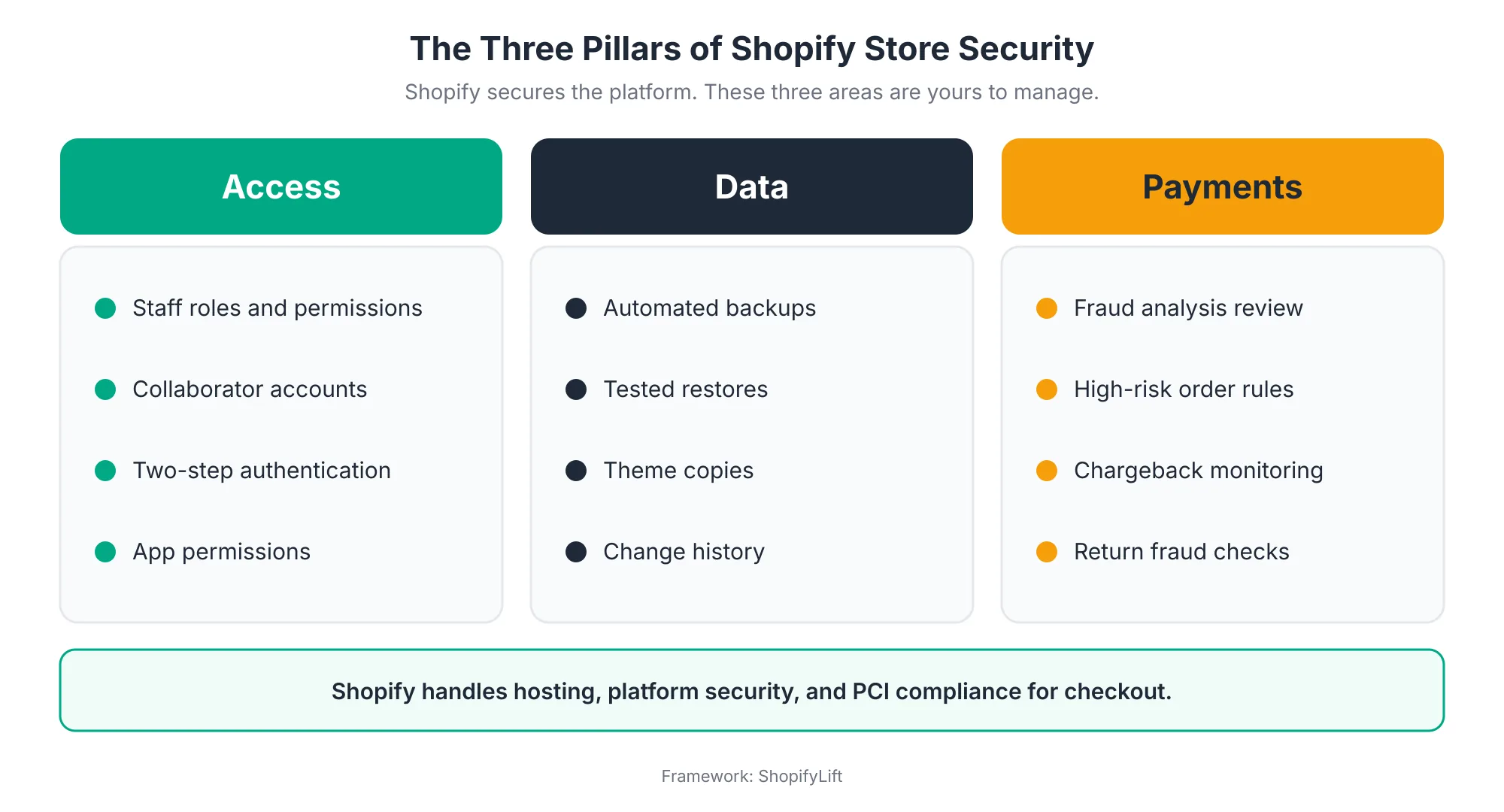
- Access: Who can log in, what they can see and change, and whether their accounts are protected with two-step authentication. This includes staff, collaborators, and apps.
- Data: Whether you can recover your products, customers, orders, content, and theme if something is deleted, overwritten, or broken.
- Payments: How you identify risky orders, handle chargebacks, and limit fraud, including return fraud.
One security checklist for 2026 puts the split plainly: Shopify doesn't manage your passwords, your two-factor authentication, your staff permissions, or your app scopes Cordon. We cover the full shared responsibility model in our Shopify Store Management guide.
Why Does Store Security Matter More in 2026?
Store security matters more in 2026 because attacks increasingly come through people and partners rather than through the platform itself. Verizon's 2026 breach report found that 62% of breaches involved a human element and 48% involved a third party. For merchants, that means staff accounts, agency access, and app permissions are where most of the risk now sits.
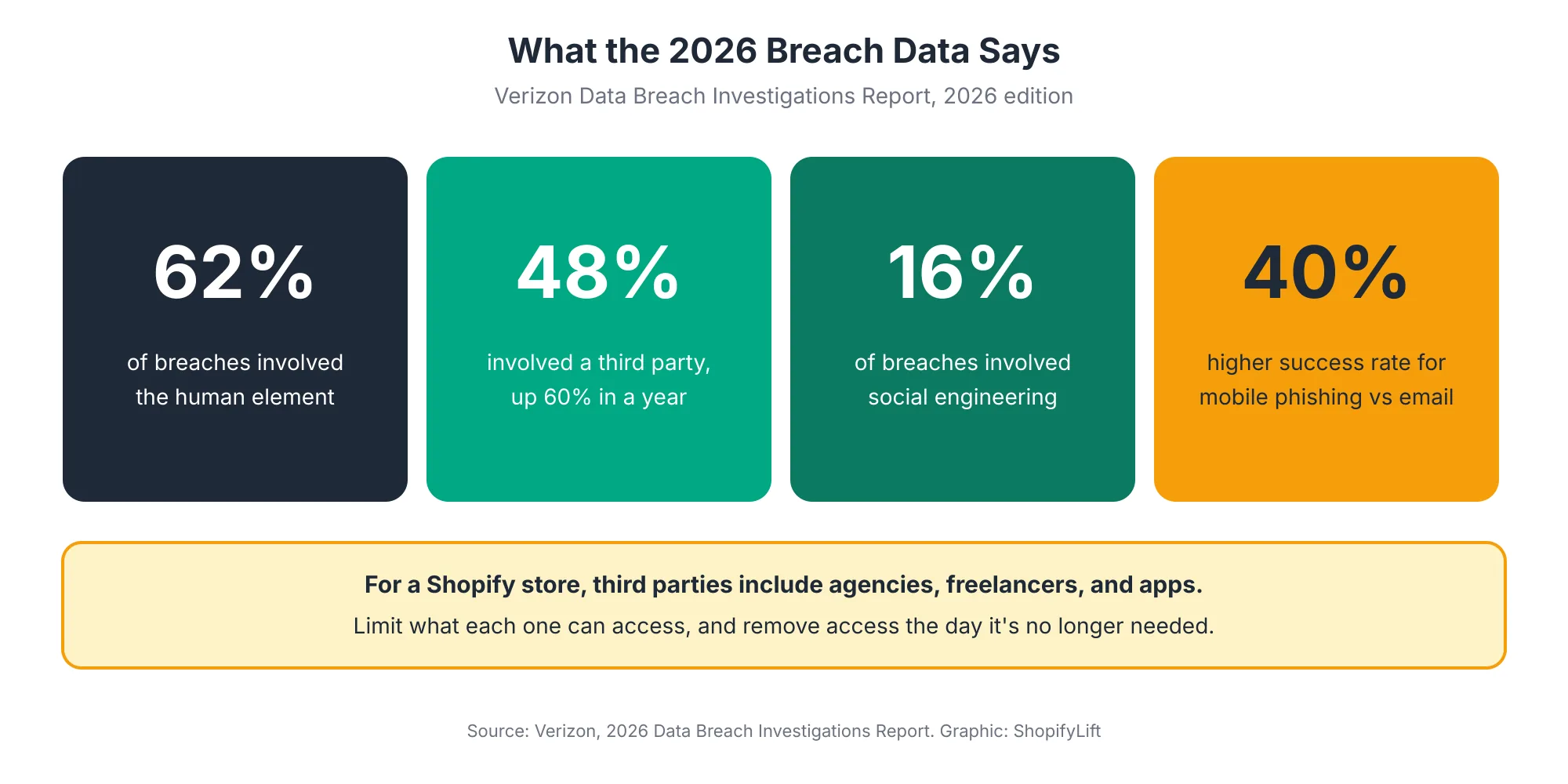
The 2026 findings point in a consistent direction:
- People remain the main target. The human element, including mistakes, social engineering, and credential misuse, was involved in 62% of breaches Verizon.
- Partners are a growing risk. Third-party involvement rose 60% year over year to 48% of breaches Verizon. The report traced most high-profile third-party incidents back to missing or misconfigured multi-factor authentication and a lack of least-privilege access SpyCloud.
- Phones are a weak spot. Social engineering accounted for 16% of breaches, and mobile phishing attacks had a median success rate 40% higher than email phishing SecurityWeek. Many store owners run their business from a phone.
Those root causes, missing two-step authentication and too much access, are exactly the controls a Shopify merchant can fix. That's the good news. The most important security work for most stores is simple, cheap, and entirely within your control.
How Should You Set Up Staff and Collaborator Access?
Give every person their own named account with only the permissions their role needs. Use staff accounts for employees and collaborator accounts for agencies and freelancers. Never share one login between several people. Review roles when someone's job changes, and remove access the day it's no longer needed.
Staff Accounts Versus Collaborator Accounts
Shopify offers two types of access, and choosing the right one matters.
- Staff accounts are for employees and ongoing team members. You invite them from your admin and assign roles that limit what they can access Shopify Help Center. Invitations expire after seven days if they aren't accepted Shopify Help Center.
- Collaborator accounts are for Shopify Partners, such as agencies and freelance developers. The partner requests access, and you approve it. You can require a collaborator request code, and each request comes with a role based on the permissions requested Shopify Help Center.
Collaborator accounts have a built-in security advantage. Partners must activate two-step authentication to use a collaborator account, and without it they can't log in to your store Shopify Help Center. That's one reason agencies and freelancers should always use collaborator access rather than a shared staff login.
Apply Least Privilege
Least privilege means each person gets only the access their job requires. It limits both the damage an attacker can do with a stolen login and the damage a well-meaning person can do by mistake.
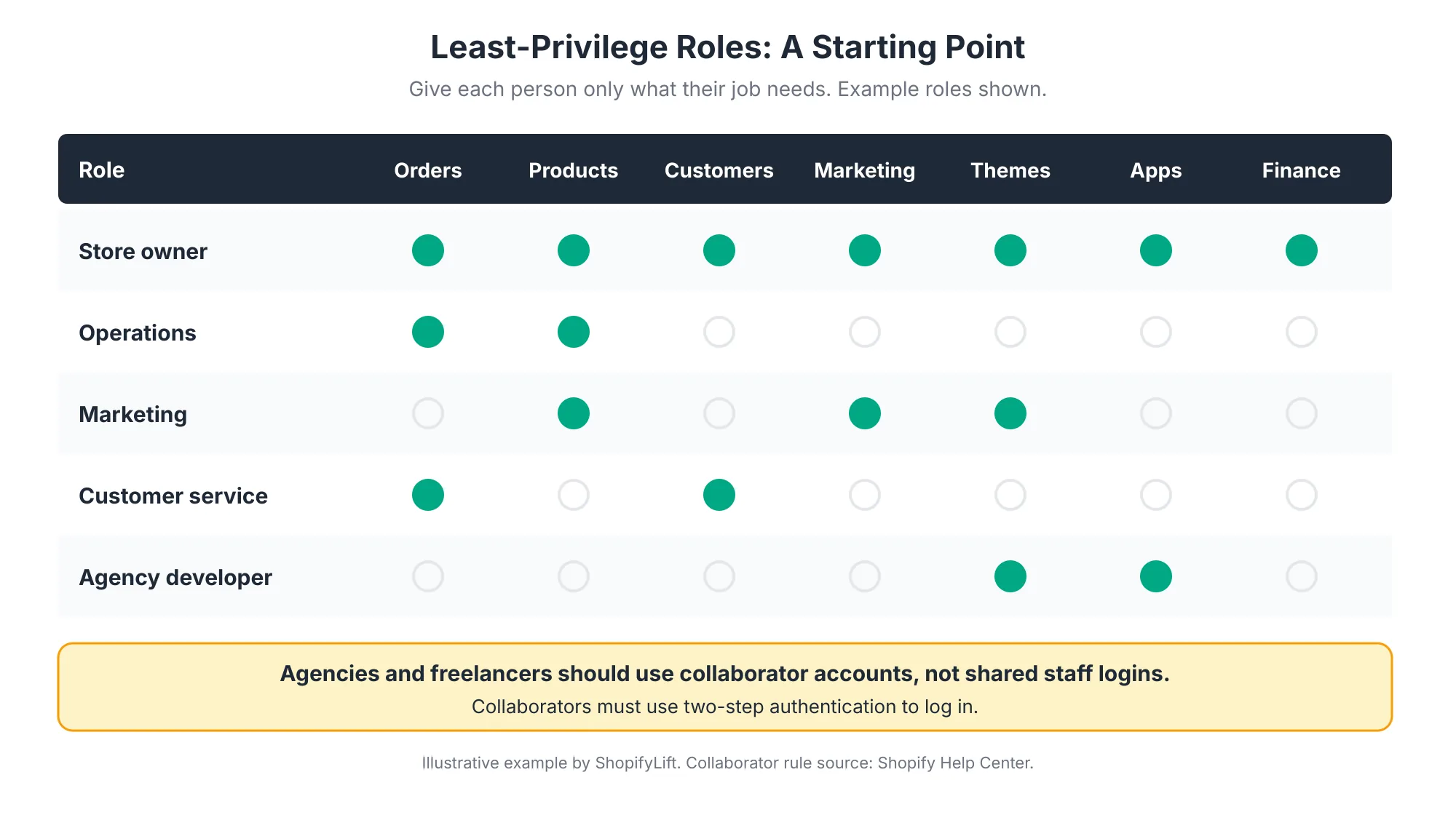
A few practical rules:
- Keep finance access tight. Payouts, billing, and financial reports should be limited to the owner and anyone who genuinely needs them.
- Be careful with app permissions for staff. Anyone who can install apps can grant third parties access to your data.
- Review requested permissions. When a collaborator requests access, Shopify shows the permissions they've asked for. Carefully consider which ones they actually need to complete their tasks Shopify Help Center.
- Handle seasonal staff deliberately. Create temporary staff accounts with minimal access for peak season, and set a date to remove them.
Never Share Logins
Shared logins are one of the most common security gaps we find in store audits. They make two-step authentication awkward, make it impossible to see who changed what, and mean that when one person leaves, the password needs changing for everyone. Give every person their own account.
How Do You Enforce Two-Step Authentication on Shopify?
Turn on two-step authentication for the store owner account first, then require it for every staff member in their user settings. Shopify Plus stores can require it across the whole organization. Collaborators must use it by default. Prefer an authenticator app or security key over SMS codes, and make sure everyone has saved their recovery codes.
Two-step authentication is the single most valuable security control for most Shopify stores. Even if a password is stolen, the attacker still can't log in without the second factor.
Here's how it works on Shopify:
- You can require it for each staff member. From your admin, you can set two-step authentication as required for a user when they log in, and Shopify recommends requiring it for new users by default Shopify Help Center.
- You can't set it up for them. Two-step authentication is tied to each person's individual Shopify ID. The store owner can require it, but can't activate it on another staff member's behalf Shopify Help Center.
- Plus stores can enforce it everywhere. Stores on Shopify Plus can require all users in their organization to use two-step authentication Shopify Help Center.
- It follows the person. Removing a staff member and re-inviting them with the same email doesn't reset their two-step setup, since it belongs to their Shopify ID rather than your store Shopify Help Center.
Which method should people use? Shopify supports several. Security guidance for 2026 recommends authenticator apps or security keys rather than SMS where possible Cordon, since text messages can be intercepted or redirected.
One practical note: switching a user's setting from not required to required logs them out of Shopify Shopify Help Center. Tell your team before you change it, and don't do it in the middle of a busy trading day.
How Do You Run a Quarterly Access Review?
Every quarter, list every staff account, collaborator account, and installed app. Confirm each still needs access, trim permissions to what the role requires, remove anyone who has left or finished their project, and confirm two-step authentication is required. The whole review usually takes under an hour and closes most access gaps.
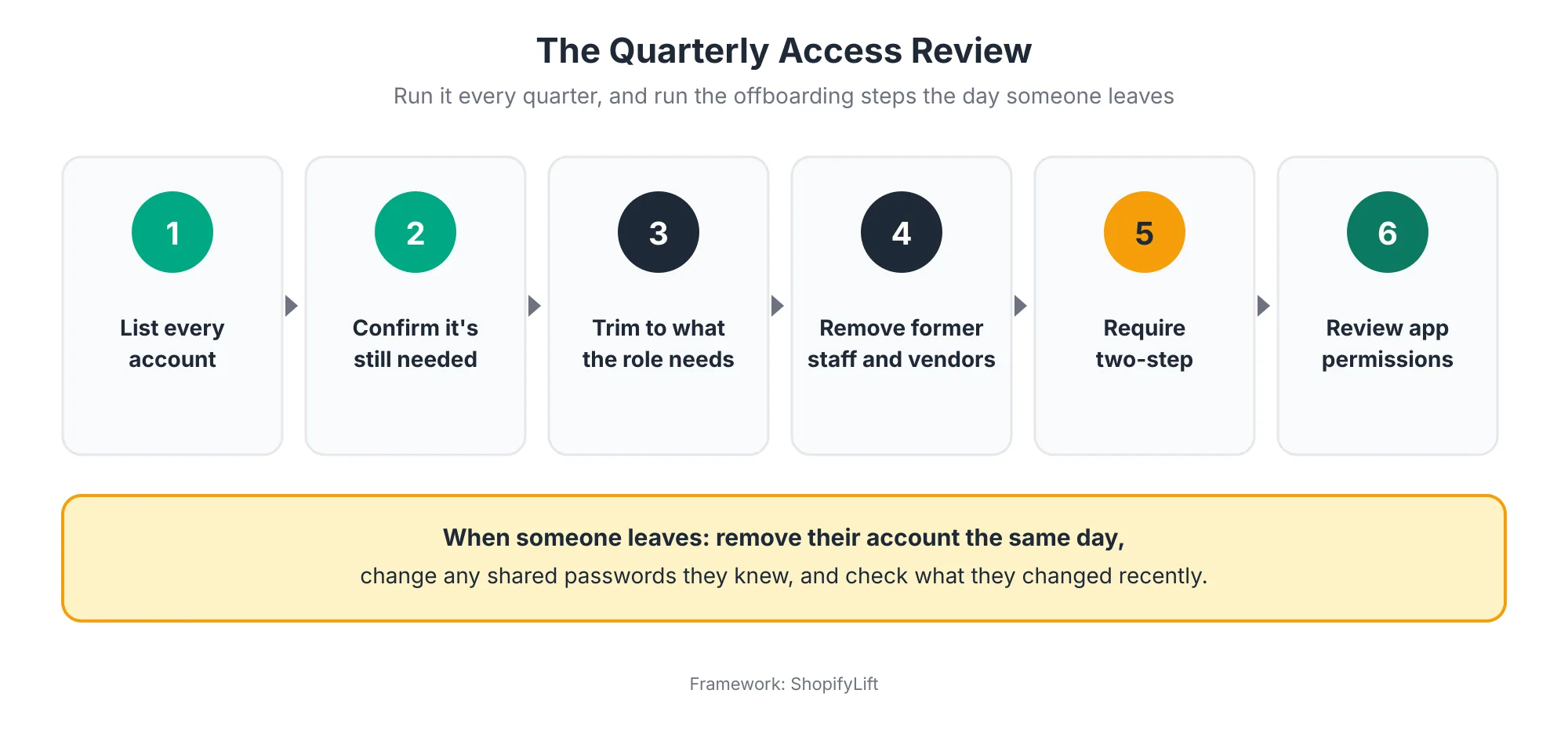
For each account, ask three questions. Does this person still work with us? Do they need this level of access? When did they last log in? Collaborator accounts deserve extra attention, because they're easy to forget once a project ends. An agency that built your theme two years ago may still have full access today.
If you do remove a collaborator and later need them back, Shopify lets you reactivate their access from the users page Shopify Help Center. There's no reason to leave access open "just in case."
Offboarding the Same Day
Quarterly reviews catch drift. Offboarding prevents it. When someone leaves, whether an employee or a contractor, act the same day:
- Remove or deactivate their Shopify account.
- Change any shared passwords they knew, such as email marketing or shipping accounts.
- Remove their access to connected tools like your email platform, helpdesk, and analytics.
- Check recent changes they made, especially to payouts, staff, apps, or settings.
The quarterly access review is part of our Shopify Store Maintenance Checklist.
How Should You Manage App Permissions?
Treat every app as a third party with access to your store. Before installing, check what data it asks to access and whether it needs that access for the job. Remove apps you no longer use, since they keep their permissions until uninstalled. Review app permissions during every quarterly access review.
Given that third-party involvement appeared in 48% of breaches in Verizon's 2026 report Verizon, apps deserve the same scrutiny as people. When you install an app, you're granting a company outside your business ongoing access to parts of your store, sometimes including customer and order data.
A few habits reduce the risk:
- Read the permissions before installing. If a simple storefront widget asks to read and edit all your customers and orders, ask why.
- Uninstall what you don't use. An app you tested for a week last year may still have access to your data today.
- Limit who can install apps. Restrict app installation to the owner or a small number of trusted staff.
- Watch for write access. Apps that can edit products, prices, or inventory can also make large mistakes at scale.
Our Shopify App Audit guide covers how to review your app stack in detail, including removing old apps cleanly.
Want to know who can access your store right now?
Our free Shopify Store Health Audit reviews your staff, collaborator, and app access, two-step authentication, and backup setup, with a prioritized fix list. Request your free audit
How Do You Back Up a Shopify Store?
Back up your Shopify store with an automated backup app or regular manual exports, and keep a copy of your theme. Shopify's platform backups exist to restore the whole platform after a major incident, not to restore your individual store. Test a restore regularly, because a backup you've never restored from is only an assumption.
Why You Need Your Own Backups
This surprises many merchants. Shopify's disaster recovery backup can't be used to restore data inside an individual store Rewind. And if products or collections are deleted, Shopify's documentation treats that as permanent deletion rather than something you can undo from the admin TinyBackup.
The most common causes of data loss aren't dramatic attacks. They're everyday mistakes: a bulk edit applied to the wrong collection, an app that overwrites product descriptions, an import file with the wrong columns, or a staff member deleting something they thought was a duplicate.
Choose a Backup Method
There are three common approaches, and many stores combine them.
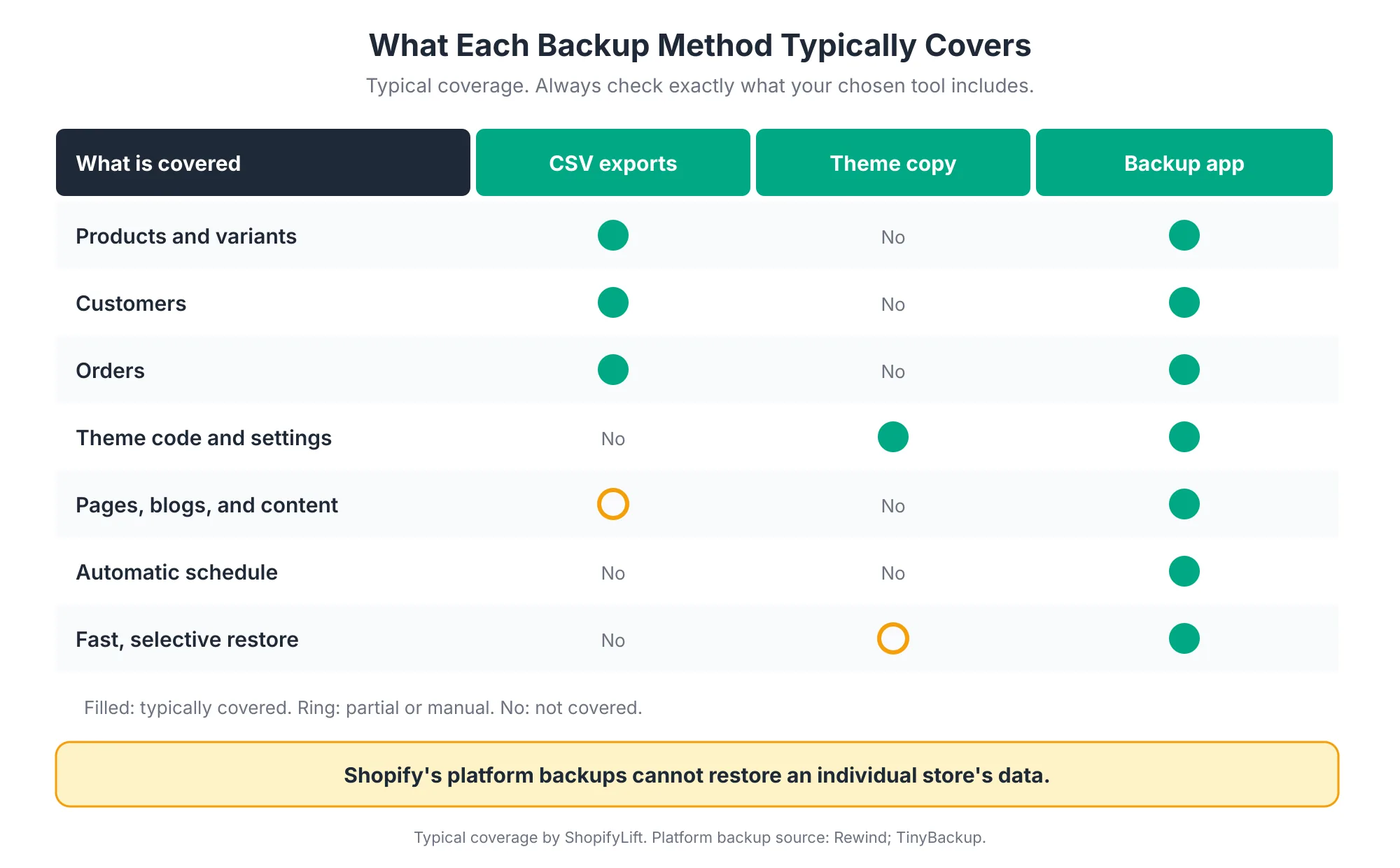
- Manual CSV exports. Free and simple. You can export products, customers, and orders from the admin. The downsides are that exports don't cover everything, someone has to remember to do them, and restoring some data types, such as orders, typically needs an app rather than a simple re-import.
- Theme copies. Duplicating your theme and downloading a copy protects your theme code and settings, but nothing else.
- Automated backup apps. These run on a schedule and typically cover more data types, with faster and more selective restores. Coverage varies by app, so check exactly what each one includes before relying on it.
Test Your Restores
Whichever method you choose, test it. Once a month, restore something small, such as a single product or page, to confirm the process works and that you know how to do it. Before peak season, take a full backup and confirm it restores. We cover pre-peak backups in Seasonal Store Readiness.
How Do You Prevent Fraud and Chargebacks on Shopify?
Prevent fraud by reviewing Shopify's fraud analysis on every order, holding high-risk orders for manual review before fulfilling them, automating responses with Shopify Flow, and monitoring your chargeback rate in the Fraud Control app. Also reduce "friendly fraud" by using a clear billing descriptor and making it easy for customers to contact you instead of their bank.
Use Shopify's Fraud Analysis
Shopify's fraud analysis automatically reviews each order, checking signals such as address verification, card security code, IP address details, and unusual purchase patterns, and flags orders as low, medium, or high risk Shopify Help Center. Medium and high-risk orders get a warning symbol on your orders page Shopify Help Center.
Don't ignore those flags. Fulfilling high-risk orders can lead to more chargebacks, which can result in payment processing being disabled and removal from Shopify Payments Shopify Help Center.
Automate the Routine Decisions
Reviewing every order by hand doesn't scale. Shopify Flow can automate common responses, such as capturing payment for low and medium-risk orders, holding high-risk orders for review, or canceling and restocking orders that meet specific fraud criteria Shopify Help Center. You can also switch to manual payment capture, so high-risk orders are reviewed before funds are collected Shopify Help Center.
Shopify's free Fraud Control app includes ready-made templates, such as canceling and restocking high-risk orders, notifying your team of a new chargeback, and alerting staff when a high-risk order arrives before payment capture Shopify Help Center.
Watch Your Chargeback Rate
The Fraud Control app also shows how healthy your chargeback rate is.
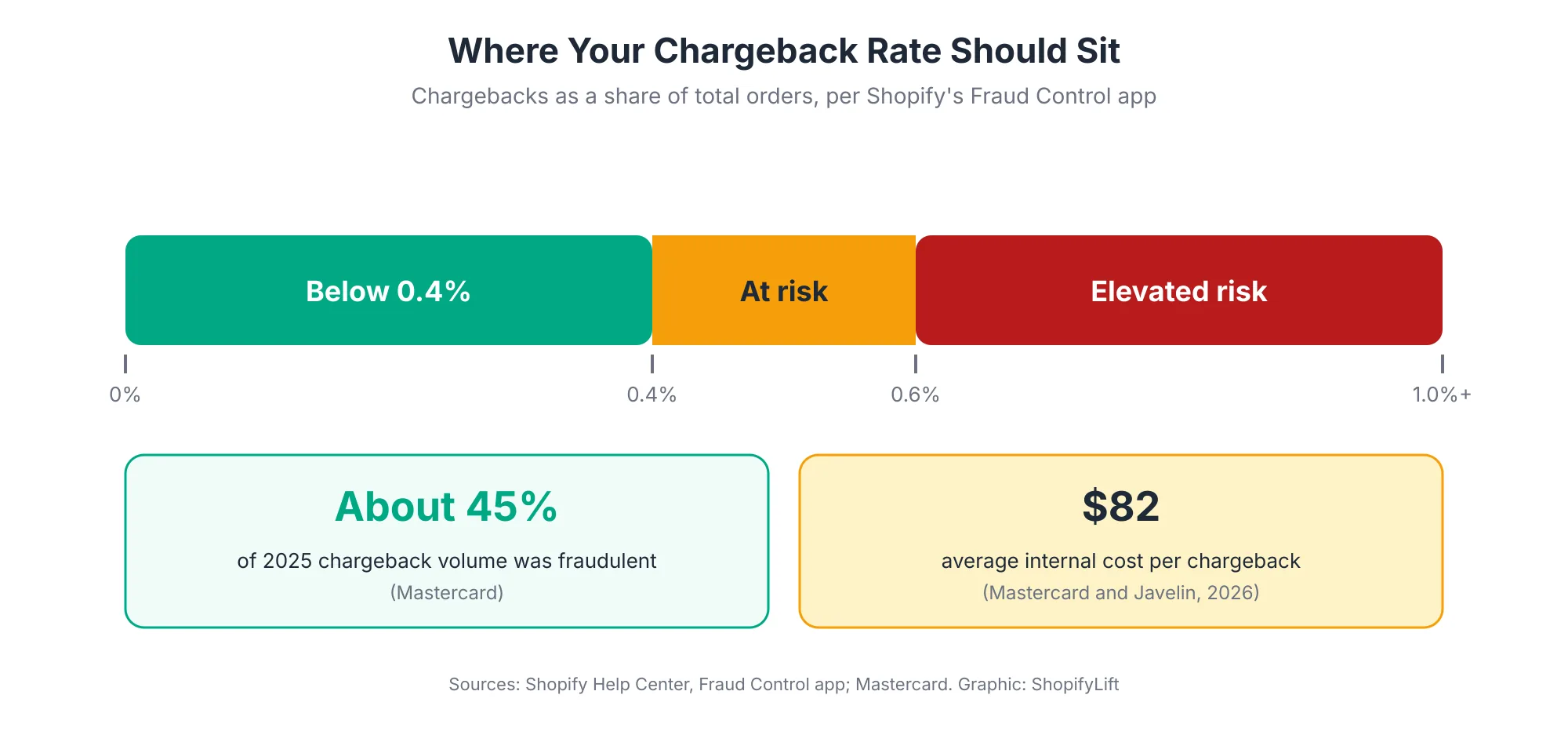
Shopify marks a store as at risk when chargebacks are between 0.4% and 0.6% of orders, and as elevated risk above 0.6% Shopify Help Center. Check this monthly, and investigate any upward trend quickly.
Chargebacks are expensive beyond the refunded amount. Mastercard reports that fraudulent chargebacks made up around 45% of merchant chargeback volume globally in 2025, and cites an average internal cost of $82 per chargeback for merchants Mastercard.
Know What Shopify Protect Covers
Shopify Protect offers free protection against fraudulent and unrecognized chargebacks on eligible orders. It's valuable, but it has limits. It applies only to eligible Shop Pay orders placed in the US, and protected chargebacks still count toward your overall chargeback ratio Chargebacks911. Treat it as a safety net, not a replacement for reviewing risky orders.
Reduce Friendly Fraud
Not every chargeback is criminal fraud. Many come from genuine customers who don't recognize a charge or find it easier to call their bank than to contact you. In Chargebacks911's 2025 survey, 40% of cardholders said they often don't recognize purchases on their statements because of confusing billing descriptors, and nearly half admitted bypassing the merchant entirely Chargebacks911.
Two simple fixes help. Make sure your billing descriptor clearly matches your store name, and make your contact details and return process easy to find on your site and in order emails.
Watch for Return Fraud
Returns are another fraud channel. NRF and Happy Returns found that 9% of all returns in 2025 were fraudulent NRF. Inspecting returned items before refunding and restocking them is the most practical defense. We cover returns workflows in Shopify Inventory and Order Management.
How Should You Protect Customer Data Outside Shopify?
Protect customer data outside Shopify by limiting who can export it, storing exports securely, deleting old export files, and checking which connected tools receive customer information. Much of the real risk to customer data sits in spreadsheets, inboxes, and marketing tools rather than in the Shopify admin itself.
Shopify protects the data inside your store. But customer data rarely stays there. It gets exported to spreadsheets for analysis, synced to email and SMS platforms, shared with fulfillment partners, and downloaded to laptops. Each copy is another place it can leak.
A few practical habits reduce that exposure:
- Limit exports. Only people who genuinely need customer or order exports should have permission to create them. Most staff don't.
- Don't email export files. Share them through a secure, access-controlled folder instead, and remove access once the task is done.
- Delete old exports. A customer list downloaded for a campaign last year and left in a downloads folder is an unnecessary risk. Set a habit of deleting exports once they've served their purpose.
- Map connected tools. List every tool that receives customer data from Shopify, such as your email platform, helpdesk, reviews app, and analytics. Each one needs two-step authentication and its own access review.
- Collect only what you need. Extra fields at checkout or signup mean extra data to protect. If you don't use a piece of information, don't collect it.
Marketing platforms deserve particular attention, since they often hold your full customer list and are used by several people. Apply the same rules there as in Shopify: named accounts, least privilege, and two-step authentication. Our Growth Guide covers how to use that data well in Email and SMS Retention Sequences for Shopify.
What Should You Do If Something Goes Wrong?
If something goes wrong, act quickly and follow a simple plan: contain the problem, recover what you can, and then fix the cause. For a suspected account compromise, lock down access first. For data loss, stop further changes and restore from backup. For a fraud spike, tighten order review and hold fulfillment of high-risk orders.
Write a one-page plan now, while nothing is on fire. It should cover three common scenarios:
- Suspected account compromise. Reset the affected user's password, confirm two-step authentication is on, review recent changes to staff, apps, payout details, and settings, and remove any access you don't recognize. Contact Shopify Support if you believe the owner account is affected.
- Data loss or corruption. Stop anyone from making further changes to the affected area, identify what changed and when, and restore from your most recent good backup. If an app caused it, disable the app before restoring, or it may overwrite the data again.
- Fraud spike or card testing. Hold fulfillment of high-risk orders, switch to manual payment capture if you haven't already, and review Shopify's guidance on card testing and chargeback risk Shopify Help Center.
For each scenario, write down who decides, who acts, and how to reach them outside working hours. Keep the plan somewhere everyone can find it, not just inside the Shopify admin.
What Does a Simple Store Security Routine Look Like?
A simple security routine has three layers: weekly review of high-risk orders and fraud alerts, monthly checks of backups and chargeback rates, and a quarterly review of every staff account, collaborator, and app. Add same-day offboarding whenever someone leaves. Together, these cover the most common risks with about an hour a week of effort.
Here's a practical cadence:
- Weekly: Review high-risk and medium-risk orders before fulfillment. Check Fraud Control alerts and any new chargebacks.
- Monthly: Confirm backups ran and test a small restore. Check your chargeback rate against Shopify's thresholds. Review any new apps installed.
- Quarterly: Run the full access review for staff, collaborators, and apps. Confirm two-step authentication is required for everyone. Update your incident plan.
- When anyone leaves: Offboard the same day.
- Before peak season: Take a full verified backup, tighten fraud rules, and remove any temporary access you no longer need.
These tasks fit into the broader rhythm in our Shopify Store Maintenance Checklist. Some of them can also be automated. We cover how to use Shopify's AI assistant safely for routine admin work in Using Shopify Sidekick to Automate Daily Store Operations.
What Security Mistakes Should You Avoid?
The most common Shopify security mistakes are sharing one login between several people, leaving former staff and agencies with access, skipping two-step authentication, installing apps without checking their permissions, assuming Shopify backs up your store data, and fulfilling high-risk orders without review.
A few more we see often:
- Everyone is an admin. Giving every staff member full permissions because it's easier than setting up roles.
- Owner email on a personal inbox with no protection. The owner account's email is the key to everything. Protect that email account with two-step authentication too.
- Backups nobody has tested. Discovering that a backup is incomplete at the moment you need it.
- Ignoring small chargeback increases. A rising chargeback rate is much easier to fix early than after it crosses into elevated risk.
- No plan for bad days. Working out who does what during an incident, instead of before one.
Frequently Asked Questions
Should I use a staff account or a collaborator account for my agency?
Use a collaborator account. Collaborator accounts are designed for Shopify Partners such as agencies and freelancers, and partners must activate two-step authentication to use one. Grant only the permissions their work requires, and remove or deactivate the account when the project ends.
Can I force my staff to use two-step authentication?
Yes. You can require two-step authentication for each staff member in their user settings, and Shopify recommends it by default for new users. Shopify Plus stores can require it for everyone in their organization. You can't set it up for someone else, since it's tied to their own Shopify ID.
Does Shopify back up my store?
Shopify keeps platform-wide disaster recovery backups, but they can't be used to restore an individual store's data. Deleted products or collections are treated as permanently deleted. Use an automated backup app or regular exports, keep a theme copy, and test restores monthly.
What is a good chargeback rate on Shopify?
Aim to stay below 0.4% of orders. Shopify's Fraud Control app flags a rate between 0.4% and 0.6% as at risk and above 0.6% as elevated risk. Around 45% of global chargeback volume in 2025 was fraudulent, according to Mastercard, so reviewing high-risk orders makes a real difference.
Does Shopify Protect cover all chargebacks?
No. Shopify Protect covers fraudulent and unrecognized chargebacks on eligible Shop Pay orders placed in the US. Other orders aren't covered, and protected chargebacks still count toward your overall chargeback ratio, so you still need to review risky orders and monitor your rate.
Final Thoughts
Store security sounds technical, but for most Shopify merchants it comes down to a handful of habits. Give everyone their own account with only the access they need. Require two-step authentication. Remove access the day it's no longer needed. Keep backups you've actually tested. Review risky orders before you ship them.
None of these take long. Together, they close the gaps behind most of the problems we see in store audits, and they protect the store you've spent years building.
For the full picture of keeping your store in shape, head back to our Shopify Store Management guide.
Want your store's security managed for you?
ShopifyLift's Store Management service includes quarterly access reviews, backup monitoring and restore tests, fraud rule setup, and incident support. Explore Shopify Store Management Services
Continue the Store Management Series
- Hub: Shopify Store Management: The Complete Guide
- Previous: Seasonal Store Readiness: How to Prepare Your Shopify Store for BFCM and Peak Sales
- Next: Using Shopify Sidekick to Automate Daily Store Operations
- The Shopify App Audit: How to Reduce App Bloat, Hidden Costs, and Conflicts
- The Shopify Store Maintenance Checklist: Weekly, Monthly, and Quarterly Tasks for 2026
Sources
[1] Verizon, "2026 Data Breach Investigations Report," May 2026
[2] SpyCloud, "Top Takeaways from the 2026 Verizon Data Breach Investigations Report," May 2026
[3] SecurityWeek, "Verizon DBIR 2026: Vulnerability Exploitation Overtakes Credential Theft as Top Breach Vector," May 2026
[4] Shopify Help Center, "Collaborator accounts," 2026
[5] Shopify Help Center, "Two-step authentication for users," 2026
[6] Shopify Help Center, "Securing your account with two-step authentication," 2026
[7] Shopify Help Center, "Inviting users," 2026
[8] Rewind, "Backups for Shopify: FAQ," October 2025
[9] TinyBackup, "Does Shopify Back Up Your Store? The Honest Answer (2026)," June 2026
[10] Shopify Help Center, "Protecting orders from fraud," 2026
[11] Shopify Help Center, "Fraud Control app," 2026
[12] Shopify Help Center, "Reviewing orders with fraud analysis," 2026
[13] Chargebacks911, "Shopify Protect: What it Covers and Limitations in 2026," August 2026
[14] Mastercard, "What is the true cost of a chargeback for businesses?," February 2026
[15] Chargebacks911, "The 2025 Cardholder Dispute Index," July 2025
[16] NRF, "Consumers Expected to Return Nearly $850 Billion in Merchandise in 2025," October 2025
[17] Cordon, "Shopify Store Security: A 2026 Checklist," July 2026
[18] Shopify Help Center, "Preventing fraud," 2026