Part of our Shopify Store Management guide. Spoke 9 of 10.
A year ago, most merchants treated Shopify's AI assistant as a curiosity. You could ask it a question, get a reasonable answer, and then go back to doing the work yourself.
That's changed. Sidekick can now edit products, create discounts and customer segments, build automations in Shopify Flow, work inside partner apps like Klaviyo and Judge.me, and suggest what to do next each morning. And merchants are using it. In Shopify's Q1 2026 earnings call, the company reported that weekly active shops using Sidekick were up 4x year over year Shopify.
But faster isn't automatically better. An assistant that can change 500 products in one request can also make 500 mistakes in one request. The merchants getting the most from Sidekick aren't the ones who hand it everything. They're the ones who know which tasks to hand over, how to ask clearly, and how to review what it prepares.
This guide covers what Sidekick can do in 2026, which daily tasks it handles well, how to build reliable automations with it, and how to use it safely across a team.
Key Takeaways
- Sidekick never changes your store without approval. It prepares changes and presents them for review first.
- Weekly active shops using Sidekick grew 4x year over year in Q1 2026, and nearly half of new Shopify Flow workflows were built with it.
- Hand Sidekick analytics questions, drafts, and routine admin tasks. Review bulk edits and automations carefully. Keep strategy and security decisions human-led.
- Sidekick respects each user's admin permissions, so tight staff roles also limit what anyone can do through it.
What Is Shopify Sidekick in 2026?
Sidekick is Shopify's AI assistant, built into the Shopify admin. You can use it to get guidance, generate content, build apps, and complete tasks using everyday language, and it presents changes for your review before applying them. It works from any admin page on desktop or mobile, by text, voice, or screen sharing.
According to Shopify's Help Center, Sidekick works in two modes: you can chat with it to ask questions and complete tasks, or it can surface recommendations through Sidekick Pulse on your admin Home page Shopify Help Center. You can ask it to analyze data, manage orders, or edit products, and it can work with third-party apps too Shopify Help Center.
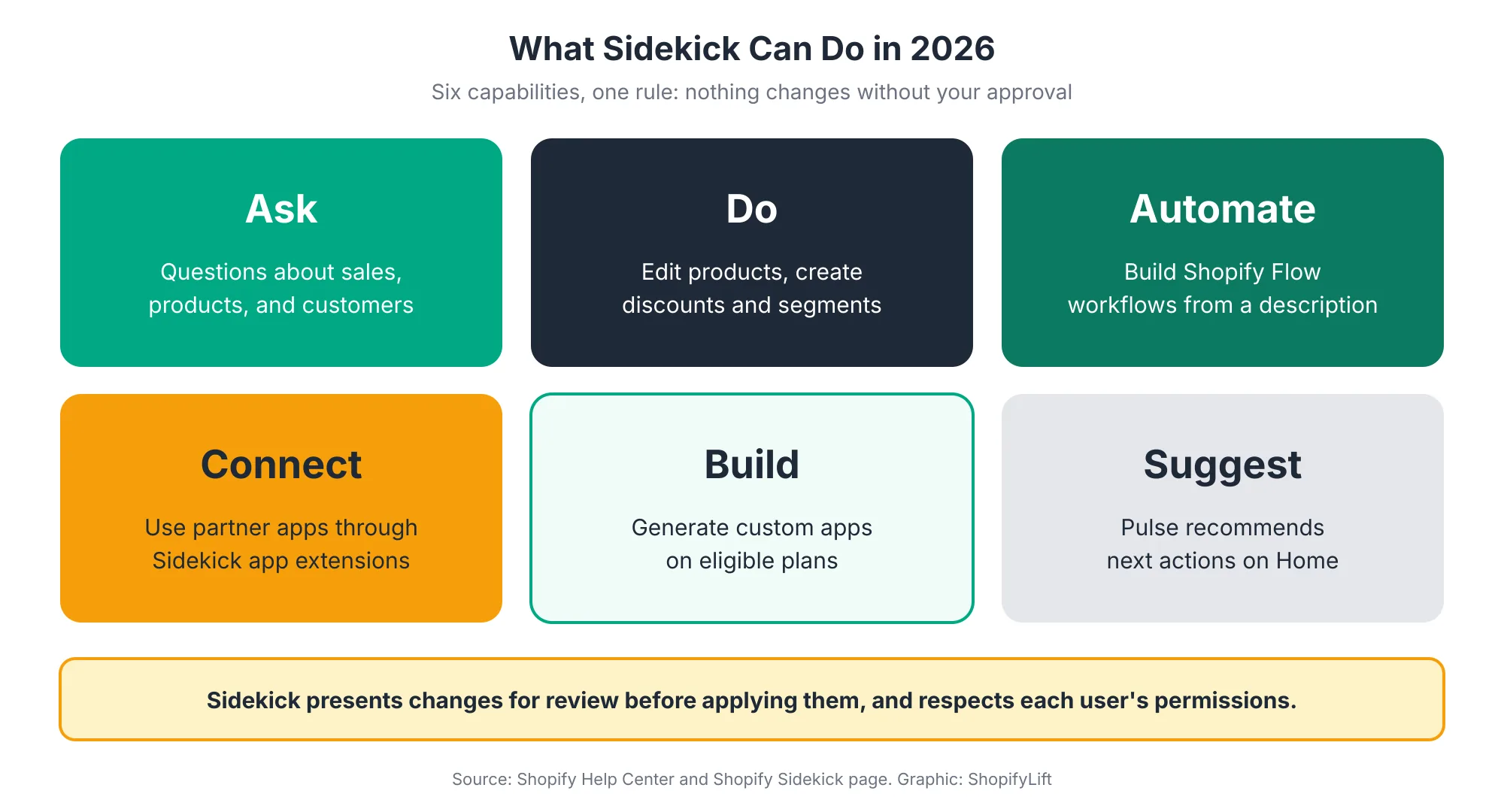
Sidekick has grown quickly over the last two Editions:
- Winter '26 (December 2025): Sidekick gained the ability to create Shopify Flow workflows from a plain-language description Shopify Changelog, alongside Sidekick Pulse Shopify and custom app generation Coalition Technologies.
- Spring '26 (June 2026): Shopify launched Sidekick app extensions with more than 15 partners, including Klaviyo, Loop, Smile, Judge.me, and Yotpo Shopify. Sidekick also became available from any screen in the mobile app, by typing or voice Shop Circle.
A few practical details matter for day-to-day use. Sidekick is included with your Shopify plan, though features and usage limits vary by plan, and it adapts to your store's language settings Shopify. It can also remember information from past conversations and turn repeated prompts into reusable skills Loqara, and you can manage what it remembers from your settings Shopify Help Center.
How Widely Are Merchants Using Sidekick?
Adoption grew sharply in 2026. Shopify reported that weekly active shops using Sidekick were up 4x year over year in Q1 2026, that merchants built more than 12,000 custom apps with it in that quarter, and that nearly half of all new Shopify Flow workflows were generated with Sidekick.
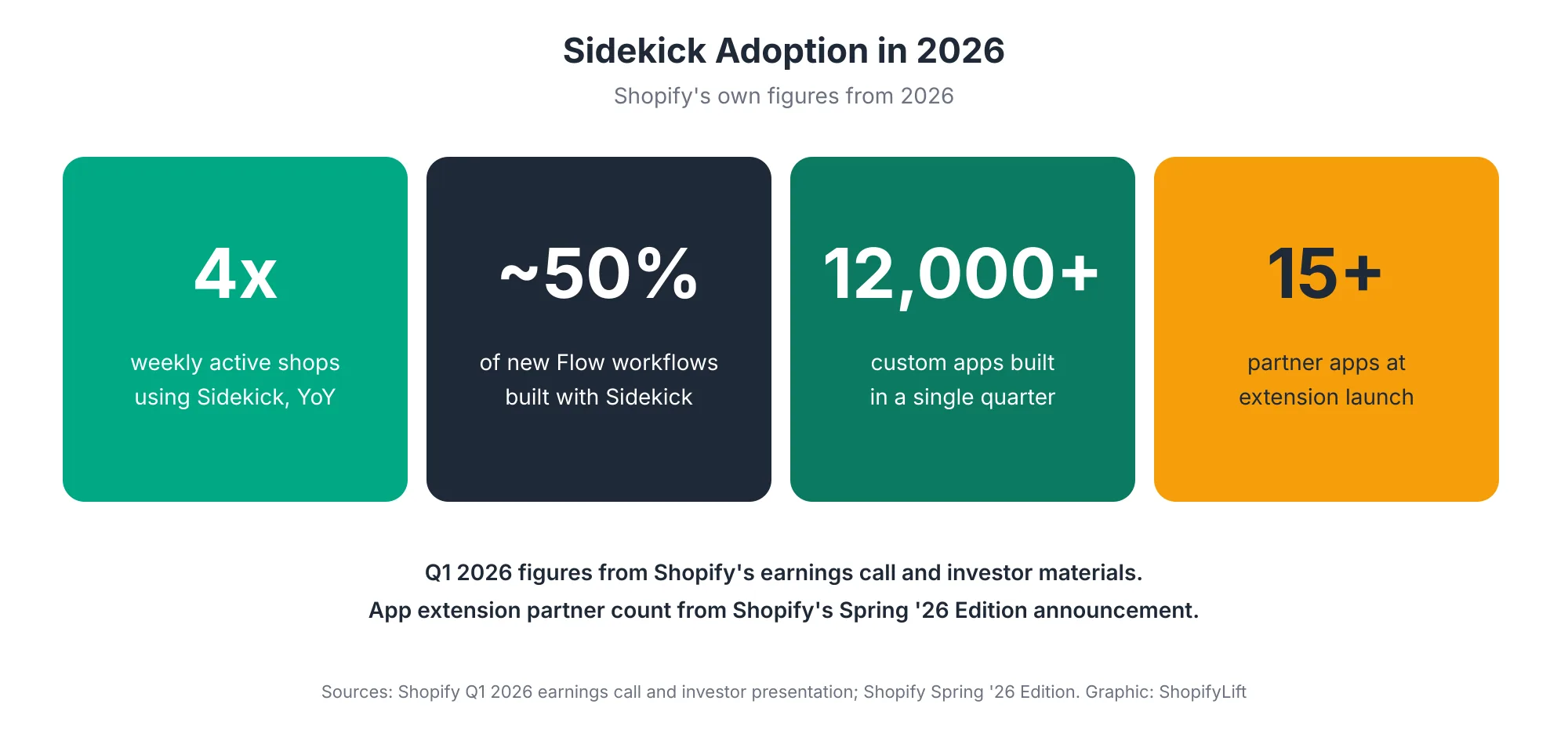
Shopify shared these numbers on its Q1 2026 earnings call. Weekly active shops using Sidekick were up 4x year over year Shopify. Shopify's investor materials added that merchants created more than 12,000 custom apps with Sidekick in Q1 alone, and that nearly half of all Shopify Flow workflows generated in the quarter were built with Sidekick Shopify Investor Relations.
That last figure is the one worth noticing for store management. Automation used to be something merchants put off because building workflows felt technical. When nearly half of new workflows start as a plain-language request, automation stops being a specialist task and becomes part of normal store operations.
It also raises the stakes for review. More automation built faster means more chances for a workflow to do something slightly different from what you intended. That's why the review habits later in this guide matter as much as the prompts.
Which Daily Tasks Can Sidekick Handle Well?
Sidekick handles questions about your store data, first drafts of content, and routine admin tasks well. It's useful with careful review for bulk product edits, discounts, and automations. Keep pricing strategy, final customer messages, security settings, and financial decisions human-led. The more records a change touches, the more carefully you should check it.
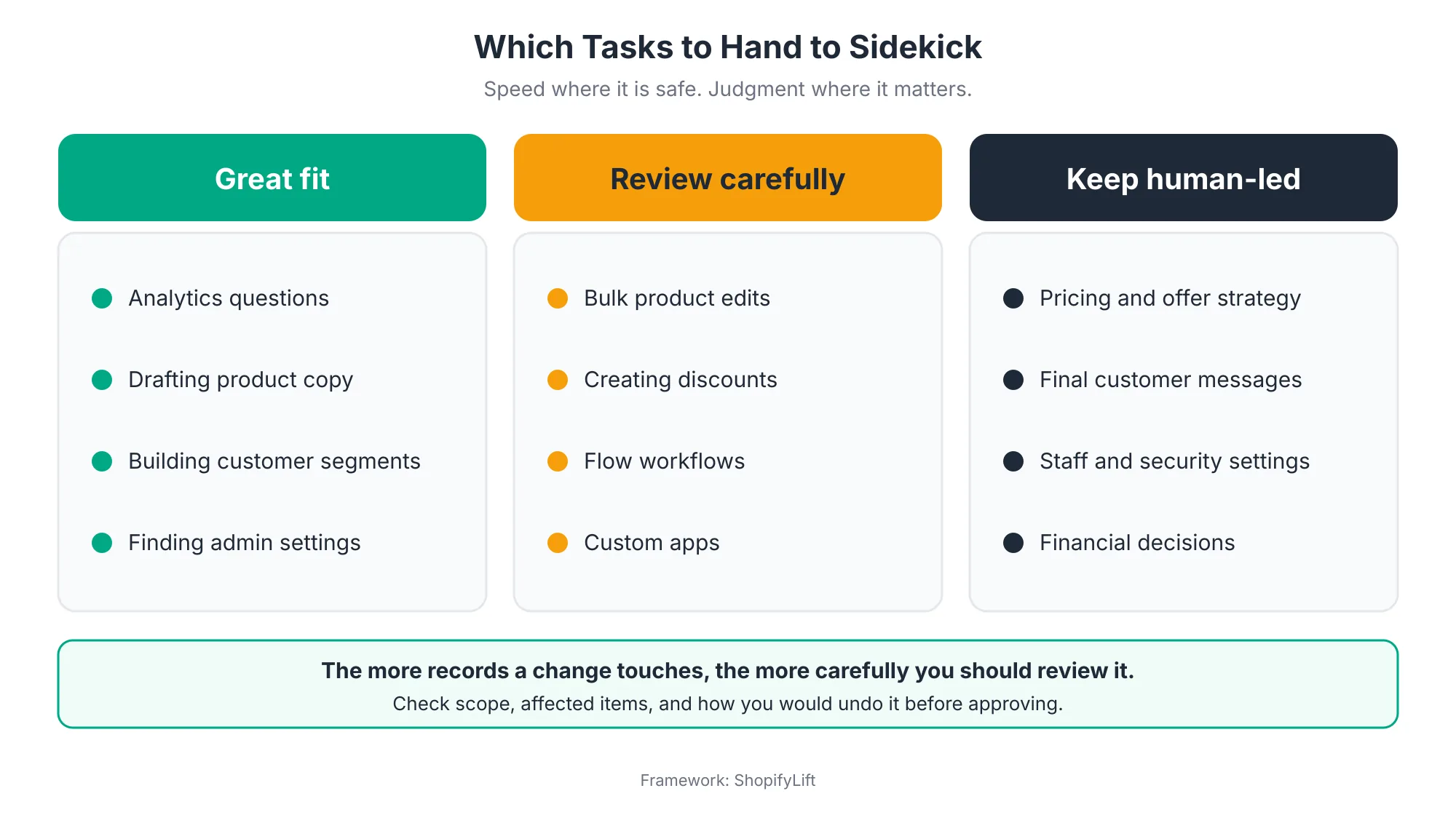
Great Fit: Questions, Drafts, and Navigation
These tasks are fast, low risk, and easy to check:
- Analytics questions. "Which collection's sales slowed down this week?" "What were my top five products by revenue last month?" If you ask while viewing a page like Analytics, Sidekick can use data from that page in its answer Shopify Help Center. One agency's review of Spring '26 found Sidekick genuinely useful for exactly these analytics-style questions and for navigating an admin that has grown very large Webvista Studio.
- Content drafts. Product descriptions, blog post copy, email campaign content, and metaobject entries Shopify Help Center. Treat the output as a first draft and edit it into your brand voice.
- Customer segments. Describe the group you want, such as "Canadian customers who subscribe to marketing emails," and Sidekick builds the segment Shopify Help Center.
- Finding things. Settings, reports, and features buried several menus deep.
Review Carefully: Changes That Touch Many Records
These tasks save real time, but mistakes can spread:
- Bulk product edits. Tagging, updating fields, or organizing products across a collection.
- Discounts. Sidekick can create amount-off discounts, codes, and automatic discounts Shopify Help Center. Check eligibility rules, dates, and combinations before approving, especially close to a sale. Our peak season guide covers discount testing.
- Flow workflows. Automations run without anyone watching, so errors can repeat on every order. We cover these in detail below.
- Custom apps. Useful for small, specific tools, but they add something new to your store that needs maintaining. Custom app generation also depends on your plan and comes with usage quotas PageFly.
Keep Human-Led: Judgment and Risk
Sidekick can inform these decisions, but a person should make them:
- Pricing and offer strategy. Sidekick can show you margin and sales data. Deciding what to discount and by how much depends on things it can't see, like your supplier terms and brand positioning.
- Final customer communications. Drafts are fine. Anything sent to customers should be read by a person first.
- Staff, security, and payment settings. Changes to who can access your store, or to payouts and payment settings, should always be deliberate. See our store security guide.
- Financial decisions. Refunds above a threshold, write-offs, and supplier commitments.
How Does Sidekick Keep You in Control?
Sidekick is never allowed to make changes to your store without your approval. It prepares changes and presents them for review. It also respects each user's admin permissions, asks before using an installed partner app, and stages app actions for confirmation. Your job is to use that review step properly rather than approving on autopilot.
Shopify's Help Center is explicit that Sidekick can't change your shop without approval and only presents options for you to review and approve Shopify Help Center. Several other safeguards build on that:
- Permissions carry through. Every staff member can use Sidekick based on their admin permissions, and it respects access controls, so team members only interact with data and features they're authorized to use Shopify.
- App access is per conversation. Before Sidekick uses an installed app through an extension, Shopify asks for approval, and the app is activated for that conversation only Tolstoy.
- App actions are staged. Action extensions route you to the right place inside a partner app and stage changes for confirmation Shopify.
- Some surfaces are read-only. On Apple Watch, Sidekick can answer questions but can't make changes to your store or navigate the admin Shopify Help Center.
The approval step only protects you if you actually review what's in front of you. The most common mistake we see isn't Sidekick doing something wrong. It's someone approving a change without checking which records it would touch.
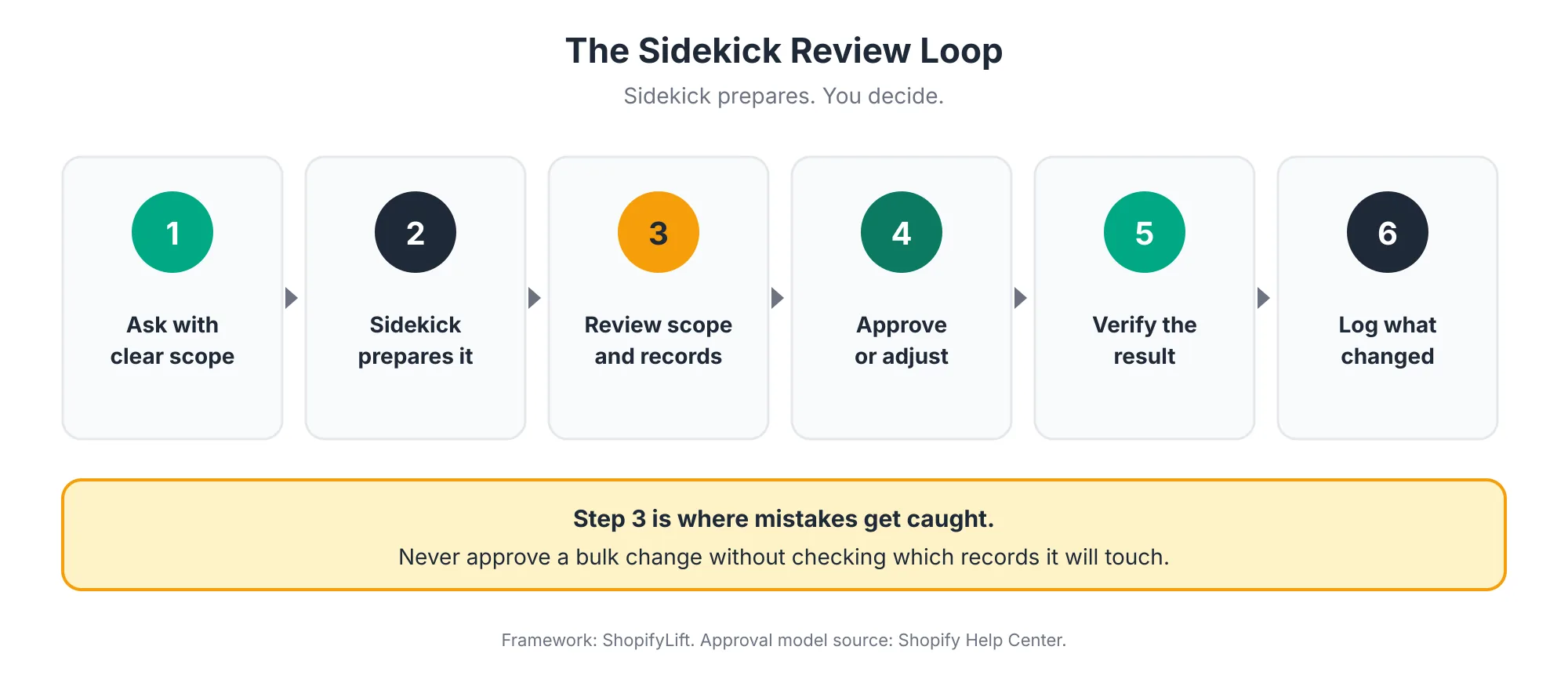
Before approving anything that changes several records, check three things. What exactly will change? How many records are affected? How would you undo it if it's wrong? One 2026 guide makes the same point: confirm the exact scope, affected records, permissions, and rollback path before accepting bulk or consequential changes Loqara.
For large changes, having a recent backup makes the undo question much easier to answer. We cover backups in Shopify Store Security.
How Do You Build Automations With Sidekick and Shopify Flow?
To build an automation, open Shopify Flow, open Sidekick, and describe the workflow you want in plain language. Sidekick creates the trigger, conditions, and actions and opens the workflow in the editor. Review the logic, test it, then switch it on manually. Start with simple tagging and alert workflows before automating anything that changes orders or inventory.
How It Works
Shopify Flow is a free app available on the Basic, Grow, Advanced, and Plus plans Shopify Help Center. Since December 2025, Sidekick can create Flow workflows for you. You open Flow, click the Sidekick icon, and describe what you want to automate. Sidekick generates a workflow with the appropriate trigger, conditions, and actions, and it opens in the editor where you can test it, make changes, and activate it Shopify Changelog.
A few requirements and limits are worth knowing up front. Flow must be installed and open, building workflows with Sidekick works on desktop only, and the workflow has to be switched on manually Shopify Changelog. Shopify also notes that Sidekick might omit business-specific logic in complex workflows, which you'll need to refine before using them Shopify Help Center.
What It's Good At
Shopify says Sidekick-built workflows work well for customer and order tagging, email and Slack notifications, inventory alerts, and scheduled automations, while workflows with advanced Liquid or custom code may need manual editing Shopify Changelog. That's a useful guide to where to start.
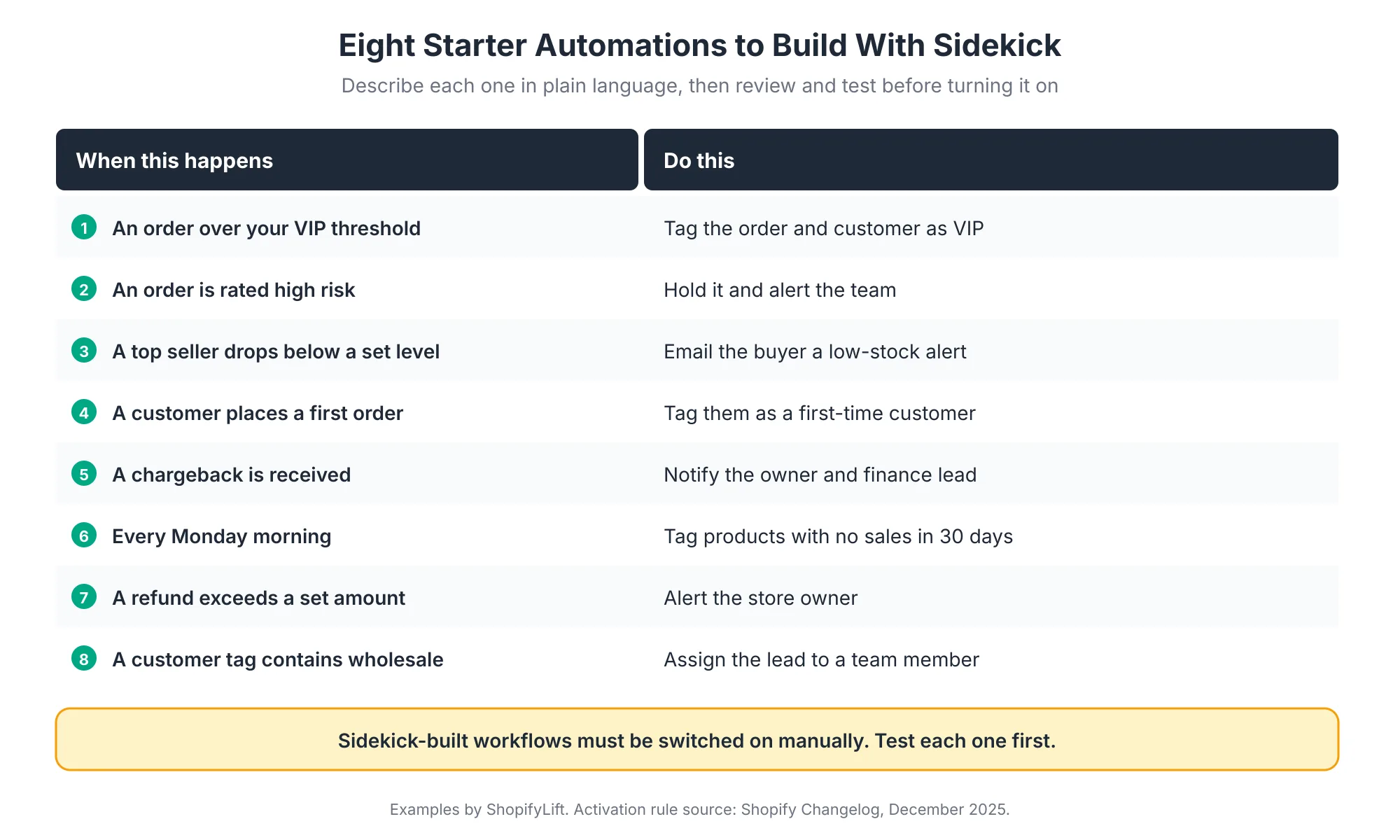
Notice that most of these starter workflows tag something or send an alert. That's deliberate. Tagging and alerts are easy to check and easy to reverse. Once they've run reliably for a few weeks, you can consider workflows that take stronger actions, such as holding orders or changing inventory.
The fraud-related workflows fit well with Shopify's fraud tools. We cover high-risk order handling in Shopify Store Security, and low-stock alerts in Shopify Inventory and Order Management.
Test Before You Switch On
For every new workflow:
- Read the trigger, conditions, and actions Sidekick created. Do they match what you meant?
- Check thresholds and values. "Over $200" and "$200 or more" are different rules.
- Test it using Flow's preview or on a small set of test data before activating it.
- Switch it on, then check its run history after the first few triggers.
- Give it an owner and add it to your maintenance log.
Avoid switching on new automations during a peak season code freeze. A workflow that misfires on Black Friday affects every order it touches.
Want help setting up safe automations?
Our free Shopify Store Health Audit reviews your existing Flow workflows and app setup, and recommends automations that fit your store. Request your free audit
What Can Sidekick App Extensions Do for Your Workflow?
Sidekick app extensions connect Sidekick to the partner apps you already use. Data extensions let Sidekick answer questions using an app's data, and action extensions take you to the right place inside the app and stage a change for your confirmation. Together, they let you check reviews, email performance, returns, and loyalty data from one conversation.
Before extensions, answering a simple cross-app question meant opening several admins. How did last week's email campaign perform? Which products have the worst recent reviews? How many returns came in yesterday? Each lived in a different tool.
Extensions change that. Shopify describes two types. Data extensions surface partner-app data inside a Sidekick conversation, while action extensions route merchants to the right spot inside an app and stage changes for confirmation Shopify. Each app developer defines which data and actions are available, and when several installed apps could answer a question, Sidekick picks the most relevant one Tolstoy.
Practical uses depend on your app stack, but common ones include:
- Email and SMS: Asking which campaigns or flows drove the most revenue this month.
- Reviews: Finding products with falling ratings, so you can check for quality or description problems.
- Returns and subscriptions: Spotting products with unusual return rates or subscription cancellations.
- Loyalty: Checking how many customers are close to a reward threshold before a campaign.
A few cautions apply. Treat app actions exactly like any other Sidekick change: review what's staged before confirming. And don't assume an app is connected just because it's installed. Check which of your key apps support extensions before building routines around them. Our Shopify App Audit guide is a good moment to review this, since an app that works with Sidekick may earn its place more easily than one that doesn't.
How Do You Write Sidekick Prompts That Get Reliable Results?
Reliable prompts have five parts: the task, the scope of records it applies to, the rules or conditions, the output you want back, and the limits on what not to change. Vague prompts produce vague or overly broad results. Specific prompts produce changes that are easier to review and much less likely to surprise you.
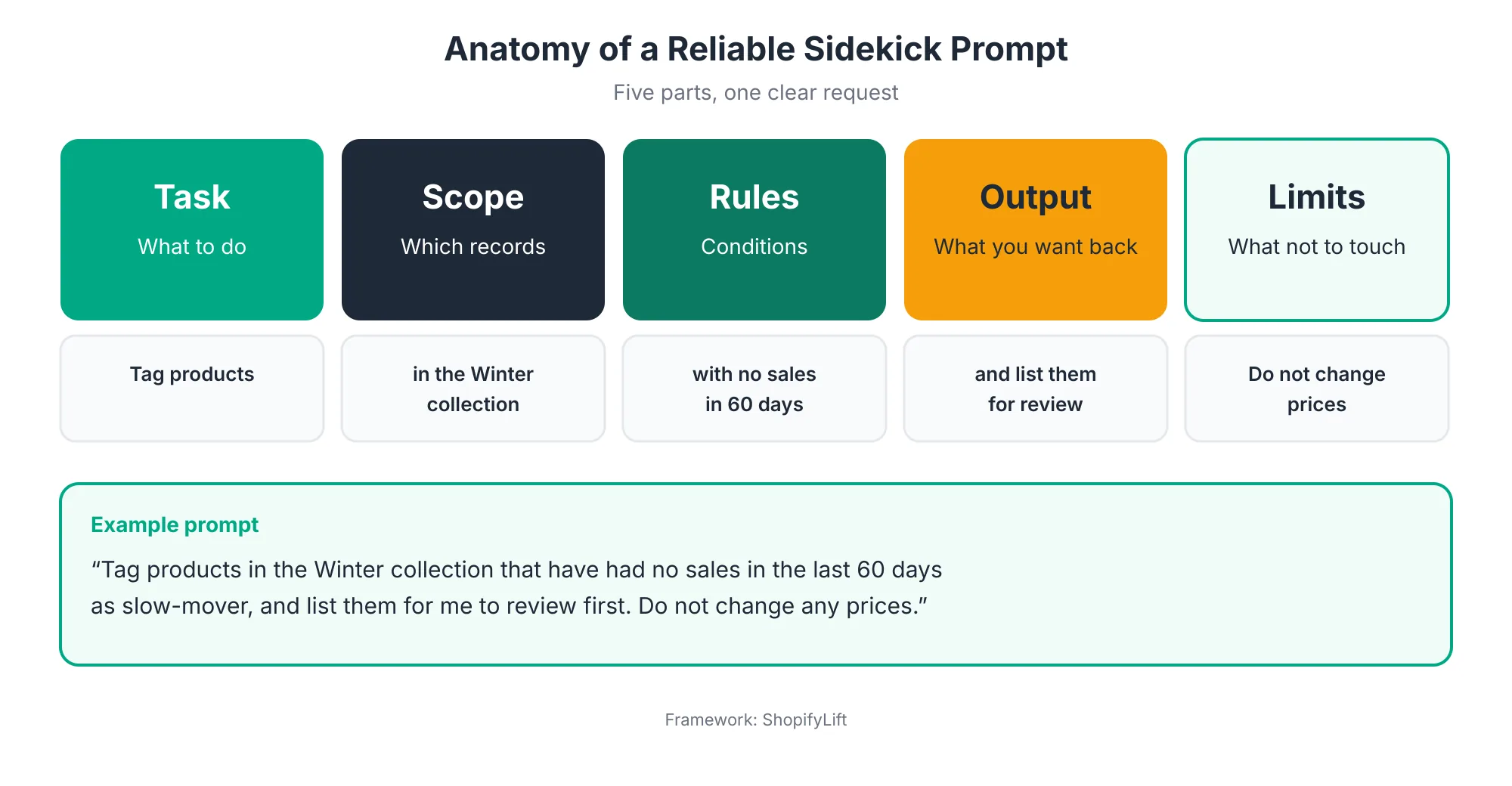
Compare two prompts:
- Vague: "Clean up my slow products."
- Specific: "Tag products in the Winter collection that have had no sales in the last 60 days as slow-mover, and list them for me to review first. Do not change any prices."
The first leaves Sidekick to guess what "clean up" and "slow" mean, and it might propose changes you didn't want. The second defines exactly which products, what counts as slow, what action to take, and what to leave alone.
A few more habits help:
- Ask for a list before a change. "Show me which products would be affected" is a safe first step before any bulk edit.
- Use your store's language. Refer to collections, tags, and product types by the names you actually use.
- Break big jobs into steps. Three small, reviewed changes are safer than one large one.
- Save prompts that work. Repeated prompts can become reusable skills, which keeps results consistent across your team.
Sidekick is also only as good as your store data. If product types, tags, and collections are inconsistent, its answers and edits will be too. Cleaning up your catalog pays off here as well as in merchandising. See Shopify Merchandising Strategy.
What Does a Practical Daily Sidekick Routine Look Like?
A practical routine uses Sidekick for a short morning check, quick questions throughout the day, and a weekly review. Start each day with Sidekick Pulse and a few standard questions, use it to draft and prepare routine tasks as they come up, and review your automations and any Sidekick-made changes once a week.
Here's a simple rhythm that works for most small teams:
- Each morning (10 minutes): Check Sidekick Pulse on your admin Home for suggested actions. Ask a standard set of questions, such as yesterday's sales compared with the same day last week, any unfulfilled orders older than two days, and top sellers running low.
- During the day: Use Sidekick to find settings, draft product descriptions, build segments for campaigns, and prepare routine edits for review.
- Each week (30 minutes): Review which changes were approved through Sidekick, check your Flow workflows' run history for errors, and update your saved prompts.
- Each month: Ask Sidekick for a summary of sales trends and slow movers, and feed the results into your merchandising and inventory reviews.
If you use partner apps with Sidekick extensions, you can fold those into the same routine. With app extensions, merchants can ask Sidekick questions about reviews, email lists, returns, and loyalty programs, and take action inside those apps Shop Circle. Checking review scores or email performance from one conversation saves switching between several admins.
This routine fits alongside the broader cadence in our Shopify Store Maintenance Checklist.
Where Should You Not Rely on Sidekick?
Don't rely on Sidekick for strategic decisions, final customer communications, security and payment settings, or anything that depends on information outside your store. Be cautious with complex automations, which may miss business-specific logic, and remember that some features are limited by plan or device. Sidekick is a strong assistant, not a replacement for judgment.
Some specific limits to keep in mind:
- It works from your store's data. It can't see your supplier contracts, your cash position, or what a competitor launched this morning. Decisions that depend on those need a person.
- Complex logic needs refining. Shopify itself notes that Sidekick might omit business-specific logic in complex workflows Shopify Help Center.
- Plan and device limits apply. Features and usage limits vary by plan Shopify. Building Flow workflows with Sidekick is desktop only Shopify Changelog, and on phones Sidekick isn't available when certain dialogs are open Shopify Help Center.
- Not every app is connected. An app being in the Shopify App Store doesn't automatically mean it has a Sidekick extension Tolstoy.
- It isn't a strategy. As one Spring '26 review put it, Sidekick is still not a replacement for thinking about your business strategy Webvista Studio.
Custom apps deserve a special note. Building a small app through Sidekick is fast, but it creates something that needs to keep working as Shopify changes. Before generating one, check whether a native feature or an existing app already does the job. Our Shopify App Audit guide covers how to keep your app stack lean, and our Shopify development services can help when a properly built custom app is the better choice.
How Do You Roll Out Sidekick Across a Team?
Roll out Sidekick by tightening staff permissions first, since Sidekick inherits them, then writing short usage guidelines, naming who can approve bulk changes and automations, sharing a library of tested prompts, and reviewing Sidekick-made changes weekly. A little structure up front keeps AI-assisted work consistent and accountable.
A simple rollout plan:
- Fix permissions first. Because Sidekick respects each user's access, a staff member with broad permissions can make broad changes through it. Review roles before encouraging wider use. Our security guide explains least-privilege roles.
- Write one page of guidelines. Which tasks are fine to do alone, which need a second person's review, and which are off-limits.
- Name approvers. Decide who can approve bulk edits over a certain size, new discounts, and new or changed automations.
- Share tested prompts. Build a small library of prompts that work well for your store, so everyone gets consistent results.
- Review weekly. Look at what changed through Sidekick during the week, and adjust guidelines as you learn.
- Check new features each Edition. Sidekick changes quickly. Review what's new after each Shopify Edition using the process in How to Evaluate and Adopt New Shopify Features.
What Sidekick Mistakes Should You Avoid?
The most common Sidekick mistakes are approving bulk changes without checking their scope, writing vague prompts, switching on automations without testing them, giving broad admin permissions to staff who use Sidekick, and treating drafts as finished work. Each is easy to avoid with the review habits covered above.
A few patterns we see often:
- Approving on autopilot. The review step becomes a click-through habit. Slow down for anything that touches more than a handful of records.
- Vague prompts. "Fix my product descriptions" invites broad changes. Specify which products, what to change, and what to leave alone.
- Automations nobody owns. A workflow built in two minutes can run for years. Give every automation an owner and review its run history regularly.
- Publishing drafts unedited. AI-drafted copy is a starting point. Edit it for accuracy, brand voice, and anything Sidekick couldn't know.
- Ignoring data quality. Messy tags and product types lead to messy answers and edits.
- Automating during a freeze. New workflows and bulk edits belong outside your peak season code freeze.
How Do You Measure Whether Sidekick Is Saving Time?
Measure Sidekick's value by tracking a few recurring tasks before and after you hand them over: how long they take, how often they need correcting, and how many problems your review step catches. Revisit the numbers after a month. The goal is saved time without extra errors, not simply more tasks done by AI.
Pick three to five tasks your team does every week, such as writing product descriptions, building campaign segments, or pulling a weekly sales summary. Note roughly how long each takes today. After a month of using Sidekick for them, compare.
Also track what the review step catches. If reviewers regularly find problems in a particular type of change, tighten the prompt, narrow the scope, or keep that task human-led. If a task consistently comes back right, you can start trusting it with slightly larger batches. Either way, you're making the decision based on your own store's results rather than on general claims.
Frequently Asked Questions
Is Shopify Sidekick free?
Sidekick is included with your Shopify plan at no extra cost. Features and usage limits vary by plan, though. For example, generating custom apps through Sidekick depends on your plan and has usage quotas. Shopify Flow, which Sidekick uses for automations, is free on the Basic, Grow, Advanced, and Plus plans.
Can Sidekick change my store without my permission?
No. Sidekick prepares changes and presents them for your review, and it can't apply them without your approval. It also respects each user's admin permissions, asks before using a partner app, and stages app actions for confirmation. Review the scope carefully before approving any change that touches many records.
Can Sidekick build Shopify Flow automations?
Yes. Open Flow, open Sidekick, and describe the workflow you want. Sidekick creates the trigger, conditions, and actions for you to review. It works best for tagging, notifications, inventory alerts, and scheduled tasks. Building workflows with Sidekick is desktop only, and you must switch each workflow on manually.
Which apps work with Sidekick?
Shopify launched Sidekick app extensions in June 2026 with more than 15 partners, including Klaviyo, Loop, Smile, Judge.me, Matrixify, and Yotpo. The list is growing, but not every app has an extension. Check whether your key apps support Sidekick before building routines around them.
What tasks should I not give to Sidekick?
Keep pricing strategy, final customer communications, staff and security settings, and financial decisions human-led. Sidekick can provide data to inform these decisions, but they depend on context outside your store. Be cautious with complex automations too, since Sidekick may miss business-specific logic.
Final Thoughts
Sidekick has quickly become one of the most useful tools in the Shopify admin. It answers questions in seconds, drafts the first version of almost anything, and turns automation from a technical project into a plain-language request.
The merchants who get the most from it treat it like a capable new team member. They give it clear instructions, check its work before it goes live, keep it away from decisions that need judgment, and build its good habits into their routine. Do that, and Sidekick gives you back hours every week without adding risk to your store.
For the full picture of keeping your store in shape, head back to our Shopify Store Management guide.
Want AI-assisted operations set up properly for your team?
ShopifyLift's Store Management service includes Sidekick and Flow setup, automation testing, permission reviews, and ongoing workflow monitoring. Explore Shopify Store Management Services
Continue the Store Management Series
- Hub: Shopify Store Management: The Complete Guide
- Previous: Shopify Store Security: Staff Permissions, Data Backups, and Fraud Prevention
- Next: In-House, Freelancer, or Agency Retainer: Choosing the Right Shopify Support Model
- How to Evaluate and Adopt New Shopify Features After Every Editions Release
- The Shopify Store Maintenance Checklist: Weekly, Monthly, and Quarterly Tasks for 2026
Sources
[1] Shopify Help Center, "Sidekick," 2026
[2] Shopify Help Center, "Getting started with Sidekick," 2026
[3] Shopify, "Sidekick: AI-enabled commerce assistant," 2026
[4] Shopify Help Center, "Generating content with Sidekick," 2026
[5] Shopify Help Center, "Creating workflows manually or from a template," 2026
[6] Shopify Changelog, "Create Flow automations with Sidekick," December 2025
[7] Shopify Help Center, "Shopify Flow," 2026
[8] Shopify, "Agentic commerce for every developer: The Spring '26 Edition," June 2026
[9] Tolstoy, "Shopify Sidekick Integrations: Apps and Tolstoy," August 2026
[10] Shopify, Q1 2026 earnings call, May 2026
[11] Shopify Investor Relations, investor presentation, 2026
[12] Loqara, "Shopify AI assistant guide: Sidekick, Magic, and storefront helpers," July 2026
[13] PageFly, "Shopify Sidekick Review: What It Can (and Can't) Do for Your Store (2026)," June 2026
[14] Webvista Studio, "Shopify Editions Spring '26: A Merchant's Practical Recap," June 2026
[15] Shop Circle, "Shopify Spring Edition 2026: 5 Major Updates Explained," 2026
[16] Coalition Technologies, "Shopify Editions Winter '26," December 2025
[17] Shopify, "Renaissance for the modern era: Winter '26 Edition reimagines what's possible," December 2025